Gaming Headsets
Arctis Nova 7 Wireless: Bluetooth Mixing, ChatMix and Mic Setup
Use the original Nova 7's simultaneous audio, understand microphone limits, configure PC ChatMix and pair Bluetooth correctly.

Amelia Collins is an editorial pen name for gaming and streaming audio at Sound Mic Test. This byline covers headset features, microphone communication, platform compatibility and audio choices for play and live content.
Sound Mic Test editorial pen name.
amelia.collins@soundmictest.com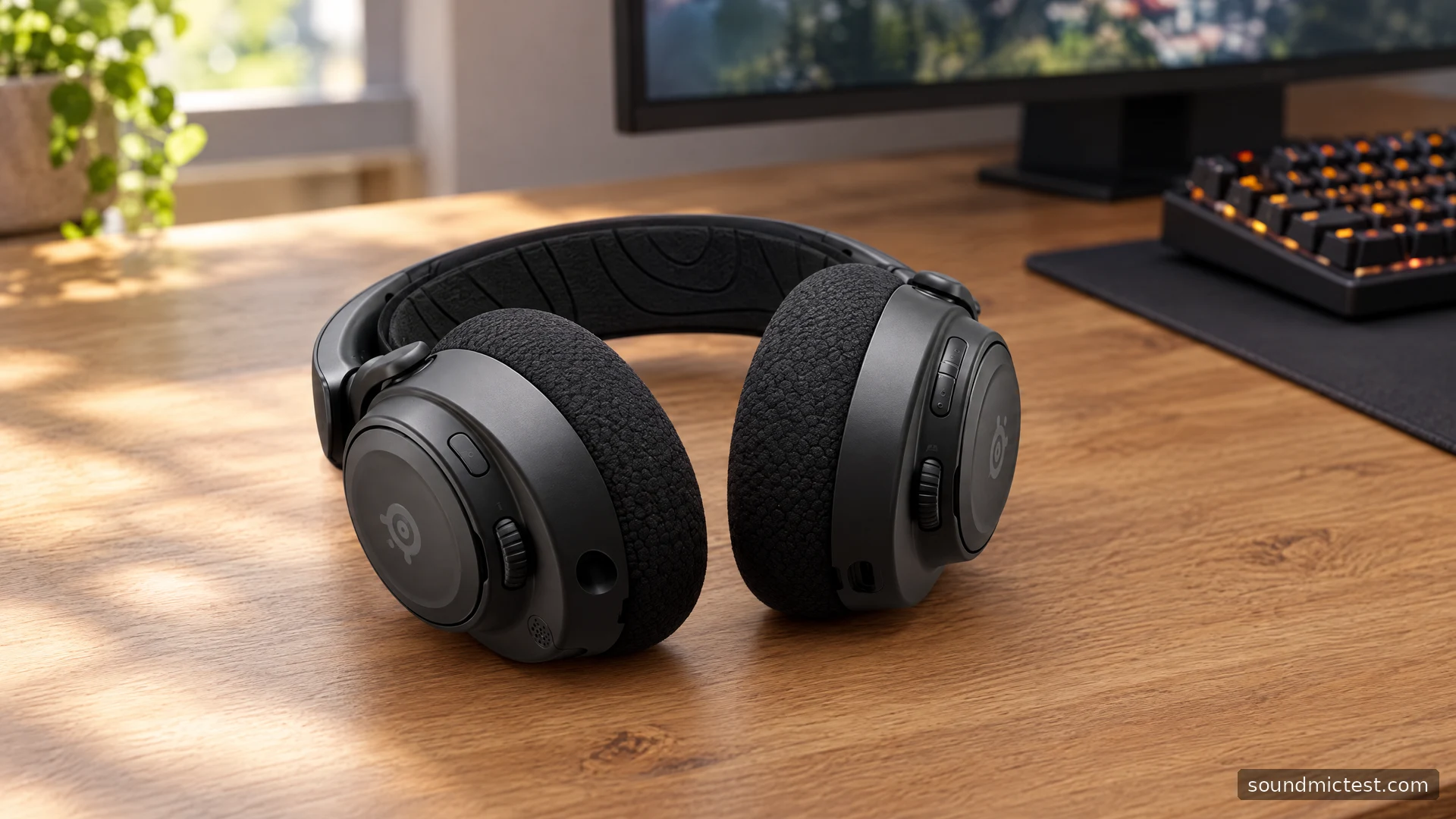
The original SteelSeries Arctis Nova 7 Wireless is especially useful when gaming audio and phone audio need to coexist. Its simultaneous wireless connections are more than a convenience for switching devices: they can let you hear both sources. The important limitation is on the microphone side. Hearing two streams does not mean your voice is transmitted to two conversations at once.
This guide covers the first-generation Nova 7, not Nova 7 Gen 2, Nova 7P or Nova 7X. SteelSeries has reused some download paths for newer documentation, so the instructions here are checked against the original product information guide and model-specific support material.
What simultaneous audio actually means
SteelSeries explicitly confirms that the Nova 7 can mix 2.4GHz and Bluetooth playback. It also explains the microphone limitation: during a Bluetooth call, the microphone serves that call rather than both wireless sources simultaneously.
That makes the headset useful for a game on a supported machine and media or a call on a phone. It also explains why a teammate may stop hearing you when you take a mobile call. The behaviour should be part of your buying decision if you regularly participate in two conversations.
Set the phone's playback level conservatively when first trying the combination. A loud secondary stream can obscure dialogue or game cues. Test the balance with ordinary audio before relying on it in a session where communication matters.
Connect the gaming dongle first
The original Nova 7 guide shows its USB-C dongle and USB-A extension arrangement, separate USB-C charging and an analog audio cable. It lists PC, PlayStation, Switch, Mac and mobile use, with the appropriate connection for each.
Connect the dongle to the intended gaming device, power on the headset and select it for playback and recording where applicable. The headset and supplied dongle arrive paired. Establish that connection before experimenting with Bluetooth or adding software audio routes.
If audio is missing, check the selected device and physical volume wheel first. On a computer, inspect the application's output choice as well as the operating-system default. A program that still targets monitor speakers can remain silent through the headset even when the wireless connection is healthy.
Pair Bluetooth without disturbing the receiver
Bluetooth has its own power button. The original guide specifies a four-second hold from Bluetooth off to enter pairing, and a one-second hold for Bluetooth power. This independent control is useful when you only want one connection active.
After pairing a phone, play a short piece of audio while the gaming source is also active. Then make a routine call and check the microphone behaviour. This verifies the workflow you bought the headset for instead of merely confirming that its name appears in a Bluetooth device list.
When finished, check both wireless states. Turning off the gaming link while leaving Bluetooth running can make a phone remain attached unexpectedly. If an app behaves differently than expected, inspect the connection state before repeating the pairing process or deleting every saved device.
Make ChatMix useful on a PC
The original guide describes ChatMix through SteelSeries GG on PC. At the centre of the dial, both game and chat are at their full relative levels; turning toward one side reduces the other. For the dial to be useful, the relevant audio streams must be routed appropriately.
Think of this as a routing problem before an EQ problem. Your game and chat application need to arrive on the intended separate channels in the supported software configuration. If everything is sent to the same route, a balance control cannot reliably distinguish speech from game sound simply because you want it to.
Start with the dial centred, confirm both sources and change the balance gradually. If one stream disappears, return to the centre before changing application volume. Keep the overall listening level comfortable; ChatMix is a way to balance two sources, not a reason to make both louder.

Extend the microphone and check the correct input
Pull the retractable boom fully out and aim its front surface toward the corner of your mouth. This is the position described by the guide, and a much better starting point than speaking with the microphone tucked inside the earcup.
Use the microphone test to verify capture and then the voice recorder to listen to normal speech. If the browser has selected a laptop microphone, changing the headset's gain will not improve that recording.
For a useful comparison, keep the same sentence and position while changing one filter. Aggressive suppression can remove room noise but may also cut quiet speech. Test the actual chat application after the local recording, because its processing may be different. These checks do not establish a laboratory microphone ranking.
Buying and maintaining the original generation
The first-generation Nova 7 makes sense when simultaneous playback and a retractable boom fit your routine. It is less appropriate if you expect one microphone to serve two calls at once or assume every Nova 7 variant has identical platform controls.
For a used purchase, confirm the correct receiver and cables, check battery condition through normal use and inspect the suspension band and pads. Advertised battery specifications from Gen 2 should not be used to judge an original unit. A missing receiver can turn a seemingly attractive deal into a more complicated replacement-parts search.
Finally, confirm ordinary playback with the stereo test before evaluating presets. The Nova 7's clearest advantage is its connection workflow. Once that is working, EQ and spatial processing can be judged as preferences rather than used to conceal an unresolved routing mistake.