Gaming Headsets
Razer Kraken V3: USB Audio, THX Setup and Microphone Controls
Connect the standard Kraken V3 over USB, configure THX carefully and check microphone orientation, mute and software routing.

Amelia Collins is an editorial pen name for gaming and streaming audio at Sound Mic Test. This byline covers headset features, microphone communication, platform compatibility and audio choices for play and live content.
Sound Mic Test editorial pen name.
amelia.collins@soundmictest.com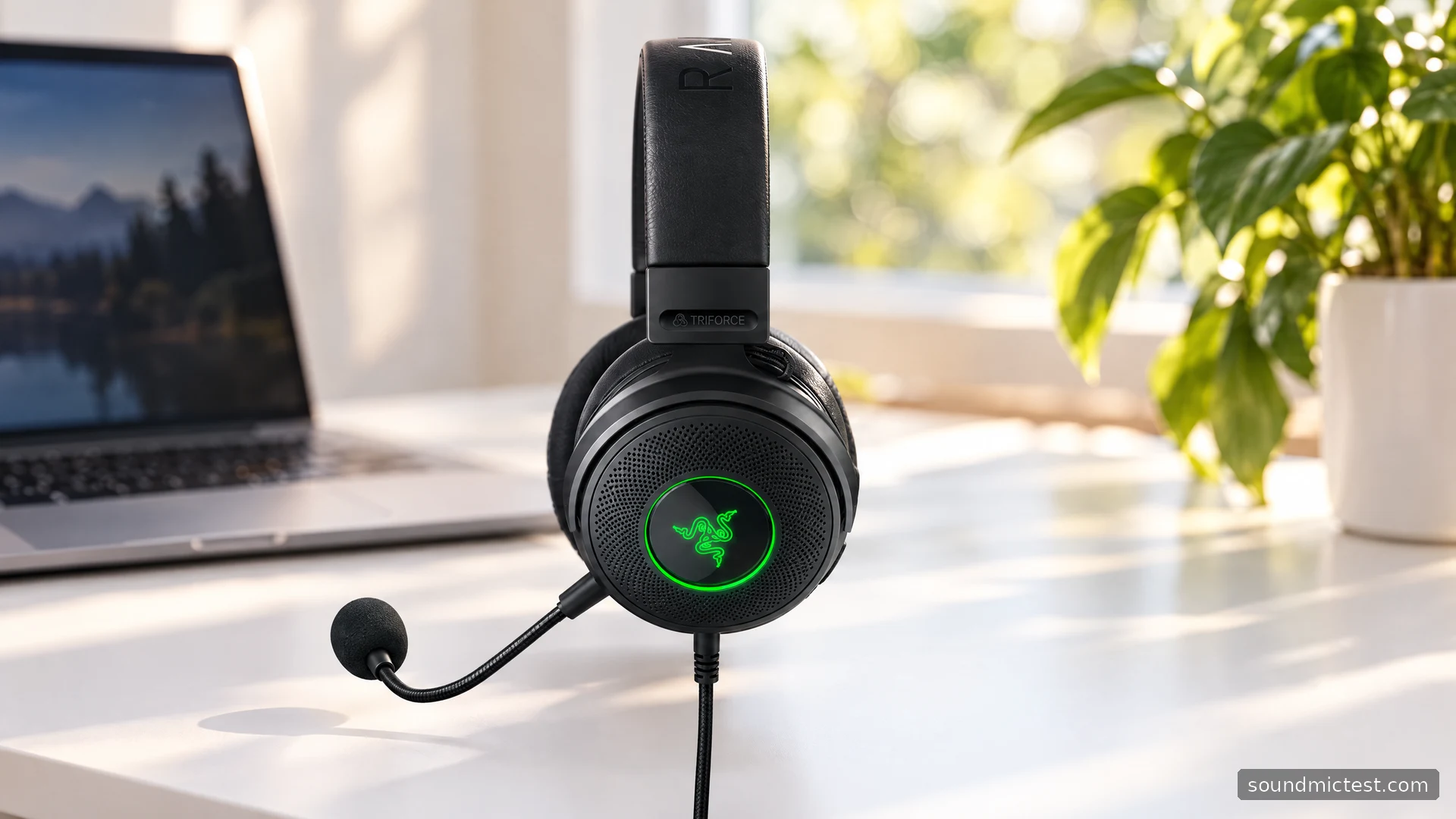
The Razer Kraken V3 is a desk-oriented USB headset for someone who wants gaming audio, a removable microphone and lighting in one wired device. Its biggest practical distinction is the USB-A connection. That simplifies the connection to a supported PC, but it also limits the places you can plug it in compared with a conventional 3.5mm headset.
This article covers the standard Kraken V3. It is not the V3 X, V3 HyperSense or V3 Pro. Those suffixes matter: the standard model should not be credited with the HyperSense variant's haptic feedback or the Pro's wireless operation.
Understand the USB-only design first
Razer's Kraken V3 master guide specifies USB-A audio, a two-metre cable, a detachable HyperClear cardioid microphone and earcup volume and mute controls. It documents PC, PlayStation 4 and PlayStation 5 compatibility, with software surround features tied to supported Windows use.
For a PC, USB means the headset appears as its own audio device rather than using the motherboard's analog headset socket. That can be convenient when front-panel analog wiring is awkward. It does not mean you can plug the USB connector into a controller's headphone jack or assume that an arbitrary adapter makes every platform compatible.
The cable also needs a clear route across the desk. Leave enough slack to turn your head, and avoid running it through a chair's wheels or under a keyboard tray hinge. A generous stated length is useful only when the last section is not constantly pulling on the headset.
Get ordinary playback working before software effects
Connect the headset directly to an appropriate USB port and choose Razer Kraken V3 as both output and input in the operating system. Then select the same intended devices in your game and chat application. This establishes a simple baseline before virtual audio devices or lighting software enter the picture.
- Start with a low listening level and use the earcup wheel to make a comfortable adjustment.
- Play familiar speech or music to confirm normal output.
- Run the stereo test to check left and right.
- Fit the microphone and verify capture separately.
- Only then install and configure the supported Razer software features you want.
If one application is silent while another plays normally, inspect that application's output and volume. Reconnecting the headset may change a device selection, but reinstalling everything is an unnecessarily broad first response to a single muted program.
Add THX processing one step at a time
The official product page describes THX Spatial Audio through Synapse and distinguishes the standard V3 from the haptic HyperSense model. The master guide shows a software routing stage for THX output. Follow the instructions for the current supported version rather than assuming every screenshot in the older guide remains identical.
Before enabling spatial processing, keep a stereo configuration you can return to. Compare a familiar section of a game with one effect enabled at a time. If the game already offers binaural headphone audio, begin with additional surround layers off.
A virtual surround effect can change the sense of space, but a louder or wider presentation is not automatically a clearer one. Listen for dialogue intelligibility and whether nearby cues remain easy to distinguish. This guide does not attach a numerical positioning score to that subjective comparison.
If sound disappears only after enabling THX, examine the selected virtual output and its physical destination. Return to direct Kraken V3 output to confirm that the headset still works. That separates the software route from the cable and hardware.
Orient the detachable microphone correctly
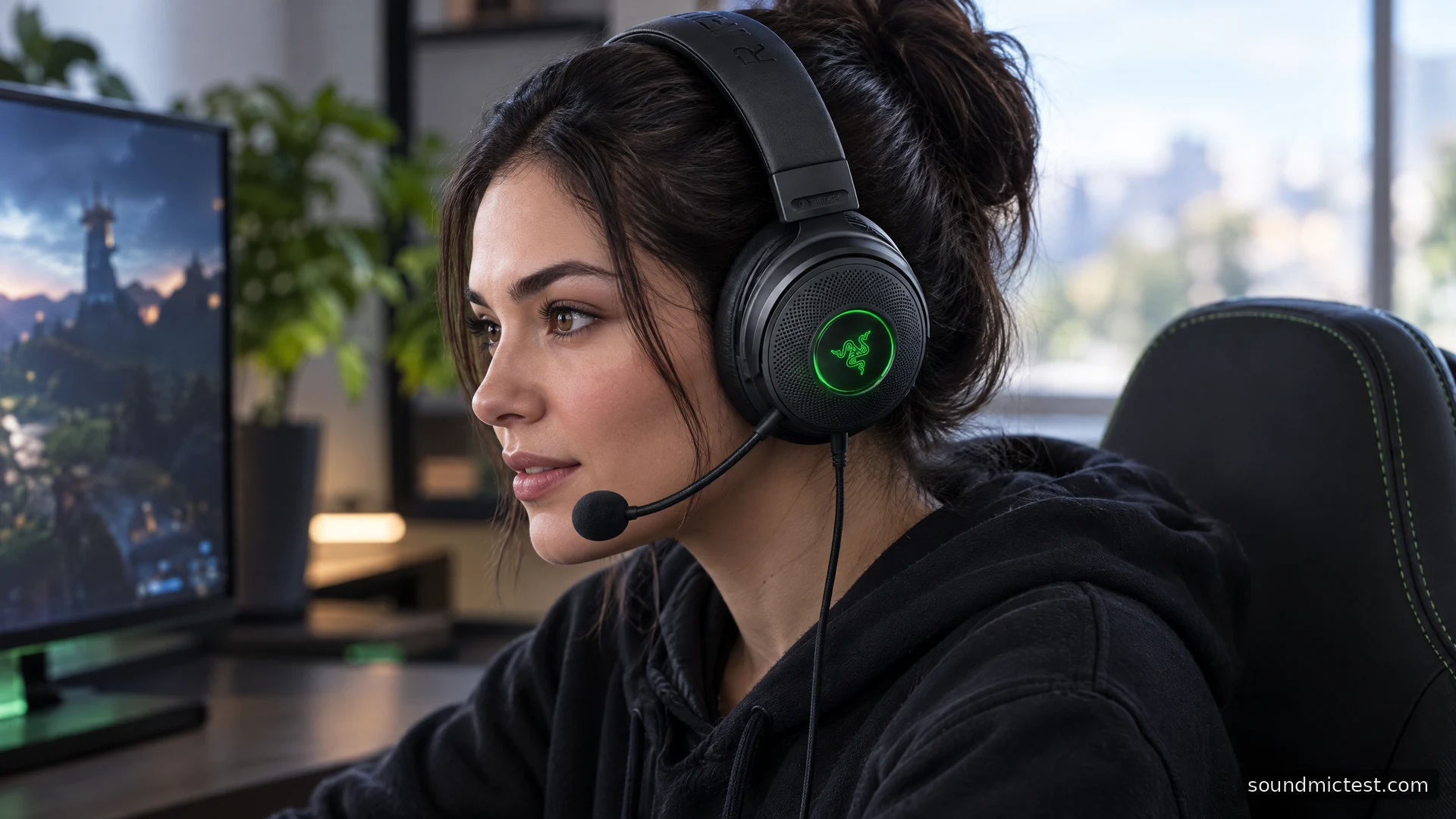
Razer's instructions identify a front diaphragm and a rear air vent. Fit the microphone fully, bend it parallel to your mouth and keep the pickup face toward you. Aim it near the corner of your mouth to reduce direct breath hitting the capsule.
Use the microphone test to confirm the selected browser input, then record a short sample with the voice recorder. Check the physical mute button if the input is silent. Raising playback volume will not repair microphone capture.
Listen to normal speech before enabling multiple filters. If loud syllables distort, reduce capture gain. If words disappear at the start, inspect the application's noise gate or voice activation. If there is mechanical noise when the boom moves, gently check its seating rather than bending the plug against the socket.
The word cardioid describes pickup direction, not immunity to all room sound. A keyboard near the front pickup area can still be audible. Microphone position and sensible software settings remain relevant even with a noise-reduction marketing claim.
Lighting, comfort and the final choice
Chroma lighting is part of the Kraken V3's appeal, especially on a coordinated desk. It is also optional decoration. Choose a steady or restrained effect if changing colours distract you, and do not make successful lighting synchronization the test of whether the audio path is working.
Assess the cushion fit with your glasses and normal seated posture. A closed gaming headset can feel different after a long call than during a quick fitting, so use your own routine to judge it. Specifications and product photos cannot establish a universal comfort result.
The standard Kraken V3 suits a supported USB gaming setup where a removable boom and RGB lighting are welcome. Choose a different connection design if you need controller-level analog use or wireless mobility. The model makes the most sense when you accept its USB focus and configure the audio route carefully, rather than treating every Kraken feature as shared across the whole family.