Gaming Headsets
Razer BlackShark V2 X: Analog Setup, Microphone and Surround Sound
Set up the analog BlackShark V2 X, choose the correct splitter connection and position its microphone before exploring surround software.

Amelia Collins is an editorial pen name for gaming and streaming audio at Sound Mic Test. This byline covers headset features, microphone communication, platform compatibility and audio choices for play and live content.
Sound Mic Test editorial pen name.
amelia.collins@soundmictest.com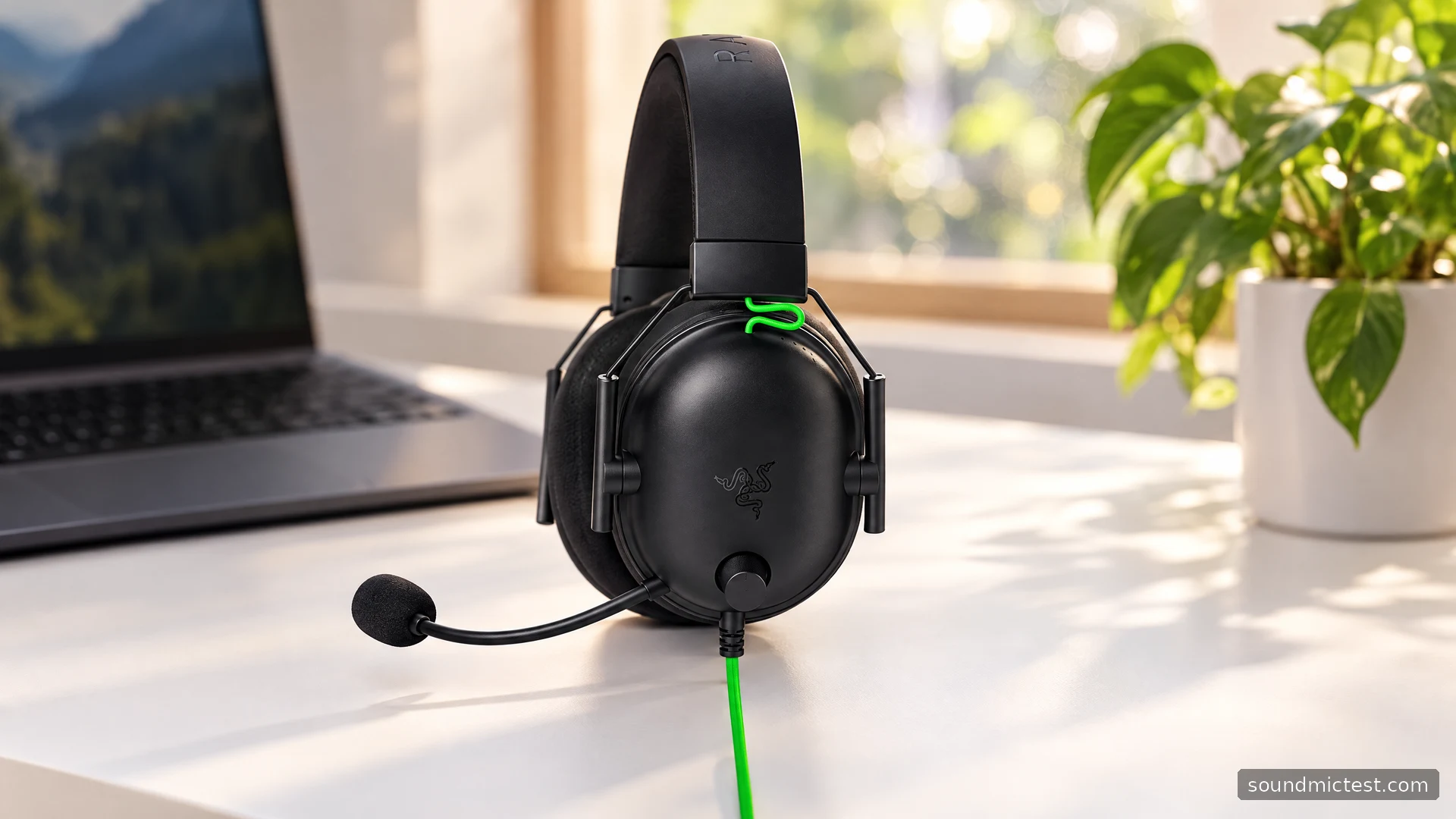
The analog Razer BlackShark V2 X is for a player who wants a straightforward headset rather than another wireless device to charge. A 3.5mm connection, a large volume knob and a fixed boom microphone keep the essentials within reach. Its simplicity is appealing, but it places some responsibility on the device you connect it to: the correct socket and microphone input matter more than a software preset.
There are several BlackShark variants. This guide covers the analog V2 X in Razer's original documentation, not the USB version or the wireless V2 Pro. The assessment uses the manufacturer's specifications and operating instructions, with practical checks you can perform on your own setup.
A light headset with a simple signal path
Razer's BlackShark V2 X guide lists an approximate 240g weight, 50mm drivers, a 1.3m cable and an analog 3.5mm connection. The earcup carries the volume knob and a separate microphone mute button.
For everyday use, the appeal is that audio does not depend on a battery, dongle pairing or a running lighting application. Plug into a compatible source and establish basic playback and capture first. A separate USB audio adapter can be useful with a computer that has a poor or incompatible analog input, but it becomes another part of the system to choose and troubleshoot.
The boom is part of the headset rather than a component you should pull out for travel. That makes the V2 X less adaptable as a discreet pair of portable headphones. Treat the microphone and cable gently when packing it, and avoid wrapping the cable tightly around the earcups.
Does your computer need the splitter?
The headset plug combines headphone playback and microphone capture. A laptop with a compatible combined headset socket can accept it directly. A desktop with separate headphone and microphone sockets needs the corresponding splitter arrangement.
Razer's manual shows the included audio/microphone extension splitting into two plugs for those separate PC ports. Use the headphone and microphone symbols to identify them. Connecting only the headphone side explains a common situation: games sound normal, but voice chat receives nothing.
Before changing software, follow this order:
- Identify the source socket as combined headset, headphone-only or separate headphone and microphone ports.
- Connect directly or use the splitter as appropriate.
- Seat the plugs completely, without forcing them sideways.
- Check the physical mute button and set a modest playback level.
- Select the computer's relevant recording input in your chat application.
An analog headset may appear under the sound chip or adapter's name, not as BlackShark V2 X. The absence of a Razer-named device in Windows is therefore not, by itself, an installation failure.
Position the microphone before adding gain
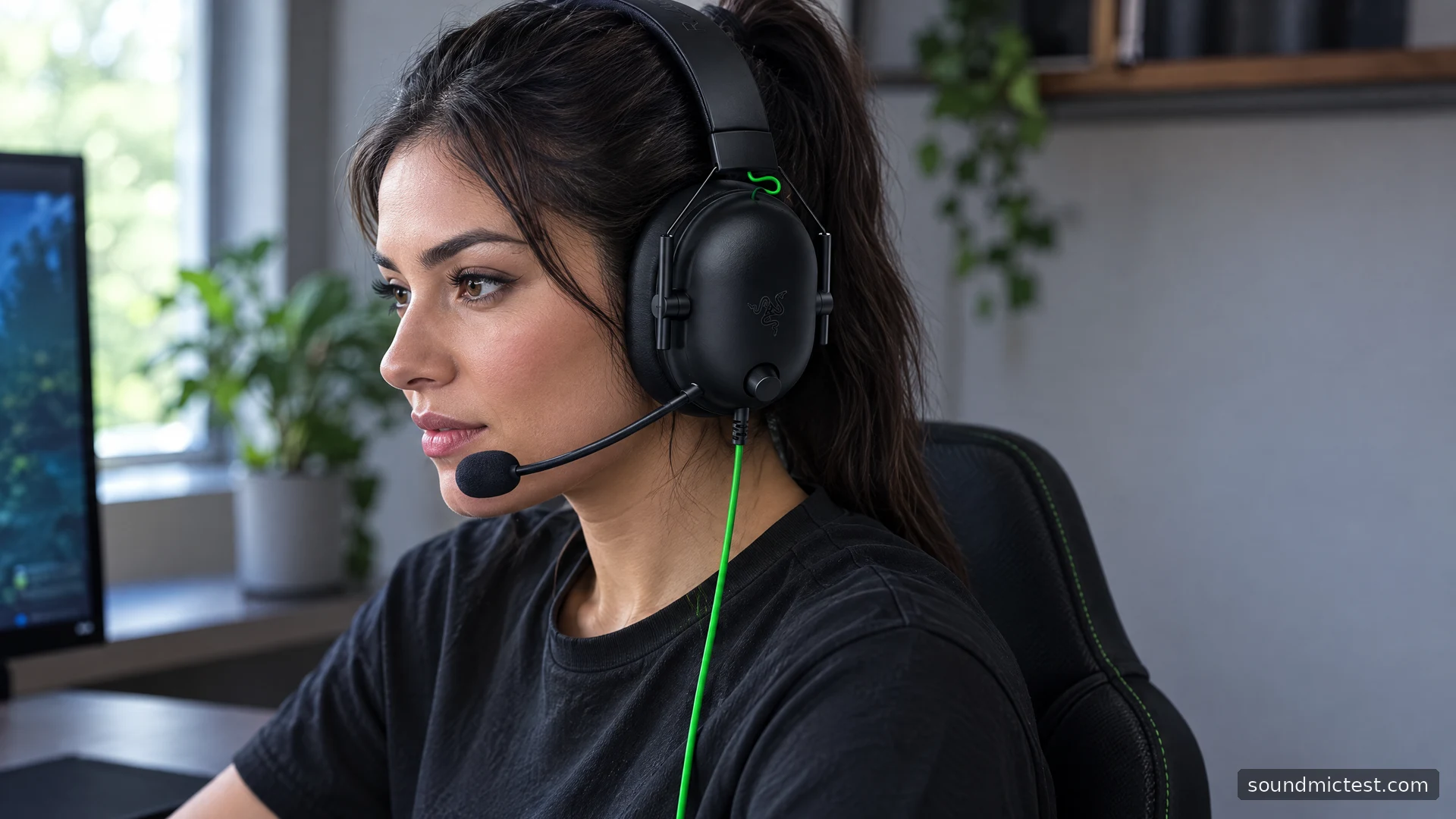
The microphone has a front pickup face and a rear vent. Razer's instructions say to bend the boom so it is parallel to your mouth, with the diaphragm facing you and the vent facing away. Turning the capsule the wrong way can undermine an otherwise correct connection.
Place it beside your mouth instead of directly in front of your breath. Use the microphone test to confirm that the browser receives the intended input. If there is no activity, check permission, input selection, the hardware mute and the splitter before increasing microphone gain.
Then make a sample with the voice recorder. Read a normal sentence, pause and type briefly. Listening to that recording is a practical way to decide whether repositioning or the call application's noise suppression is needed. It does not measure a calibrated signal-to-noise ratio for the headset.
The volume knob changes what you hear. It is not a substitute for the microphone's capture setting. Keeping these two controls separate avoids the frustrating cycle of making game audio louder while teammates still struggle to hear your voice.
What the 7.1 software does
The analog headset produces left and right headphone playback. Razer's 7.1 Surround Sound feature is software processing on a supported computer, rather than an extra set of physical drivers hidden inside each cup. Consult the official software page for current activation and operating-system requirements.
Do not assume that a code for this application activates every other Razer audio package. Check the product registration or supplied activation instructions for the exact entitlement. For a used headset, confirm what software access is included rather than valuing it as though an unused code is guaranteed.
Begin with the stereo channel check. Once left and right work correctly, compare the software effect in a familiar game. Disable other surround layers during that comparison. If a game already provides a headphone mix, that may be the most useful starting point.
Fit, limitations and the buying decision
The relatively low specified weight is a useful fact, but it cannot predict comfort on every head. Adjust both sides evenly, let the cushions surround your ears and check whether glasses create pressure points. Do not stretch the headband aggressively to solve a poor fit.
The V2 X is strongest when you want analog simplicity and accessible physical controls. It is weaker when you need a removable microphone, wireless freedom or a replaceable cable as a purchasing priority. It also cannot repair a noisy microphone input in the computer by itself.
Choose it after checking your source connections and deciding whether its fixed boom fits your routine. A correctly wired, sensibly positioned headset will be more useful than an elaborate surround setup with the wrong microphone selected.