Gaming Headsets
Razer BlackShark V2 Pro 2023: Wireless Setup, EQ and Mic Guide
Understand the 2023 BlackShark V2 Pro, pair Bluetooth, use SmartSwitch and EQ controls, and set up its removable microphone.

Amelia Collins is an editorial pen name for gaming and streaming audio at Sound Mic Test. This byline covers headset features, microphone communication, platform compatibility and audio choices for play and live content.
Sound Mic Test editorial pen name.
amelia.collins@soundmictest.com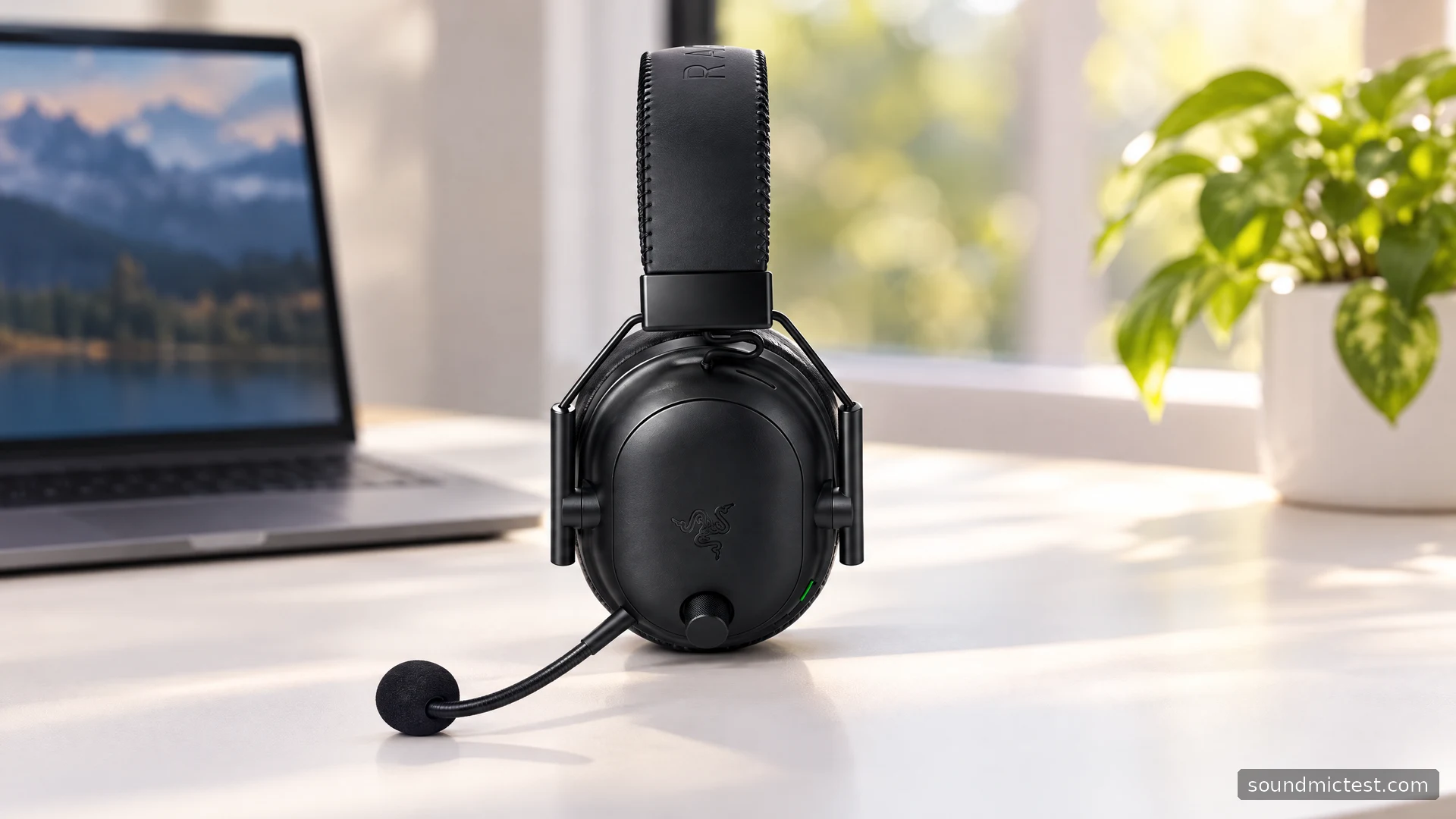
The 2023 Razer BlackShark V2 Pro is most interesting for players who want a gaming receiver at the desk and Bluetooth for a second device. Its removable microphone and physical EQ controls add flexibility, but they also create more states to understand. A connected phone, a connected receiver and the audio source you are currently hearing are not necessarily the same thing.
This guide concerns the 2023 PC-focused model, RZ04-0453. It does not borrow compatibility from later Xbox or PlayStation editions or features from the earlier BlackShark V2 Pro. The evaluation is based on Razer's documentation rather than an invented esports test session.
Why the model year matters
Razer's 2023 announcement identifies Bluetooth, USB-C charging, onboard FPS profiles and the HyperClear Super Wideband microphone among this revision's changes. It advertises up to 70 hours of battery life. Treat that figure as a manufacturer maximum, not a promise for every volume level or an independently measured result here.
The important purchasing question is whether receiver-based gaming plus Bluetooth switching solves your actual workflow. Someone who needs to hear phone media and game audio continuously mixed together should not equate the word dual with an unrestricted two-source mixer.
Also verify the exact platform edition before buying for a console. Product names and silhouettes are similar enough that a retailer's short title may omit a crucial distinction. Check the part number and manufacturer's compatibility listing, not only the BlackShark branding.
Set up the USB wireless connection
The 2023 master guide starts with the supplied wireless USB dongle. Connect it to the computer, power on the headset and select the BlackShark V2 Pro for both sound output and microphone input.
Keep the dongle accessible rather than buried behind a crowded metal chassis. The supplied adapter cable can help with placement. If the headset connects but the game is silent, check the game's device selection and system volume mixer before attempting a new pairing.
Charge through the designated USB-C port using the appropriate cable. The guide describes this as the charging connection; its documented audio paths are 2.4GHz wireless and Bluetooth. Do not buy the headset on the assumption that the charging lead is a wired audio backup.
Pair Bluetooth and understand SmartSwitch
With the headset powered on, the guide specifies holding the SmartSwitch/EQ button for seven seconds to enter Bluetooth pairing. Select Razer BlackShark V2 Pro (BT) on the source device. A double press of the SmartSwitch/EQ button switches between Bluetooth and the wireless dongle.
Razer documents automatic switching for phone calls, with game audio resuming afterwards. That is a useful convenience when a phone rings during a session, but it can also explain an unexpected interruption. Review the available Do Not Disturb setting if you want to control that behaviour.
Test the sequence before relying on it in a match: play game audio, make a routine call from the paired phone and check what resumes when the call ends. This is a workflow check, not a wireless-latency benchmark. App behaviour can affect whether media pauses and resumes as expected.
Separate EQ profiles from audio sources
The same control handles more than switching. The guide describes a three-second SmartSwitch/EQ hold to move between Standard and Esports profile groups, with a short press cycling presets inside the selected group. Listen for the voice prompt so you know which state changed.
An esports preset is a starting point for a particular presentation, not proof of better awareness or a guaranteed competitive advantage. Compare it with the default using the same scene and similar loudness. If a preset makes effects tiring or dialogue harder to follow, there is no reason to keep it because of the label.
Use Razer's supported Synapse software when you need the documented PC customization features. Check current device and operating-system support, since the guide's screenshots may not match the current release. Save a known baseline before changing several bands of EQ or microphone processing.
Set the boom microphone deliberately
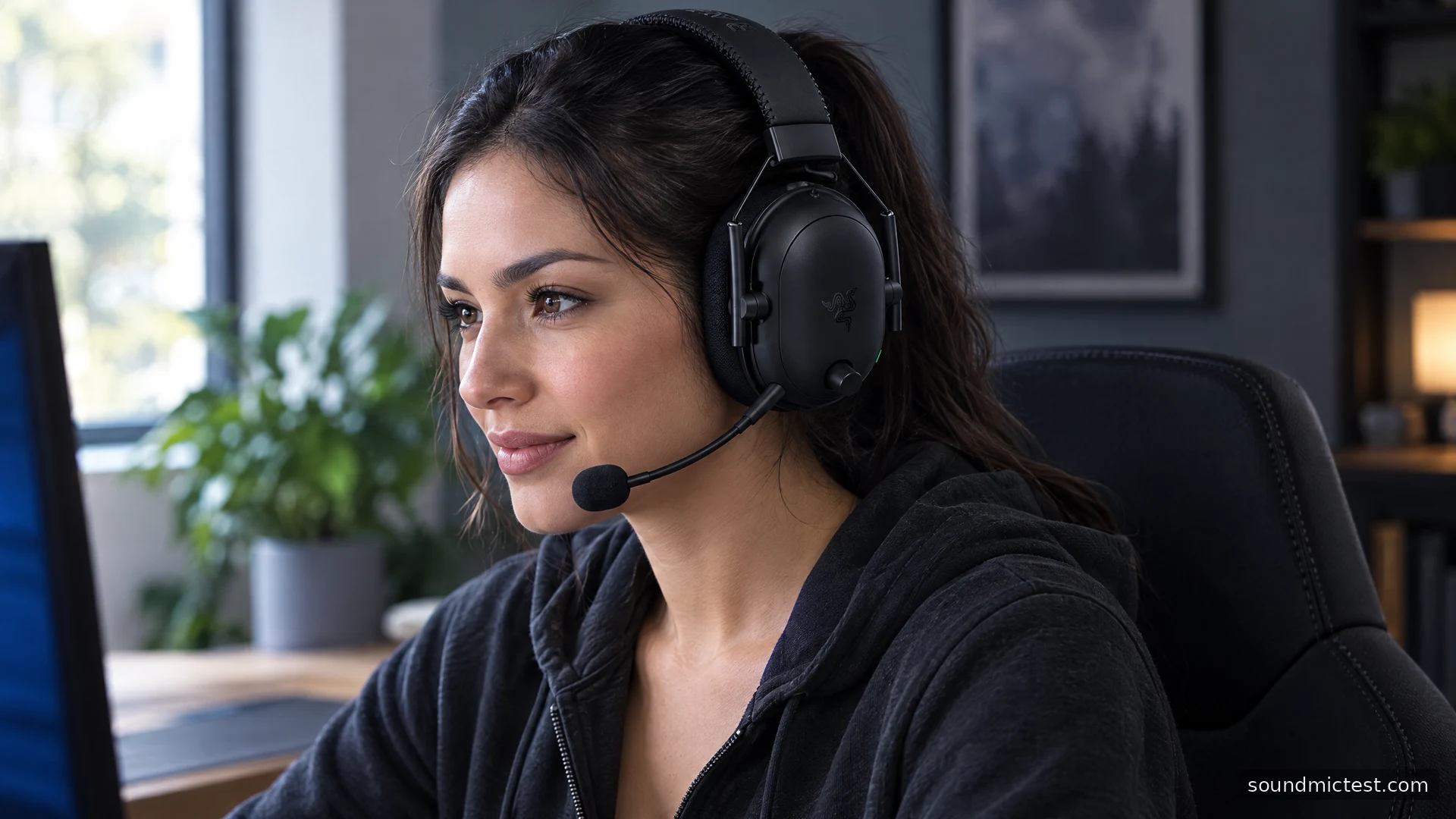
The removable microphone needs to be seated securely, with its pickup face toward your mouth and rear vent away. Razer recommends roughly 1.5 to 3cm between the microphone and mouth. Use that as a starting position, then move slightly to avoid breath striking the capsule directly.
Open the microphone test and confirm that the selected input is the headset. A local voice recording lets you compare normal speech with and without the app's filters. Keep position and speaking level consistent while comparing.
If the browser recording is clean but teammates hear clipped words, investigate the voice application's gate, noise suppression and input choice. If both recordings fail, check hardware mute, boom seating and the receiver connection. This divides a software problem from a physical connection problem without guessing.
Who benefits most?
The 2023 model fits a PC player who values physical controls, a removable boom and convenient switching to a phone. Its complexity is manageable once button presses, profile groups and audio sources are understood. It is less suitable when analog fallback or true simultaneous source mixing is essential.
Before committing, verify the edition, try the fit and decide whether those controls solve a real annoyance in your current setup. The microphone's branding and a pro-tuned preset are features to evaluate, not substitutes for checking how your own voice and games behave.