Gaming Headsets
HyperX Cloud Alpha Wired: Cable Setup, Splitter and Microphone Guide
Connect the wired Cloud Alpha correctly, choose when to use its PC splitter and troubleshoot microphone capture without guesswork.

Amelia Collins is an editorial pen name for gaming and streaming audio at Sound Mic Test. This byline covers headset features, microphone communication, platform compatibility and audio choices for play and live content.
Sound Mic Test editorial pen name.
amelia.collins@soundmictest.com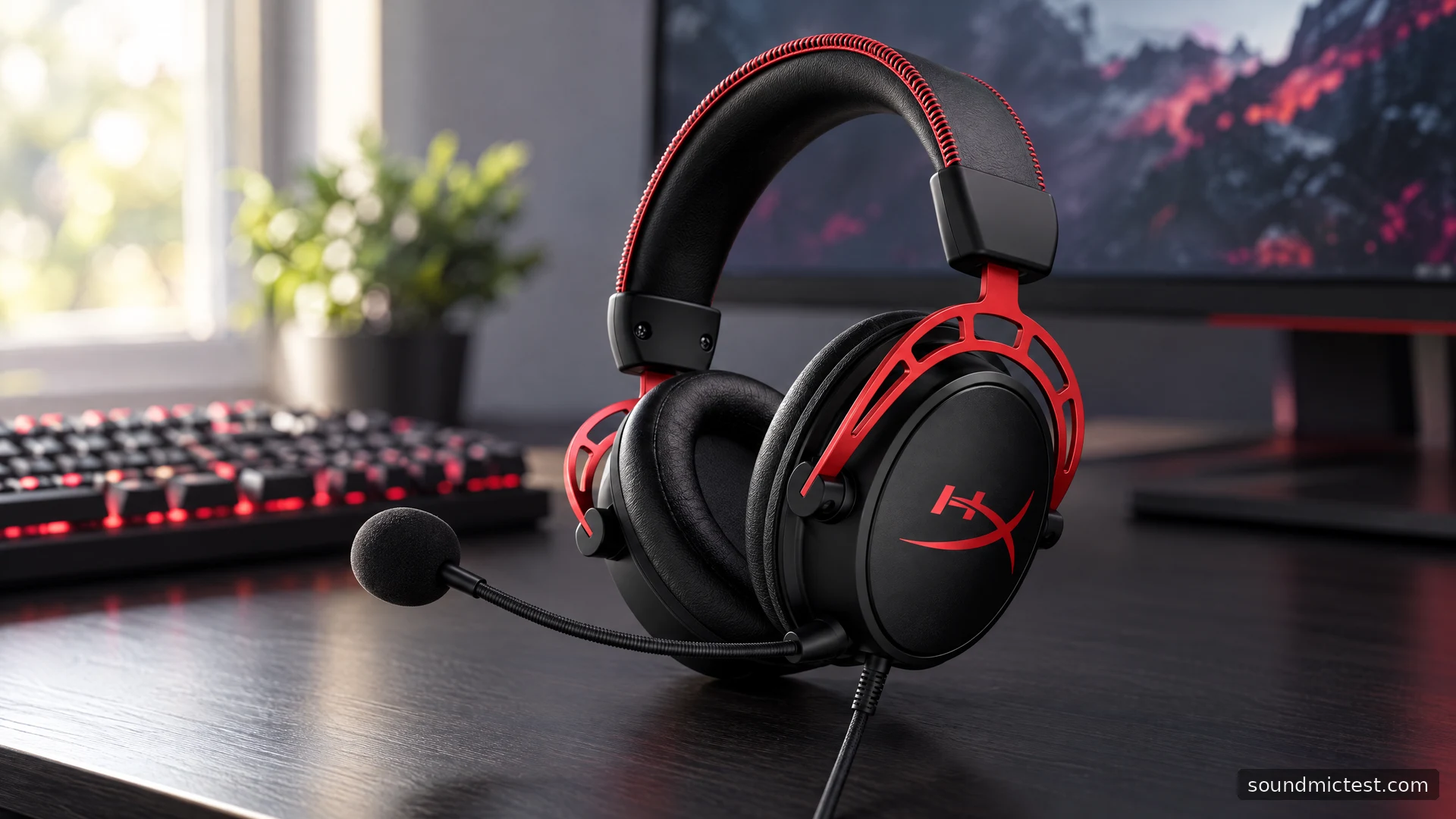
The original wired HyperX Cloud Alpha is a practical choice for a gaming setup built around analog audio. Its detachable cable and microphone are the features that make the strongest everyday argument: the headset can serve a controller, a compatible laptop socket or a desktop with separate audio ports, without charging or wireless pairing. The trade-off is that your source still supplies the conversion and microphone input.
This guide covers the wired Cloud Alpha, not Cloud Alpha S, Alpha Wireless or newer similarly named models. The assessment is based on HyperX's published specifications and instructions, with setup advice for the problems those connections can create.
Dual chambers are a design choice, not a score
HyperX describes separate chambers within the driver assembly as a way to manage bass and reduce distortion. Its specification sheet lists 50mm drivers, a closed over-ear design and a 65-ohm nominal impedance.
Those details explain the architecture, but they do not prove how the headset compares with another model in a game. There is no new frequency-response curve or distortion measurement behind this guide. A buyer should distinguish the manufacturer's design explanation from a listening conclusion.
The more immediately useful distinction is the detachable wiring. If a cable is damaged, a compatible replacement may be more practical than replacing an otherwise functional headset. Compatibility still matters: connector shape, microphone wiring and the fit of the plug at the earcup can prevent an arbitrary cable from working correctly.
Connect the cable to the correct end
The Cloud Alpha user manual gives a specific orientation. The end marked with the headphone symbol goes into the left earcup; grey markings help identify the matching connection. Fit the separate boom microphone into its own port until it sits flush.
That is the first thing to check when audio sounds thin, one channel disappears or the microphone is silent after unpacking. A plug can look connected while remaining slightly short of its fully seated position. Inspect both ends gently rather than pushing sideways against the socket.
The inline control has a headphone volume wheel and a microphone mute slider. In the manual's orientation, sliding the mute control down mutes the microphone and moving it up activates it. Learn the switch position before a call, then verify it with a recording instead of relying on memory while wearing the headset.
Decide whether the PC extension cable is needed
The supplied PC extension splits the headset connection into separate headphone and microphone plugs. Use it when a desktop has two corresponding sockets. Connect the headphone plug to the headphone output and the microphone plug to the microphone input, following the symbols rather than colour alone.
If a laptop already has a combined compatible headset socket, connect the headset directly. Adding the splitter to a single combined port does not improve anything. Conversely, inserting the headset into a headphone-only output can give you normal playback with no microphone at all.
A simple setup sequence keeps those possibilities separate:
- Identify whether the source has a combined headset socket or separate audio ports.
- Choose direct connection or the PC extension accordingly.
- Seat the headset cable and microphone fully.
- Start with moderate system and inline volume settings.
- Select the relevant analog input in the operating system and chat app.
Because this is an analog headset, software may name the computer's audio hardware rather than display Cloud Alpha. Looking only for the product name in a device list can send troubleshooting in the wrong direction.
Test the microphone without masking the problem
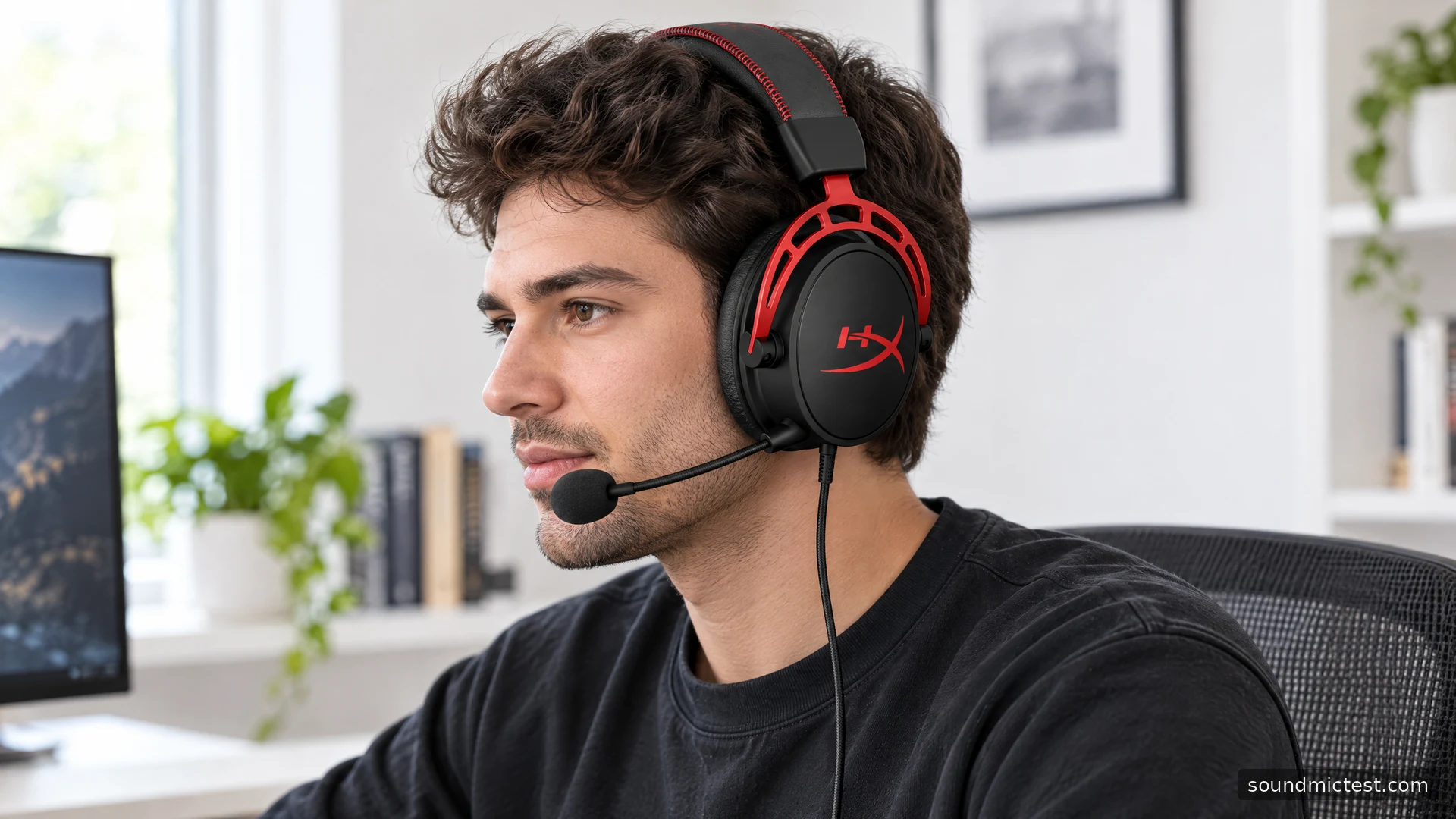
Open the microphone test, allow browser access and choose the input connected to the headset. Move the boom beside the corner of your mouth and speak at a normal level. If there is no signal, check the inline mute and the splitter arrangement before raising gain.
Next, use the voice recorder for a short sample. Include a sentence spoken quietly and a sentence at your normal gaming volume. Listen for clipped peaks, breath noise and interference when the cable moves. A reproducible fault tied to movement is a useful clue for checking plugs and cables.
Do not enable several noise filters at once while diagnosing basic capture. Once clean input is established, adjust the chat application's processing for your room. A headset microphone marketed as noise-cancelling does not make the headphone earcups an active noise-cancellation system, nor does it guarantee that keyboard noise will disappear.
Controller use, sound checks and comfort
The manual describes direct use with compatible controller headset sockets. Older Xbox One controllers without such a socket require the appropriate adapter. Check the physical controller in front of you rather than assuming that every generation has identical connections.
For playback, use the stereo test to confirm left and right, then return to familiar game audio. If a centre voice sounds strangely distant, reseat the analog plugs and temporarily disable surround effects before trying EQ. Browser checks establish routing; they do not measure the headset's frequency response.
Adjust the headband so the cushions surround the ears without resting awkwardly on them. Glasses and worn pads can alter the seal. Keep the cable away from chair wheels, and unplug by the connector body rather than pulling on the wire when moving between devices.
Who is the wired Alpha for?
Choose it when a removable cable, a removable boom and simple analog use fit your equipment. Look elsewhere if you need wireless mobility, a self-contained USB sound device or onboard software controls. The Cloud Alpha's appeal is that it keeps the signal path understandable. Taking a moment to match the correct plug to the correct socket does more for a reliable first session than chasing a surround setting before the microphone works.