Gaming Headsets
HyperX Cloud II Wired: USB Sound Card, Microphone and Setup
Set up the wired Cloud II through USB or 3.5mm, check its detachable microphone and understand when virtual surround is useful.

Amelia Collins is an editorial pen name for gaming and streaming audio at Sound Mic Test. This byline covers headset features, microphone communication, platform compatibility and audio choices for play and live content.
Sound Mic Test editorial pen name.
amelia.collins@soundmictest.com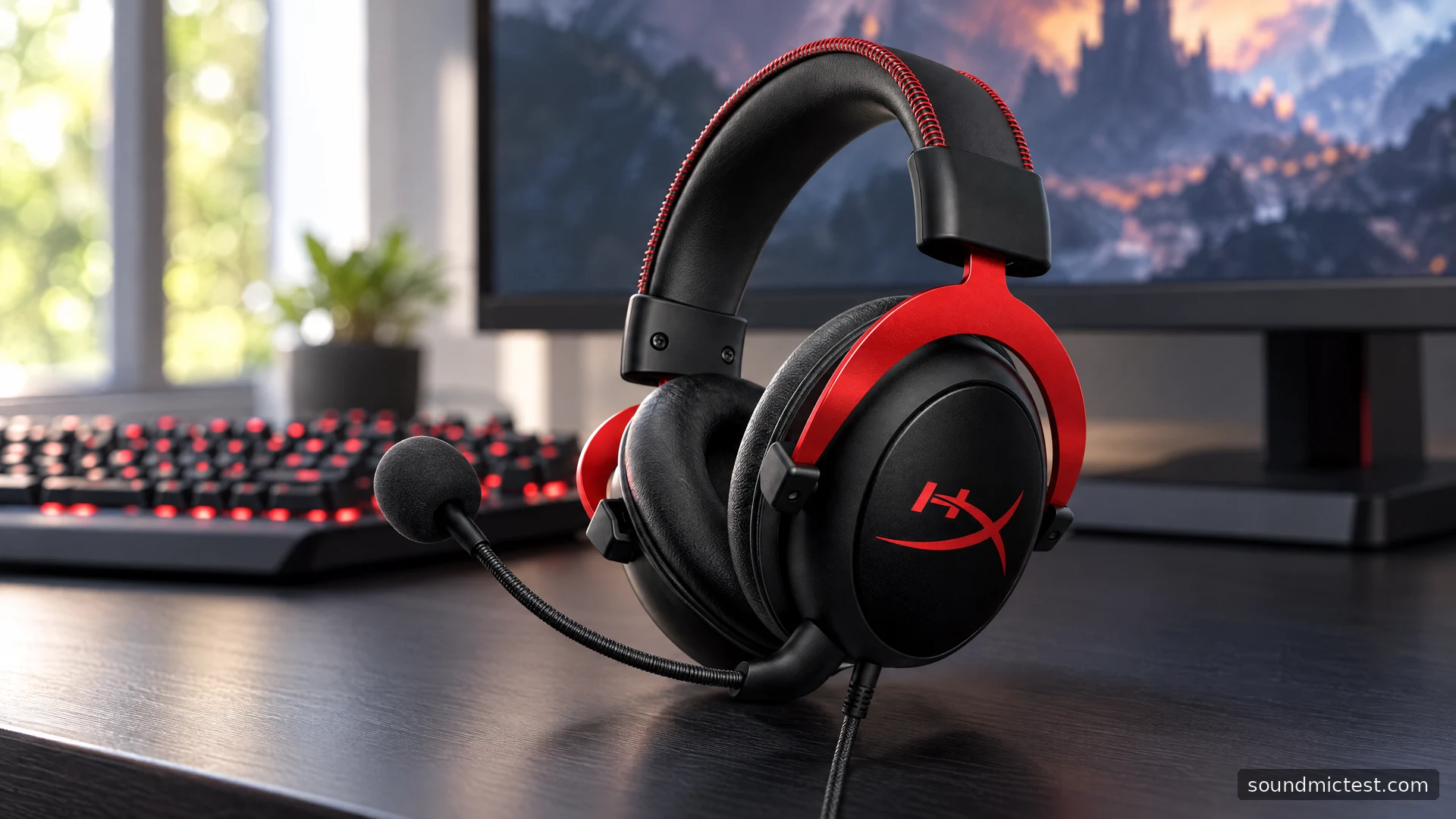
The wired HyperX Cloud II makes most sense for someone who wants a headset that can move between a computer and a controller without another battery to manage. Its USB control box is the useful extra: it gives a PC a separate audio connection and physical controls, while the headset itself can use a compatible 3.5mm socket. That flexibility is more valuable than treating the large 7.1 button as an automatic improvement to every game.
This guide covers the original wired Cloud II described in HyperX's documentation, not the Cloud II Wireless or Cloud III. It evaluates the documented design and explains setup rather than claiming a new listening or microphone benchmark.
What the hardware actually offers
HyperX specifies a closed over-ear design with 53mm drivers, a detachable boom microphone and a permanently attached headset cable. The Cloud II manual shows a USB control box that accepts the headset's 3.5mm plug. This is an audio adapter with controls, not a wireless receiver.
That arrangement separates two decisions. On a desktop, USB lets you bypass a troublesome front-panel analog socket. At a controller, the short headset cable avoids bringing the longer USB section onto the sofa. Neither connection guarantees better sound: the source, settings and microphone input remain part of the result.
The attached cable is also a practical compromise. A removable microphone is convenient for music, but it does not make the audio cable removable. Someone who regularly catches a cable beneath a chair should consider how they will route it before buying, and compare models with a replaceable cable rather than assuming every Cloud headset has one.
Connect the Cloud II to a PC correctly
Start with the USB control box if you want its controls and virtual surround option.
- Insert the headset's 3.5mm plug fully into the control box.
- Connect the USB end to the computer and seat the detachable microphone securely.
- Open the operating system's sound settings and choose the HyperX USB device for both output and input. The original manual calls it HyperX 7.1 Audio.
- Check the game or chat application's device selections separately.
- Begin at a low volume, then adjust the headset and microphone controls while listening and recording.
An application can keep using a webcam microphone after the system output has switched to the headset. Hearing the game therefore does not prove that teammates hear the Cloud II microphone. Close that gap before changing EQ or installing unrelated drivers.
For direct analog use, your computer needs a compatible headset connection. A headphone-only socket carries playback but cannot magically acquire a microphone input. If the PC has separate headphone and microphone ports, use the appropriate headset splitter or use the supplied USB route instead.
Treat virtual surround as an option
The USB box's 7.1 function is virtual processing delivered through two headphone drivers. It is not seven physical speakers around your head. Its value depends on the game, the source mix and your preference.
Establish an ordinary stereo baseline first. Use the left and right channel check to confirm orientation, then try a familiar game scene. Compare stereo and the USB surround setting at similar perceived loudness. A louder presentation can seem more impressive without being easier to interpret.
If a game already has a headphone-specific binaural mode, start with additional system and headset surround effects disabled. Add one layer at a time. Stacking processing makes it difficult to identify which setting has blurred a cue or changed dialogue. A browser channel check can expose a routing mistake; it cannot establish a competitive positioning score for this headset.
Get the detachable microphone working
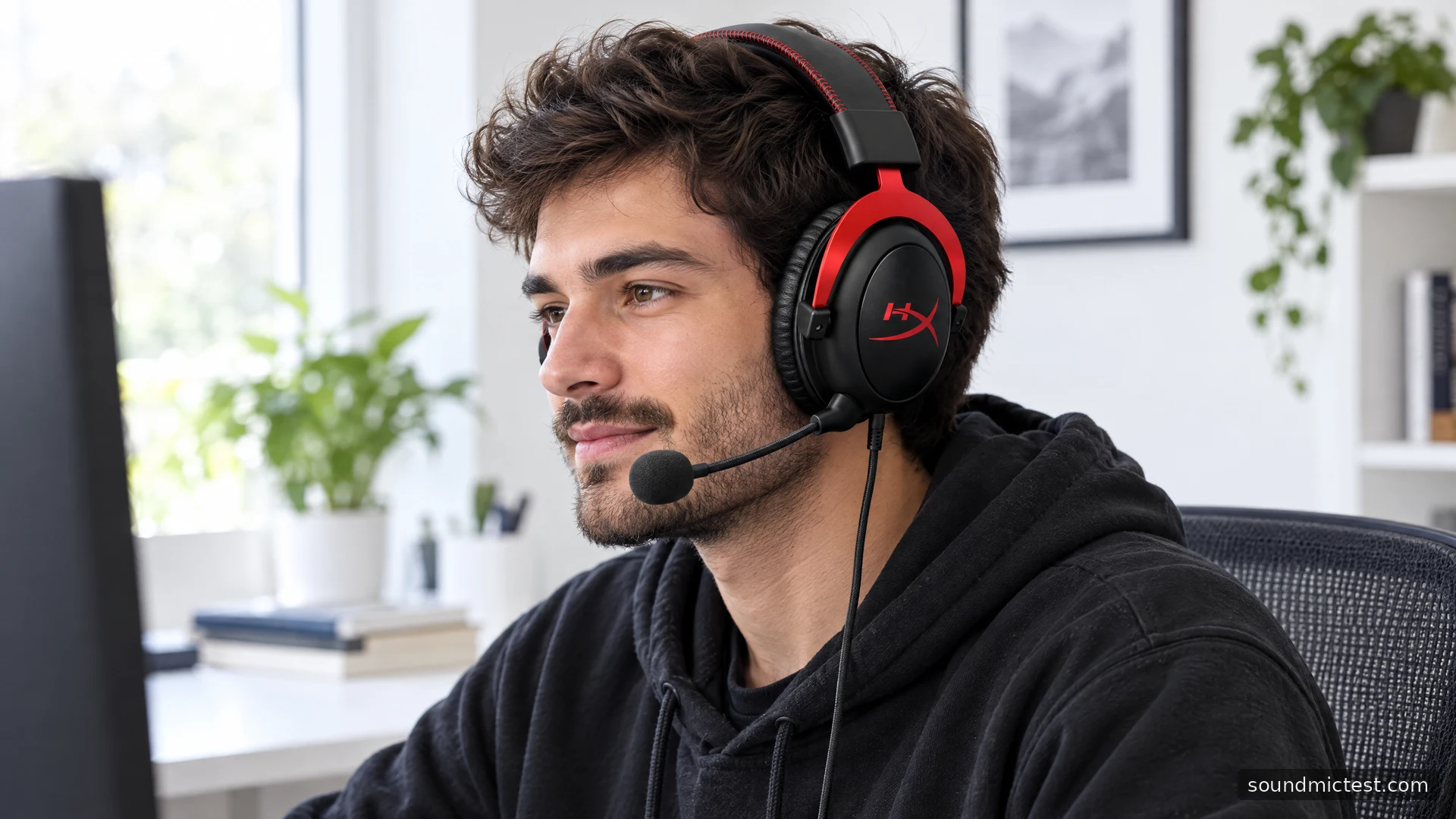
Place the boom near the corner of your mouth rather than directly in the path of your breath. Check that hardware mute is off, then open the microphone test and select the intended input. Give the browser permission when prompted.
Record a short sentence at your normal speaking level, including a few words beginning with P and B. Listen for breath bursts, clipping and keyboard noise. Move the microphone slightly before increasing input gain: a poor position often makes people compensate with excessive gain, which also raises unwanted room sound.
If the recording works but a call does not, inspect the call application's mute, input selection and voice-activation threshold. If neither works, reseat the microphone and headset plug, try another USB port and check the operating system's microphone permissions. This sequence tests the connection before blaming the capsule.
Controller use and daily care
The original manual describes direct connection to a PlayStation 4 controller and selecting All Audio for headphone output. Its Xbox instructions reflect older controllers that needed a separate adapter. Check the socket on your actual controller rather than buying an adapter solely because an older illustration shows one.
Direct controller use also removes the USB box from the signal path, so its 7.1 button and controls are not available. Use the console's own audio and chat settings. Keep enough slack that turning your head does not pull the controller or stress the plug.
After use, place the headset where the cable cannot be rolled over. Wipe the cushions gently and allow them to dry before storage. Replacement pads can change the seal and perceived balance, so assess fit again after replacing them rather than expecting an identical listening experience.
Who should choose it?
The Cloud II's case is straightforward: useful wired connection choices, a removable microphone and a physical USB control box. It suits a desk-and-controller routine where predictable connections matter more than wireless movement. It is less suitable if cable replacement, phone Bluetooth or freedom to walk around the room are priorities. Choose it for that workflow, and regard surround processing as a setting to evaluate rather than the reason the headset must be better.