Gaming Headsets
Razer Barracuda X 2022: Bluetooth, USB Dongle and Wired Setup
Set up the 2022 Barracuda X through its dongle, Bluetooth or 3.5mm cable, and understand SmartSwitch and microphone behaviour.

Amelia Collins is an editorial pen name for gaming and streaming audio at Sound Mic Test. This byline covers headset features, microphone communication, platform compatibility and audio choices for play and live content.
Sound Mic Test editorial pen name.
amelia.collins@soundmictest.com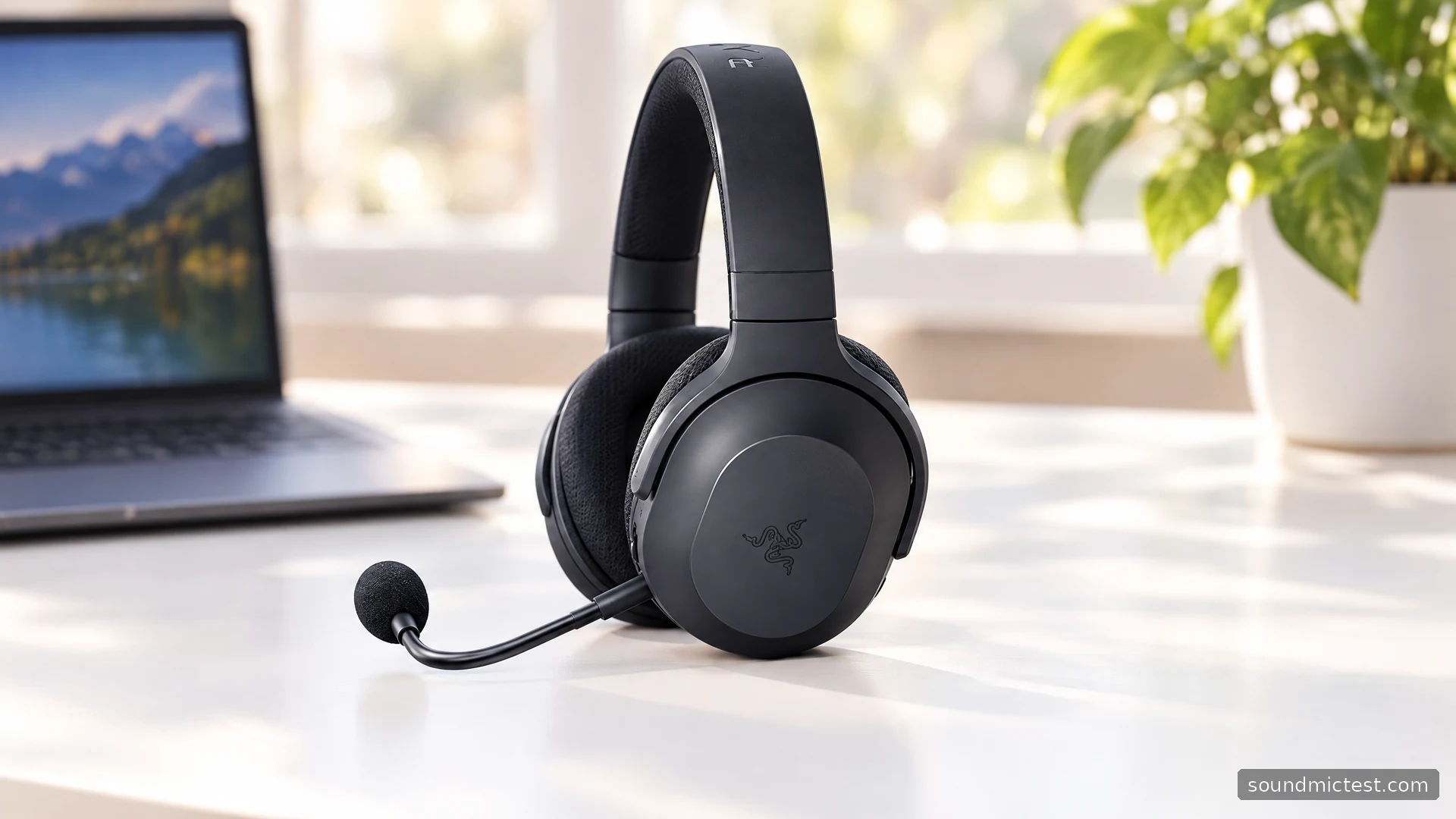
The 2022 Razer Barracuda X is built around moving between devices. A USB-C wireless dongle handles supported gaming systems, Bluetooth serves compatible mobile devices, and a 3.5mm cable provides another connection path. Its detachable boom makes that versatility more practical. The catch is that switching sources needs to be understood; two connected devices do not automatically become two continuously mixed audio streams.
This guide covers the 2022 model. Earlier Barracuda X versions and the later Chroma model should not be treated as interchangeable. The feature assessment and instructions below come from Razer's documentation, not an unreported hands-on battery or latency test.
Three connections, three different jobs
The official Barracuda X page describes USB-C wireless, Bluetooth and a supplied 3.5mm audio cable. It advertises 50 hours of battery life. That is a manufacturer figure; it does not establish the runtime you will get with your volume, connection and battery condition.
For a gaming machine, the dongle is the natural starting point. For a phone, Bluetooth avoids occupying a port. For a compatible controller or analog source, the cable can be useful. Before buying, make a connection plan for each device instead of assuming that every USB-C socket or console supports the same accessories.
The charging cable and wireless dongle also have different roles. Connecting a charge lead is not the same setup step as connecting the receiver. Keep the supplied adapters together so a move from a USB-C device to a USB-A computer does not become a search for a missing part.
Set up the dongle on a computer or PlayStation
The 2022 master guide shows the USB-C dongle connected directly or through the supplied USB-A adapter cable. Power on the headset and select Razer Barracuda X 2.4 for both input and output where device selection is available.
On PlayStation 5, the guide places the input under microphone settings and output under audio output settings. On a computer, check both the operating system and your voice-chat application's selections. Selecting the headphones for playback does not ensure that the boom is being used for recording.
If the receiver connection is unreliable, test another suitable port and improve its position before changing several software settings. An exposed receiver location can be easier to troubleshoot than one hidden behind a metal desktop case. Keep any comparison under the same conditions rather than interpreting a single dropout as a measured wireless-range limit.
Pair Bluetooth with the correct power-button hold
With the headset off, the 2022 guide specifies holding the SmartSwitch/Power button for five seconds to enter Bluetooth pairing. Select Razer Barracuda X (BT) on your device. The status light briefly becomes blue when the connection is established.
There is an inconsistency worth knowing about: the current product page describes a double tap for source switching, while the 2022 master guide specifies three presses of the SmartSwitch/Power button. For this 2022 guide, use the model-specific manual as the starting point and check Razer's instructions for your exact firmware if the behaviour differs.
The manual also assigns a double press to functions such as skipping a track in Bluetooth mode. Repeatedly pressing the button without knowing the active mode can therefore change media playback instead of doing what you expected. Test the controls with ordinary music before using them during a call or game.
Understand what SmartSwitch will interrupt
Razer documents automatic switching to Bluetooth for calls and a return to dongle audio afterwards. Its guide describes phone media taking over automatically only when the dongle is not actively streaming. That is source management rather than a general-purpose audio mixer.
If a phone call unexpectedly replaces game sound, first check this behaviour instead of assuming the dongle disconnected. The mobile Razer Audio app provides relevant options, including Do Not Disturb. The guide says to use the headset in its Bluetooth connection state when configuring it through the mobile app.
This matters when deciding whether the Barracuda X suits your routine. Taking a call between gaming sessions is a good fit for source switching. Hearing a separate phone soundtrack continuously underneath a game is a different requirement and should be verified explicitly before purchase.
Wired use and the removable microphone
For analog use, connect the supplied combo cable to a compatible combined headphone-and-microphone socket. A headphone-only output cannot receive the microphone signal. If a PC has separate analog ports, it requires the appropriate connection arrangement rather than simply plugging into whichever socket is easiest to reach.
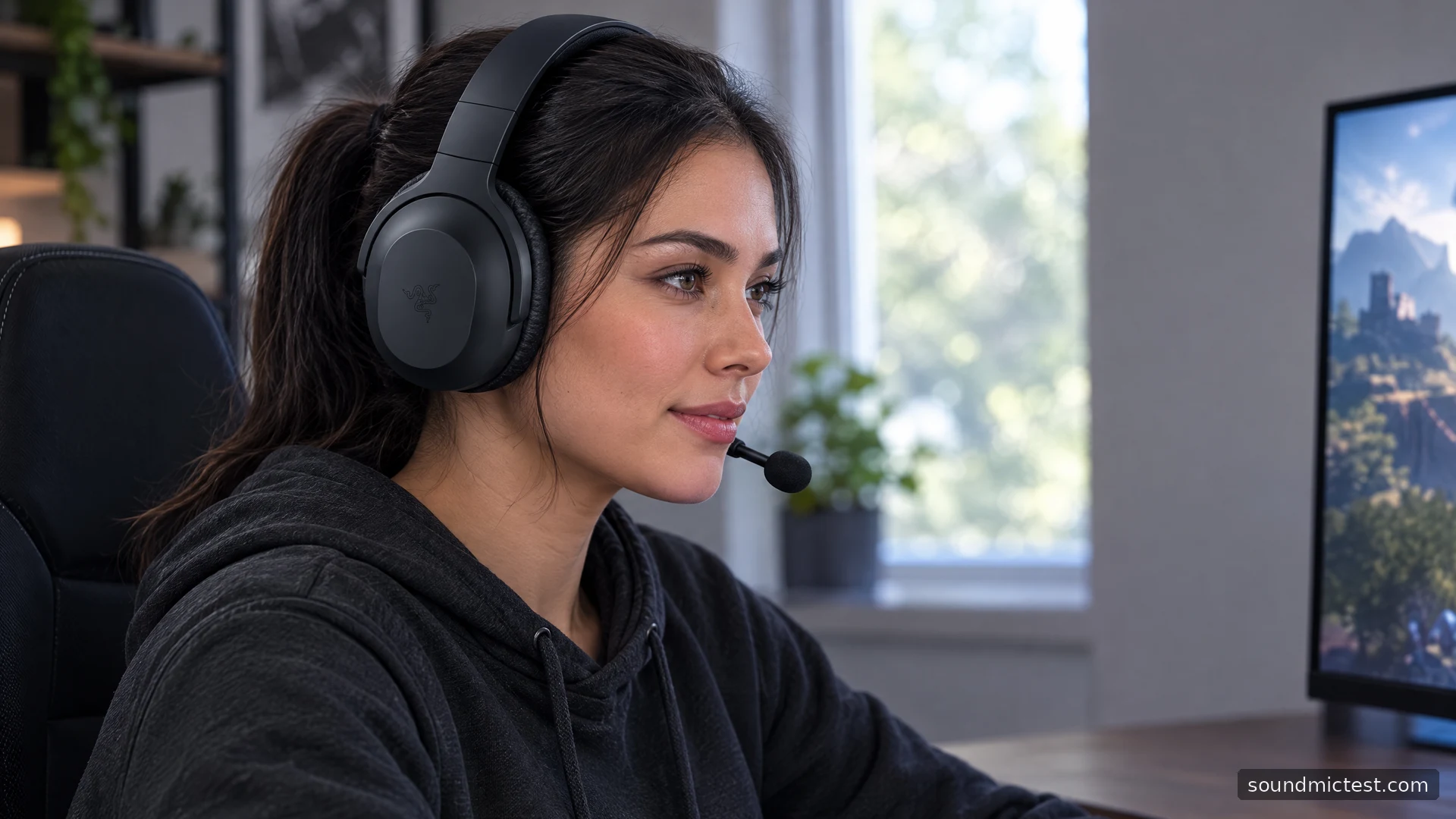
Seat the removable boom securely. Razer's diagram shows the diaphragm facing the mouth and the rear vent facing away. Place the capsule beside your mouth and test it using the microphone check. Confirm the intended input and browser permission before adjusting gain.
Make a short sample with the voice recorder, then compare a small position change if breath or keyboard noise dominates. Keep the capture level consistent. These are useful setup checks, not calibrated microphone benchmarks.
Is the 2022 Barracuda X the right fit?
The model's strongest argument is connection flexibility without permanently carrying a large boom everywhere. Its drawback is that each mode has different controls and expectations, and documentation should be matched carefully to the revision.
Choose it when you regularly move among supported gaming devices, a phone and an analog source. Before relying on it, verify each path, run a left/right playback check and rehearse source switching. A small amount of setup makes its flexibility useful; buying on the word wireless alone leaves too many compatibility questions unanswered.