Headphones
Sony WH-CH520: Features, Pairing and Call Setup Explained
A guide to the WH-CH520's on-ear design, physical controls and multipoint connection, including the limitations to understand before buying.
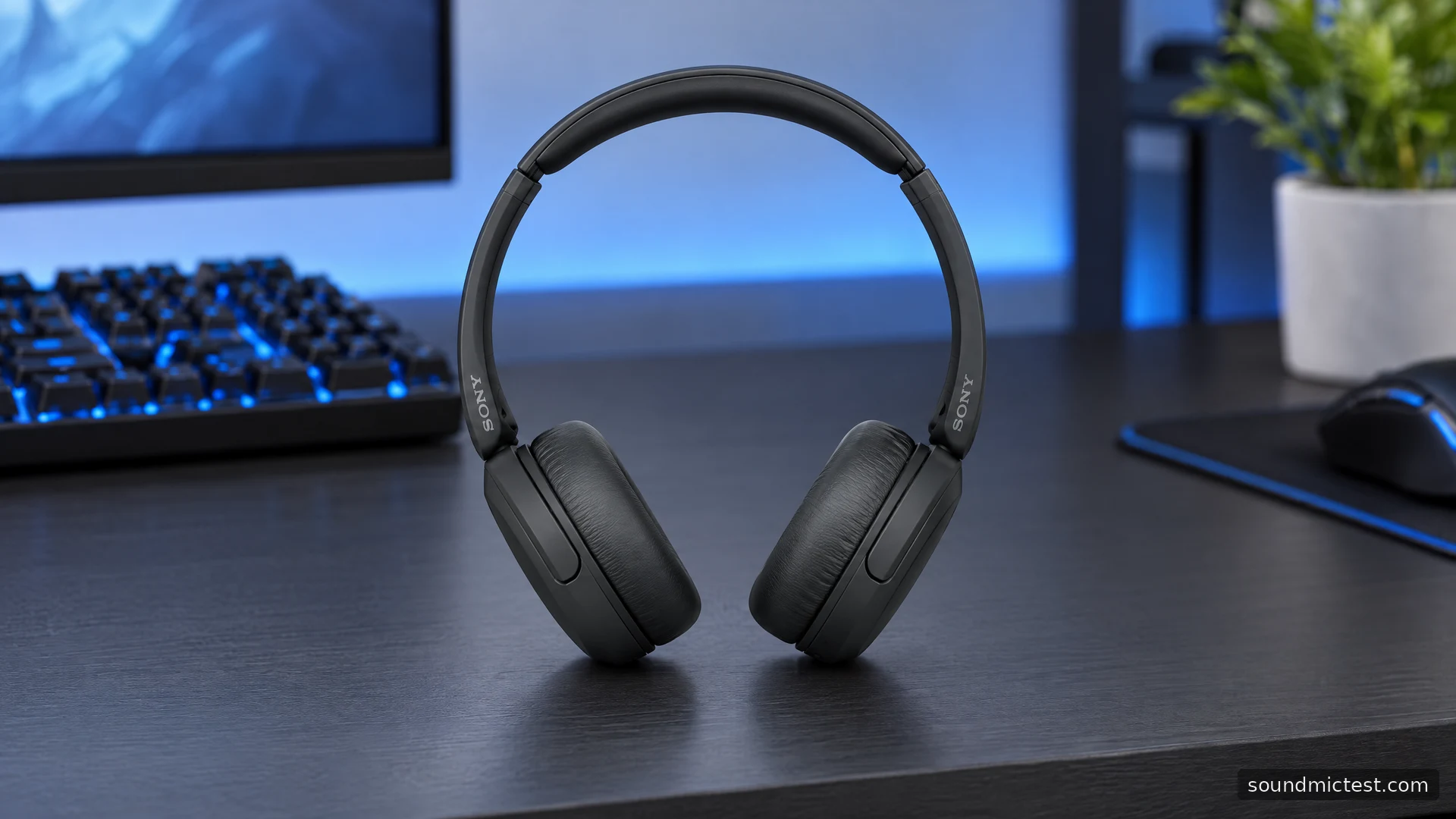
The Sony WH-CH520 is aimed at a familiar job: playing audio from a phone or computer without a cable getting in the way. Its on-ear design and physical controls make it a different proposition from a larger noise-cancelling headset. If your priorities are a compact pair for everyday listening and occasional calls, the setup details matter more than chasing features from a different price category.
This is a documentation-based features review and how-to guide. It explains the model's controls and connection options without inventing listening sessions or turning advertised battery figures into measured results.
What makes the WH-CH520 useful?
Sony's product overview describes app-based EQ, DSEE processing, a built-in microphone and multipoint connection. The design sits on the ears rather than enclosing them in large cups. That distinction is worth considering before comparing it with an over-ear model.
An on-ear fit can be convenient to carry, but fit is personal. Try the adjustment range and check whether the cushions sit comfortably on your ears. No manufacturer comfort claim can tell you how that pressure will feel over your own working day, especially if you wear glasses.
The useful purchase test is simple: will you use the app, switch between devices and appreciate the physical buttons? If the answer is yes, the CH520's everyday functions may matter more than features you would rarely enable.
Pairing with your phone or laptop
For manual pairing, hold the power/Bluetooth button for approximately five seconds until the pairing indication begins, then select WH-CH520 in the source device's Bluetooth list. Initial setup can enter pairing automatically. Sony describes the sequence in its getting-started guide.
Wait for confirmation before opening several applications. Play a short piece of familiar audio, pause it and resume it using the headset. This confirms both the connection and a basic control command before you introduce a second device.
If pairing fails, move the source closer and check whether the headphones have reconnected to a previous device. A headset that has switched on successfully is not necessarily in pairing mode. That small distinction is often more useful than repeatedly toggling Bluetooth on the computer.
Understanding the physical controls
The WH-CH520 Help Guide explains that the central playback button handles play and pause. Brief presses on the volume buttons change the level, while longer presses provide track navigation. That means press duration matters.
Practice the difference while the volume is low. If you want to skip a track and instead make the music louder, do not keep pressing faster. Make the intended long press deliberately and listen for the response.
Physical controls can be easier to locate by touch than an invisible gesture area, but closely positioned buttons still take practice. Learn their order before relying on them during a call. Keeping the starting volume modest also prevents an accidental adjustment from becoming unpleasant.
Connecting two devices without confusion
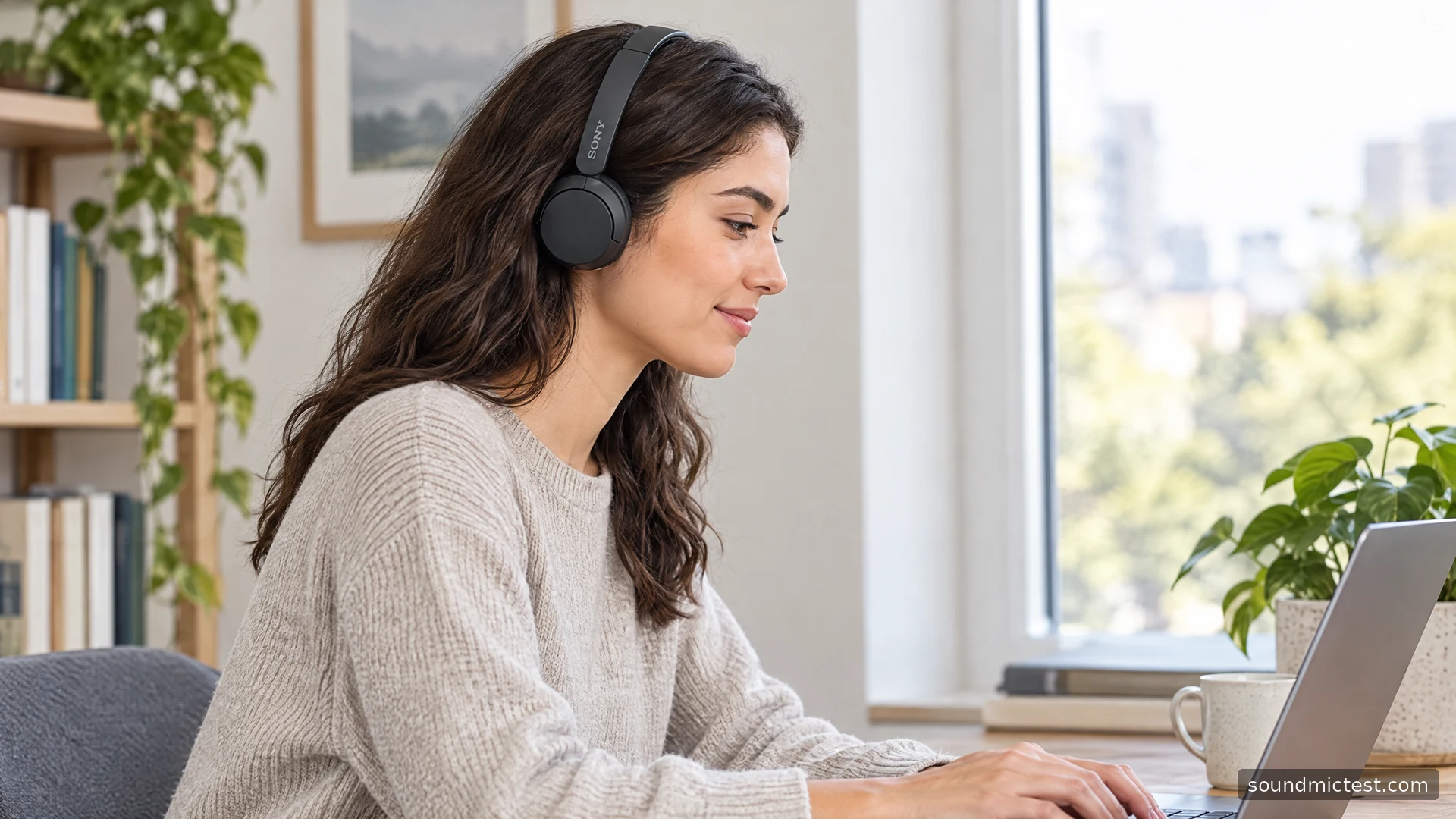
Sony advertises multipoint connection for this model. Configure the option in the companion app after pairing your devices. Sony now calls that app Sound Connect, while older instructions use the Headphones Connect name.
The practical benefit is moving between a phone and computer with fewer manual reconnections. Establish one working connection first, then add the second. When testing the switch, pause the active source before starting audio elsewhere.
If a laptop video stays silent, inspect its selected output. Re-pairing the headset will not necessarily change an application's audio selection. Similarly, a meeting app may continue to use the laptop microphone even though its speaker output is the CH520.
Our voice recorder can help you hear a short sample from your selected browser input. Listen to an ordinary sentence, then compare it with the recording made inside your meeting application. Differences can come from input selection and software processing, not just the headset.
Battery claims and charging habits
Sony's published product details advertise up to 50 hours of playback and a short-charge option providing up to 90 minutes from three minutes of charging. Treat those figures as manufacturer claims, with actual results dependent on conditions and battery age.
For daily use, the better question is whether the headset comfortably covers your own routine. Charge it before a long day rather than planning around the final percentage shown by another device. Battery indicators are useful estimates, not a detailed forecast of remaining call time.
Keep the charging port dry and use the charging guidance for this model. The Help Guide states that the headset is not waterproof. Do not treat casual portability as permission to use it in rain or charge it immediately after it becomes damp.
EQ: make a useful change, then stop
An equalizer changes the balance of frequency regions. Start with the normal sound, select a familiar song or spoken recording, and make one small change. Keep playback at a similar level while comparing, since louder sound can initially seem more detailed.
If speech becomes harder to follow after increasing bass, reduce that adjustment rather than adding more changes elsewhere. Save a setting only when it helps more than one recording. You do not need an elaborate curve simply because the application offers several controls.
After setup, our stereo channel test provides a quick way to confirm left and right playback. It does not measure the headphones' tonal accuracy, but it can reveal an obvious routing or channel problem before you start fine-tuning.
The buying decision
The WH-CH520 is most relevant when you want basic wireless convenience, adjustable sound and straightforward controls in an on-ear format. Evaluate it on those terms. Check the current selling price, fit and call behavior on your actual devices, and choose a different category if your needs center on a dedicated gaming microphone or extensive noise-control features.

About the author
James CarterHeadphones & Personal Audio
James Carter is an editorial pen name for Sound Mic Test's headphone coverage. Articles under this byline focus on comfort, isolation, connectivity and the everyday trade-offs between different headphone designs.
Sound Mic Test editorial pen name.
james.carter@soundmictest.com