Wireless audio
Beats Studio Pro: Three Connections, Noise Modes and Setup
Set up Beats Studio Pro Bluetooth, USB-C audio and analog listening, with practical controls, battery-claim context and microphone checks.
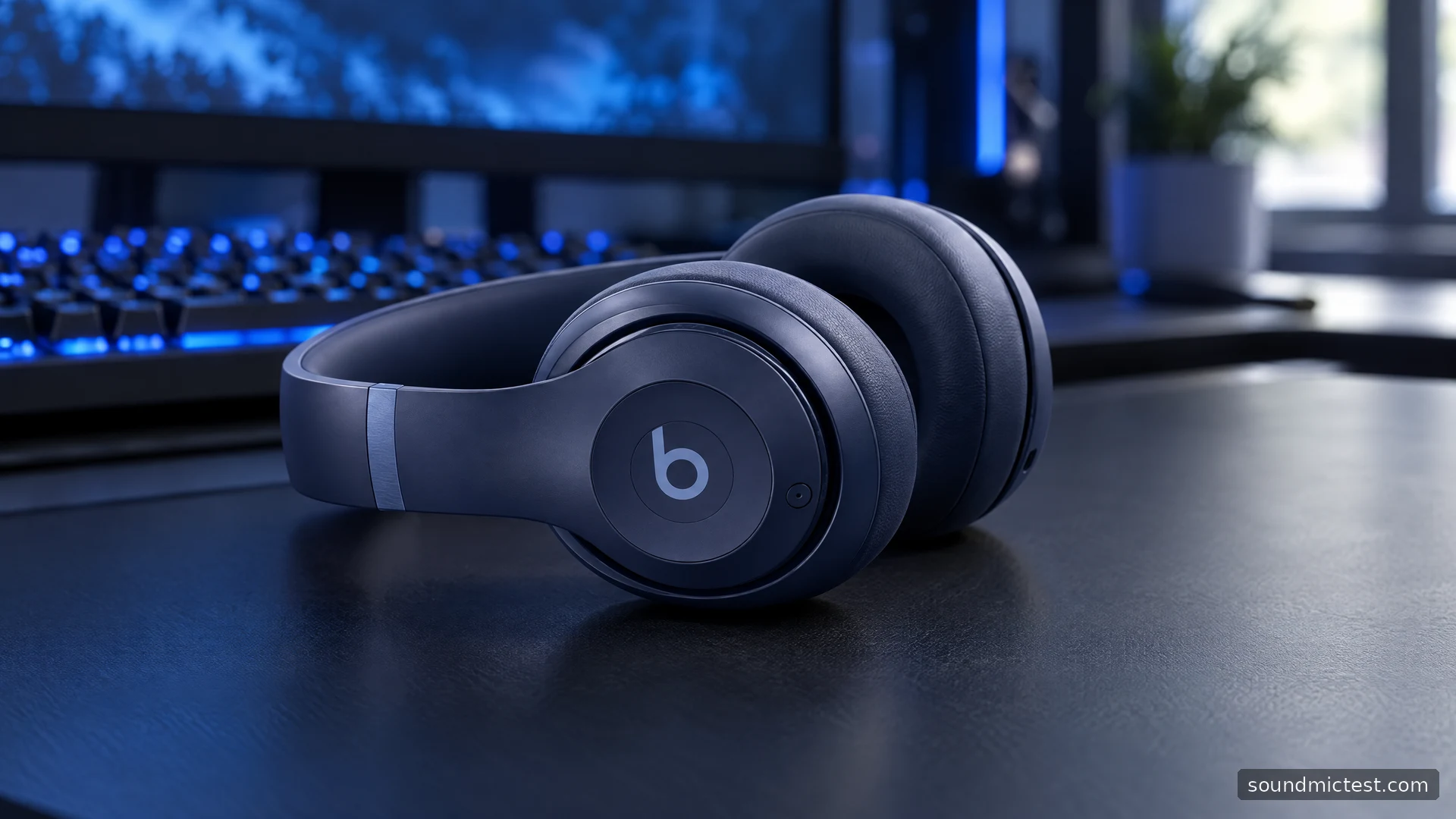
Beats Studio Pro has a useful answer to a common headphone problem: the connection that is convenient on a phone is not always the best fit for a desk or an aircraft seat. Alongside Bluetooth, this model provides USB-C audio and a 3.5 mm input. You can choose the connection for the task instead of building every task around Bluetooth.
That flexibility is a better starting point for evaluating Studio Pro than the word “Pro” on the box. The name does not establish that it is a studio reference monitor or that every feature works identically in every mode. This guide examines the documented controls, connection options and buying considerations, with practical checks you can perform on your own equipment.
The features that shape the decision
The official Studio Pro product page lists an over-ear design, ANC, Transparency mode and three connection routes. Beats claims up to 40 hours of listening with noise processing off, or up to 24 hours with ANC or Transparency enabled. These are manufacturer figures; a 40-hour headline should not be read as a 40-hour ANC result.
If you mainly want headphones for a quiet desk, connection convenience and comfort may carry more weight than noise cancellation. For a shared office or regular journey, the ability to choose how much surrounding sound you hear becomes more relevant. List those uses before comparing discounts, because a feature you never enable has limited practical value.
Try the earcup fit for longer than a quick shop demonstration. Check whether your ears sit comfortably within the cushions, whether glasses create pressure and whether the headband stays positioned when you look down at a keyboard. No specification sheet can settle those questions for an individual head shape.
Pairing with a phone or computer
Beats' support instructions describe automatic pairing mode on first power-up. Hold the headphones near an unlocked compatible iPhone and follow the prompt, use Google Fast Pair on a compatible Android device, or select Beats Studio Pro in Bluetooth settings. For another pairing, hold the right-earcup System button until the fuel-gauge lights flash.
Confirm playback from the first device before setting up another. In a computer's sound settings, select the headphone output explicitly. Then inspect the audio settings inside the calling application you use, since its selection may not follow the system automatically.
An easy first check is a spoken clip rather than a complex music track. You can quickly tell whether speech comes from the headphones, whether the level is sensible and whether pausing works. Save sound preferences and spatial processing for after the basic connection is stable.
The two earcups do different jobs
Apple's Studio Pro user guide places playback on the left “b” button: one press pauses or resumes, two advance a track and three go back. Volume is above and below that button. A double press of the right System button changes noise modes in the normal wireless workflow.
Separating those roles in your mind helps avoid accidental commands. Learn the playback side first, then the listening-mode side. It is easier to practice at a desk with the source visible than to work out a button sequence while a call is already ringing.
When comparing ANC and Transparency, hold the playback level steady. Judge whether the setting suits the activity rather than which one initially seems more dramatic. For a face-to-face conversation, pausing and removing the headphones remains a straightforward option when processed ambient sound is not enough.
USB audio has its own controls
Over USB-C, Studio Pro can charge while handling audio and calls on a compatible source. The System button's double press cycles three profiles: Beats Signature, Entertainment and Conversation. The fuel-gauge segments identify the selected profile. Treat this as a separate USB workflow rather than assuming the wireless noise-mode shortcut has the same function.
Start with the default profile and listen to familiar content before switching. A film profile and a speech profile are choices about presentation, not automatic upgrades for every recording. Keep the same excerpt playing and avoid turning the volume up between comparisons, which can make a setting seem better simply because it is louder.
| Connection | Useful purpose | First check |
|---|---|---|
| Bluetooth | Moving freely with a phone | Correct source and output selected |
| USB-C | A compatible computer workspace | Audio device appears for input and output |
| 3.5 mm | Traditional headphone output | Cable seated and source volume low |
Apple also documents battery-free playback through the 3.5 mm cable. That is useful insurance for a long day, but carry the cable and any source adapter you actually need. A feature available at home is not much help if the required accessory was left in another bag.
Verify the setup before judging the sound
Run the stereo channel test after changing connections to check channel orientation and basic output. For meetings, select the intended microphone and use the microphone test, then make a short check in the meeting application itself. Different applications can use different inputs or processing.
If a call recording disappoints you, test in a quiet room first and then in your normal room. This separates a connection or microphone-selection problem from the effect of background activity. Keep your speaking position and level similar, and change only one setting between recordings.
Studio Pro is worth investigating for a routine that moves between wireless listening and two types of wired source. Its strongest documented advantage is that versatility. Choose it after checking fit and the connection modes you will actually use, rather than assuming the longest battery claim, the Pro name or a spatial-audio badge describes the entire experience.

About the author
Noah MitchellWireless Audio & Accessories
Noah Mitchell is an editorial pen name for wireless audio and accessories at Sound Mic Test. Articles explore earbuds, portable audio, cables and the small setup choices that affect everyday listening.
Sound Mic Test editorial pen name.
noah.mitchell@soundmictest.com