Wireless audio
JBL Tune 520BT: App EQ, VoiceAware and Bluetooth Setup
Set up JBL Tune 520BT pairing, two-device use, app EQ and VoiceAware, with practical fit and microphone checks for phone and laptop use.
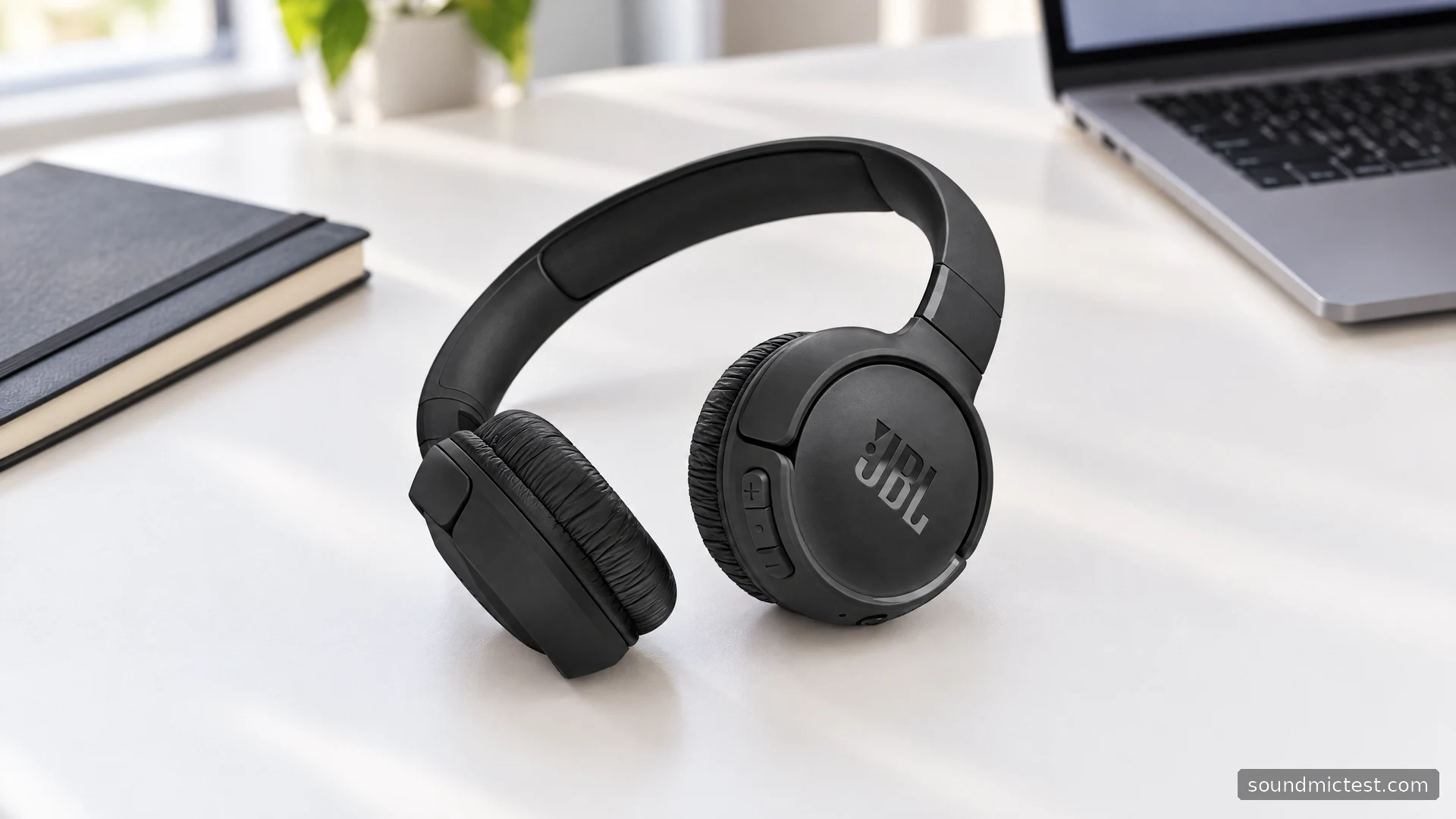
The JBL Tune 520BT adds a useful layer of adjustment to the compact wireless on-ear formula. Alongside physical controls and two-device connectivity, the JBL Headphones app provides EQ and settings that let you tailor the listening experience. That is a meaningful feature if you prefer to adjust a headphone around spoken content, music or calls rather than accept one fixed presentation.
The key is to use those options deliberately. An app full of settings cannot decide whether the cushions suit your ears or whether a microphone works well in your room. This guide uses JBL's documentation to explain the features, show a reliable setup order and identify the checks that matter before you keep a pair.
The specifications worth understanding
JBL's Tune 520BT product page lists Bluetooth 5.3, 33 mm drivers, a 157 g weight, app support and VoiceAware for hearing your own voice during calls. The manufacturer claims up to 57 hours of music playback, a two-hour full charge and up to three hours of listening from a five-minute charge.
The 57-hour number is a playback claim, not a promise about an entire week of mixed calls and music. Plan around your own usage and the condition of the battery. For a used pair, a charging indicator and a short song are only preliminary checks.
The low published weight is useful context, but pressure distribution still matters. On-ear cushions sit against the ears. Try the headphones with glasses if you use them and keep them on while reading or typing, rather than judging comfort only while standing still.
Do not infer every capability from the Bluetooth version. The source device, operating system and application remain part of the connection. If your main purpose is a specific television, console or work computer, verify that exact use before buying.
Pairing and adding a second source
The 520BT quick-start guide tells you to select JBL TUNE520BT in Bluetooth settings. To re-enter pairing, switch the headphones off and hold the power button for five seconds. A double press of the power control starts the second-device pairing workflow; two simultaneous connections are supported.
Begin with your main phone or computer and confirm playback before adding another device. This creates a known working starting point. If you connect several sources immediately, an unexpected sound or pause can be harder to trace.
For two-device use, pause the first source before playing the second. Keep both screens visible while learning the behavior. If the computer is silent, inspect its selected output and any application-specific choice before removing the Bluetooth pairing.
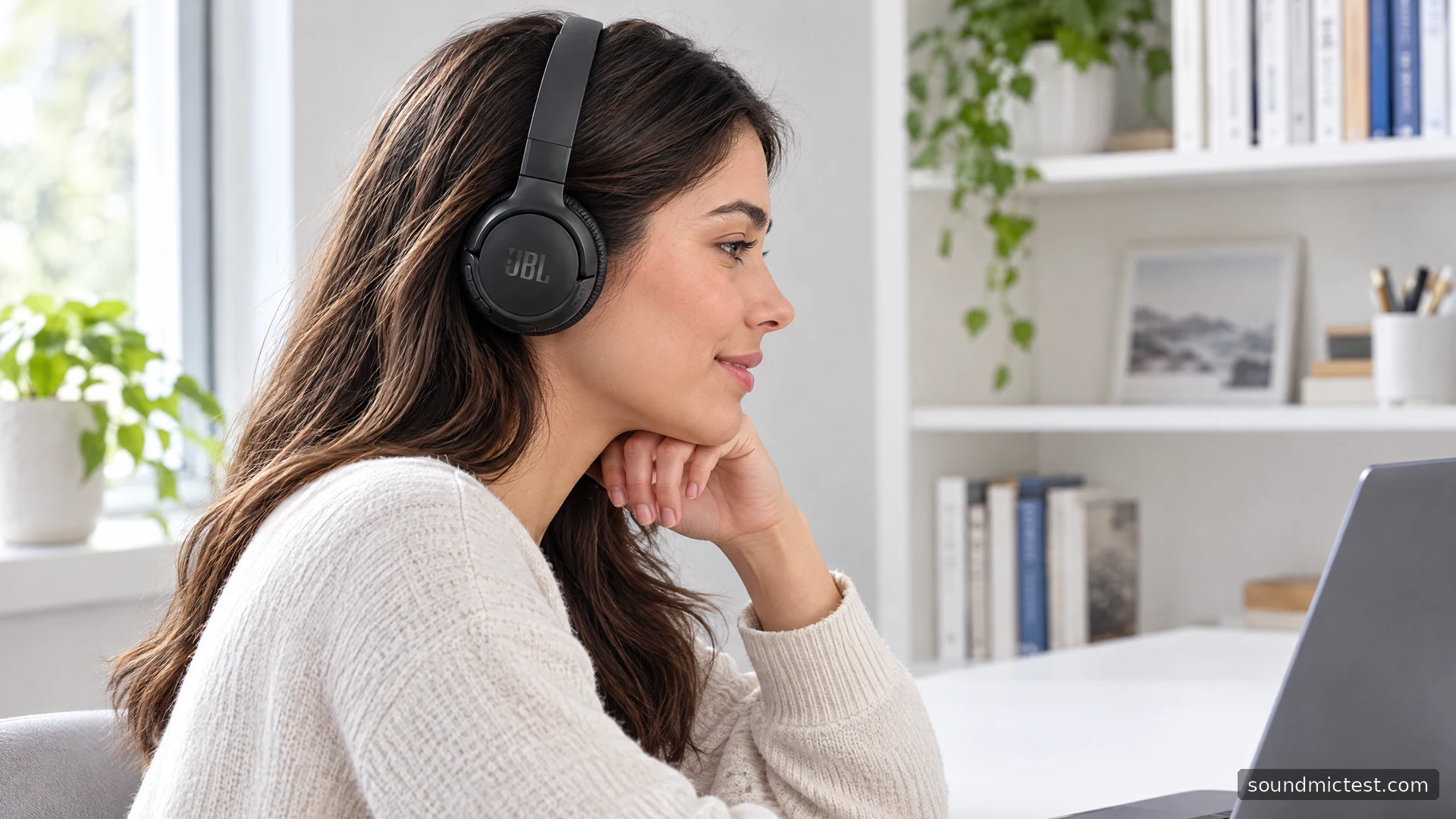
A laptop's meeting software deserves a separate check. Select the intended microphone and output inside the application, not just in the system sound panel. This avoids the common situation where you hear the call through headphones while the microphone across the desk is still capturing your voice.
Set up the app before making large EQ changes
JBL documents EQ customization, voice-prompt options and additional controls through the JBL Headphones app. Connect the correct headphone model, review the available settings and note the starting configuration. A useful adjustment process needs an easy route back to the baseline.
Choose a small listening set: one spoken recording, one sparse song and one busier arrangement. Keep volume similar while comparing. Ask a specific question of each change, such as whether speech is easier to follow or whether a bass line masks the vocal.
Avoid changing every band at once. A dramatic curve can create an immediate difference without improving the whole listening experience. Make a small adjustment, listen for a while and return to the original setting before deciding whether to keep it.
| Setting or check | Useful question |
|---|---|
| EQ | Does this improve several familiar recordings? |
| VoiceAware | Can I speak naturally without guessing my level? |
| Voice prompts | Is the selected language useful to me? |
| Two-device connection | Can I identify which source is active? |
What VoiceAware does for calls
VoiceAware lets you hear your own voice while speaking. That can help you avoid talking louder simply because your ears are covered. It should be evaluated separately from the quality of the signal received by the person at the other end.
Use the microphone test to make a short recording with the intended input selected. Speak at a normal level and listen back. If the result is too quiet, distorted or unexpectedly distant, inspect input selection and application processing before trying to compensate by speaking much louder.
Repeat the check inside your usual calling application. A browser recording verifies the browser's path; the meeting program can use a different device or noise-processing setting. Keeping the spoken phrase and room conditions similar makes the comparison more meaningful.
A practical buying verdict
The Tune 520BT is most interesting if you want a lightweight on-ear headphone with physical controls and useful app adjustment. Its documented feature set supports an everyday phone-and-computer routine, but fit and the behavior of your own sources remain the deciding factors.
After pairing, run the stereo channel test to check channels. Then wear the headphones during the activity you bought them for. Notice whether the cushions remain comfortable and whether switching sources interrupts your work more than expected.
Choose the 520BT because that routine works and the available adjustment helps. The app is valuable when it solves a clear preference or setup issue. It is less valuable as a collection of settings you feel obliged to change before every song.

About the author
Noah MitchellWireless Audio & Accessories
Noah Mitchell is an editorial pen name for wireless audio and accessories at Sound Mic Test. Articles explore earbuds, portable audio, cables and the small setup choices that affect everyday listening.
Sound Mic Test editorial pen name.
noah.mitchell@soundmictest.com