Wireless audio
JBL Tune 510BT: Pairing, Multipoint and Everyday Features
Learn JBL Tune 510BT pairing and two-device switching, understand its battery claims, and check everyday fit, playback and microphone setup.
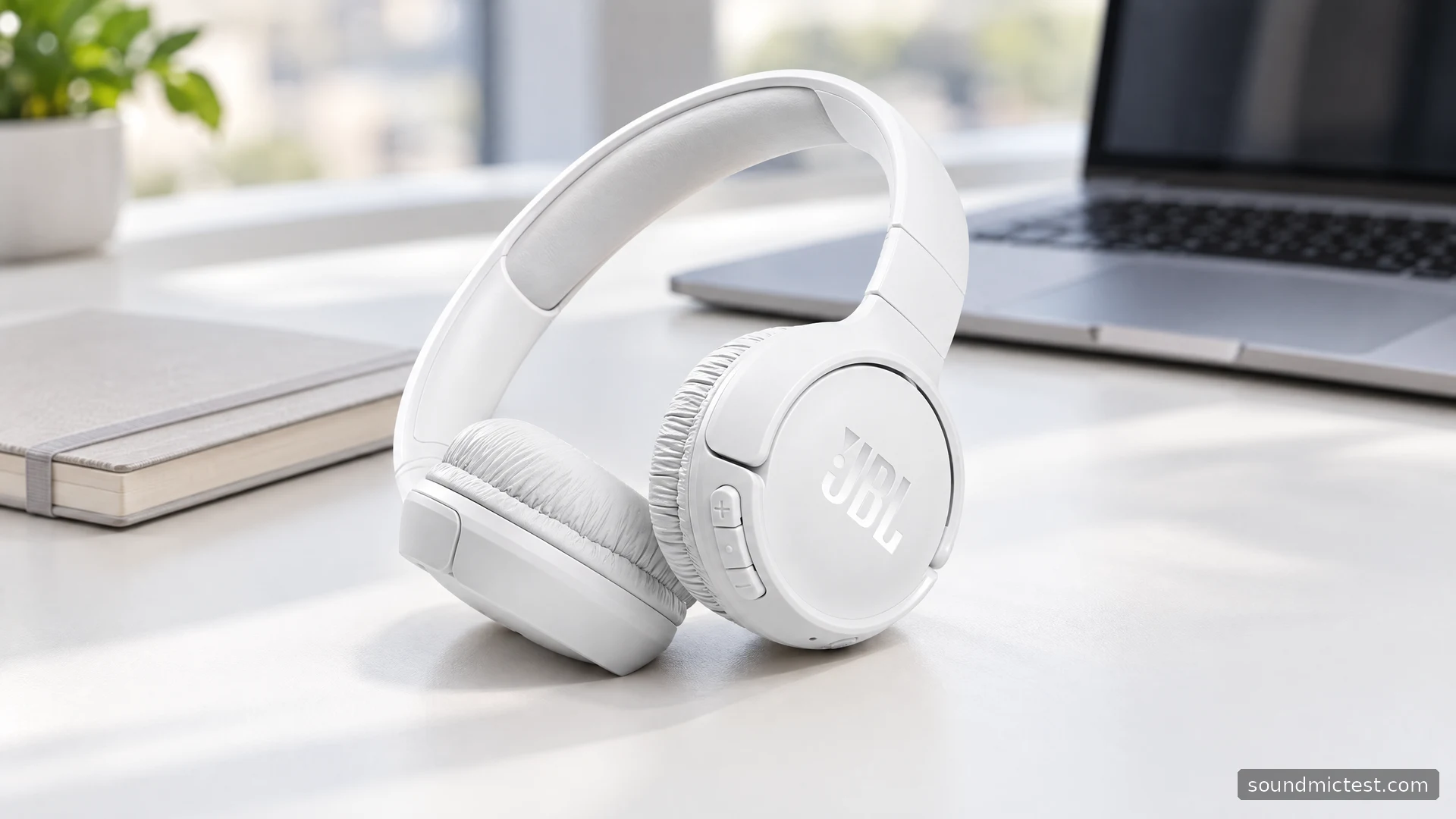
The JBL Tune 510BT is a compact wireless on-ear headphone built around a simple proposition: Bluetooth music, physical controls and a battery you should not need to think about every few hours. It is most relevant when you want a basic phone or tablet companion and prefer earcups to earbuds.
Its simplicity is also a reason to be precise when shopping. Similar JBL Tune names do not make every model interchangeable, and a newer-looking listing may describe a different product. This guide covers the Tune 510BT, using JBL's quick-start guide and product information to explain pairing, two-device use and the checks that should shape a purchase.
What the 510BT offers
JBL's official product listing describes Bluetooth 5.0, a folding on-ear design, hands-free calls and multipoint connectivity. The company quotes up to 40 hours of playback, approximately two hours for a full charge and up to two hours of listening from a five-minute charge. These are manufacturer figures rather than results from an independent battery test.
The on-ear shape should be your first comfort check. Put the cushions in a position that feels even on both ears, then move your head as you would while reading or working. If you wear glasses, test with them. Pressure that is easy to ignore for a minute can become the deciding factor over a longer session.
JBL uses the Pure Bass name for its presentation. Treat that as a product description rather than a measurement of bass accuracy or depth. A familiar track with a clearly recorded voice and a separate bass line is a useful way to decide whether the balance suits you at a normal listening level.
For an older or used pair, inspect the cushions, hinges and charging connection before focusing on the battery headline. Ask for a meaningful playback demonstration. A device that powers on is not necessarily a device that still has the endurance it had when new.
How to pair the Tune 510BT
The JBL quick-start guide shows automatic pairing mode on first use. Select JBL TUNE510BT in the source's Bluetooth list. To enter pairing manually, start with the headphones off and hold the power control for more than five seconds.
Keep the first setup close to the source and avoid trying to pair several devices at once. Once the headphone entry appears, connect it and play a short spoken clip. Confirm that the source volume and headphone volume are both at sensible levels.
If the headphone does not appear, check whether it has already reconnected to a nearby device. Temporarily turn Bluetooth off on that device and try again. This is a useful diagnostic step because it changes one variable without erasing a working pairing.
On a computer, check the selected audio output after pairing. A Bluetooth connection can exist while a particular browser or meeting application continues to use the speakers. Resolve the output selection before deciding that the headphones are faulty.

Use multipoint as a switch, not a mixer
The guide supports a maximum of two connected devices. To move music between them, pause the current source and start playback on the other. Phone calls take priority. If one source powers off or leaves Bluetooth range, the remaining device may need to be reconnected manually.
This behavior suits a tablet-and-phone routine: watch something on the tablet, then respond to a phone call. It is less useful if you expect both devices to contribute a continuous audio mix. Think of the feature as reducing reconnection work between sources.
| What happens | What to inspect |
|---|---|
| Music stops when a call arrives | The phone may have taken priority |
| The second device seems silent | Pause playback on the first source |
| One device leaves the room | Check the remaining connection manually |
| A laptop connects but plays through speakers | Select the headphone output |
Practice switching while both devices are in front of you. A minute spent learning the sequence at a desk is more useful than discovering it during a call. Keep the source names recognizable in Bluetooth settings if several family members use similar headphones nearby.
Check the microphone in the room you use
Hands-free calling is useful, but it does not establish how your voice will sound in a particular room. Use the microphone test with the headphone input selected and speak at your usual level. Listen to a short recording, then repeat with the laptop's internal microphone to confirm which input you were actually testing.
Begin in a quiet room. If the first recording is clear, repeat the same phrase with the normal fan, keyboard or household activity present. That gives you a practical comparison without pretending it is a laboratory microphone benchmark.
Keep application processing consistent between recordings. Noise suppression, automatic level adjustment and a different selected input can all change the result. If you change everything at once, you will not know whether the headphone or the software caused the difference.
Who should consider the Tune 510BT?
The 510BT is worth examining for straightforward wireless listening where physical controls, a compact shape and two-device switching are more important than an extensive feature menu. Before buying, check the exact model, the condition of the pair and compatibility with the source you use most often.
After setup, use the stereo channel test to check channel orientation, then spend time with ordinary music and spoken content. The useful verdict is whether the headphones stay comfortable, connect predictably and let you follow what you are listening to without constant adjustment.
If those basics work, a simple headphone can be an effective everyday tool. If fit or source switching repeatedly gets in the way, a longer specification list will not fix the mismatch. Make the decision around the routine you can verify rather than the marketing name alone.

About the author
Noah MitchellWireless Audio & Accessories
Noah Mitchell is an editorial pen name for wireless audio and accessories at Sound Mic Test. Articles explore earbuds, portable audio, cables and the small setup choices that affect everyday listening.
Sound Mic Test editorial pen name.
noah.mitchell@soundmictest.com