Wireless audio
Beats Solo 4: On-Ear Fit, Wired Audio and Bluetooth Setup
Explore Beats Solo 4 on-ear fit, Bluetooth pairing, USB-C and battery-free analog listening, with clear guidance on its lack of ANC.
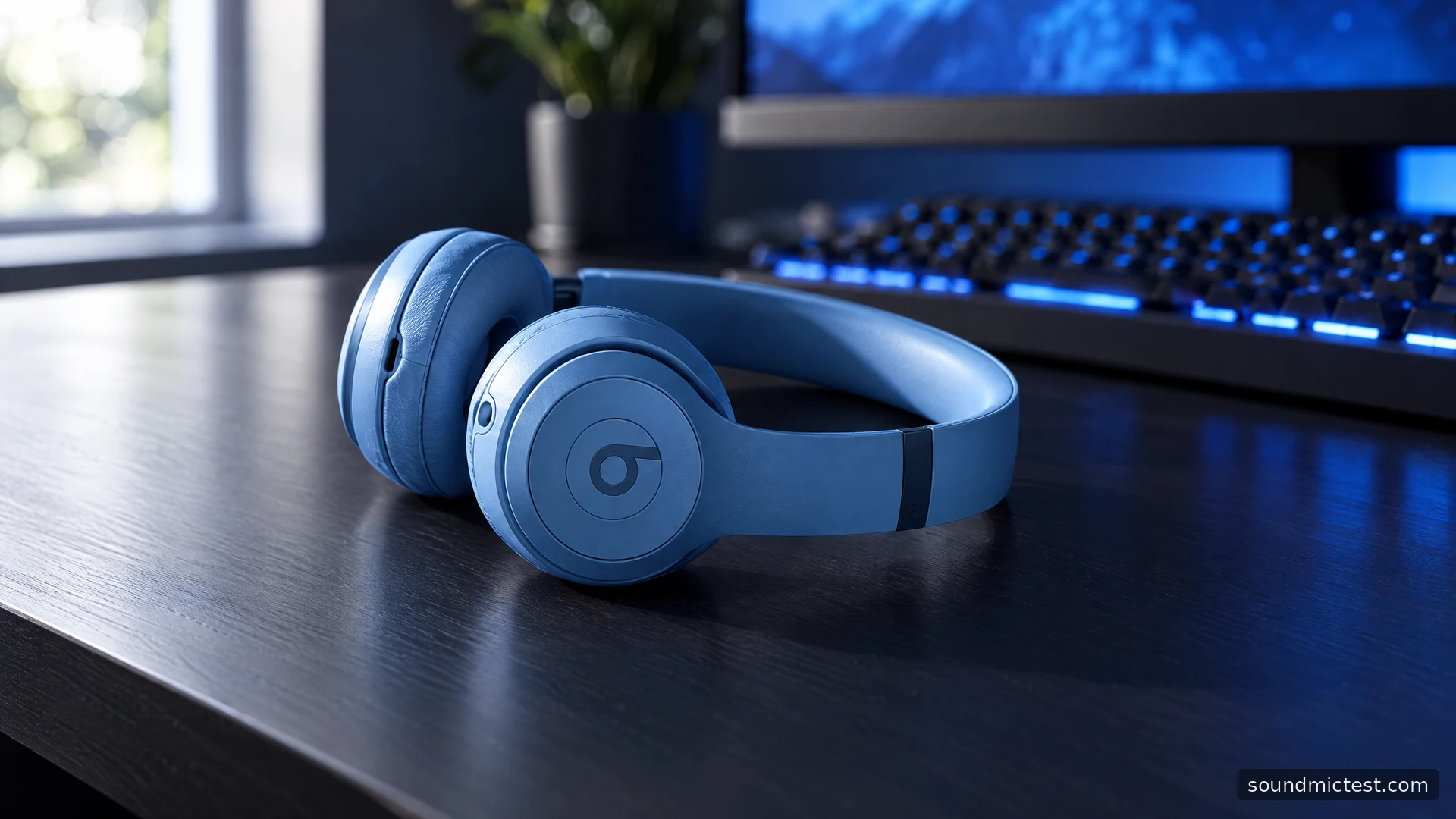
Beats Solo 4 is an on-ear headphone with more connection flexibility than its compact shape might suggest. You can use Bluetooth, connect a USB-C audio source or fall back to a 3.5 mm cable. The important buying distinction is elsewhere: Solo 4 has no active noise cancellation. It should be evaluated as a portable on-ear design, not as a smaller Studio Pro with every feature carried over.
For someone who prefers compact earcups and wants a cable option for a laptop or older player, that combination is worth a look. For someone trying to escape a noisy daily commute, the absence of ANC deserves attention before checkout. This guide explains the documented features and setup, then lays out the practical checks that matter most.
Start with the way it sits on your ears
The Solo 4 product page identifies an on-ear, folding design, USB-C and analog listening, and Personalized Spatial Audio with dynamic head tracking on compatible equipment. Beats quotes up to 50 hours of battery life and up to five hours after a ten-minute charge. Those are manufacturer claims, not measurements from this guide.
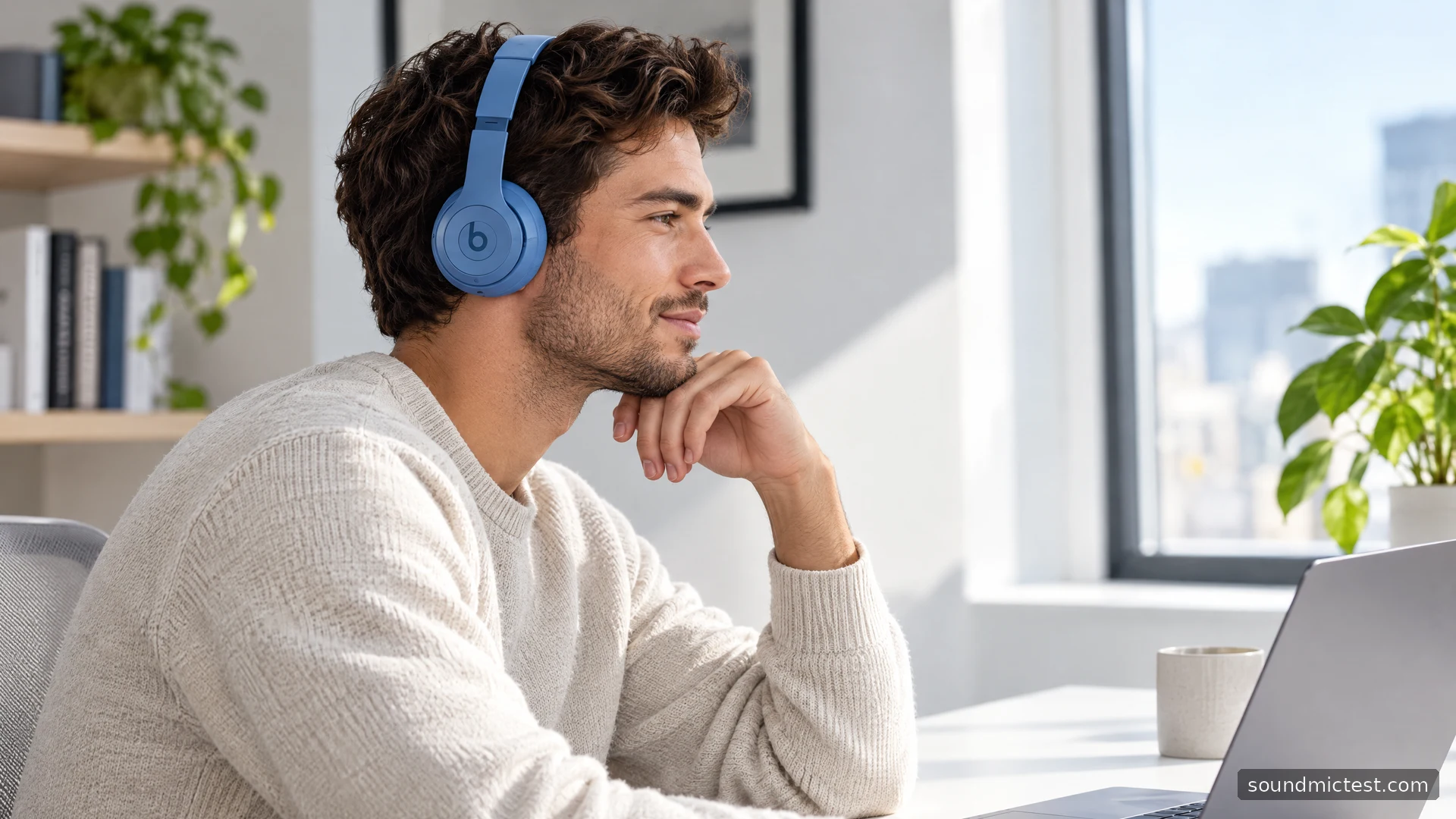
On-ear fit is a personal preference, not a universal upgrade or downgrade from larger headphones. The cushions rest against your ears rather than surrounding them. During a fit check, pay attention to pressure at the upper edge of the ear and around glasses arms, especially when turning your head or leaning forward.
Portability should be judged as a complete routine. Fold the headphones, place them in their case and see whether that case fits the bag you normally carry. Compact specifications are less useful if the shape still competes with a laptop charger and other essentials in the same pocket.
Do not expect a hidden app setting to add ANC. Beats explicitly confirms its absence in the Solo 4 support FAQ. If active noise reduction is essential, choose a product designed to provide it rather than hoping a firmware update will change the hardware's role.
Pair Solo 4 with your main device
Pairing mode starts automatically on first power-up. An unlocked compatible iPhone can show a nearby pairing prompt; supported Android devices offer Google Fast Pair. Manual pairing is also available through the Bluetooth menu. To pair another source, hold the Power button until the indicator blinks white, then select Beats Solo 4.
Work through one source at a time. Once connected, play a short recording, adjust volume and pause it using the headphones. This gives you a known working setup before you move on to a computer or tablet.
If your computer says connected but sound stays on its speakers, inspect the selected output rather than immediately resetting the headphones. A saved device can be connected without being the active output for every application. The same applies to microphones: a conferencing program may still be using the laptop's built-in input.
The “b” button is the playback control
Apple's Solo 4 user guide explains the left-earcup controls. Press the “b” button once for play or pause, twice for the next track and three times for the previous track. Press above or below it to adjust volume. Call-control actions can be customized, so check your settings before relying on a remembered sequence.
Practice with music first. The physical location is easy to understand when looking at the headphones, but using it while wearing them takes a little familiarity. Try the controls with your normal hand position and avoid pressing several areas at once.
For calls, test the mute action deliberately before a meeting. An audible prompt or application indicator is more reliable than assuming a button press had the effect you intended. This is especially useful if you use several headsets whose call shortcuts differ.
Why both wired connections are useful
Apple documents USB-C audio with simultaneous charging on supported sources, plus 3.5 mm playback that does not require battery power. Solo 4 switches off when the USB-C cable is disconnected. These details make it possible to build distinct desk and travel routines around the same headphones.
| Your situation | A connection to consider |
|---|---|
| Walking around with a phone | Bluetooth |
| Sitting at a compatible USB-C computer | USB audio |
| Using a source with a headphone socket | 3.5 mm cable |
| Battery depleted with an analog source available | Passive 3.5 mm playback |
USB audio is a useful alternative when computer Bluetooth behavior is inconvenient, but start with a direct connection and a data-capable cable. If charging works and no audio device appears, inspect the cable and port before changing unrelated sound settings.
The lossless label describes a supported signal route; it is not a promise that every song will sound dramatically different. Source material, playback settings, listening level and the fit at your ears all remain relevant. Compare familiar recordings without changing several of those factors at once.
A short ownership check that answers real questions
Use the stereo channel test to confirm left and right playback after pairing or connecting a cable. Then open the microphone test with the intended input selected for your wireless or USB call setup. Repeat the check in your actual calling application, since its device selection can be separate.
After the technical checks, wear Solo 4 through a normal work or study session. Notice whether you keep adjusting the earcups, whether glasses become uncomfortable and whether the surrounding room encourages you to raise the volume. These observations tell you more about suitability than a brief first impression.
Solo 4 is a plausible choice for someone who values an on-ear form and several listening connections. Its lack of ANC is a clear limit, while battery-free analog playback is a practical strength. The right decision rests on whether those priorities match your day, and whether the fit remains comfortable when the novelty has worn off.

About the author
Noah MitchellWireless Audio & Accessories
Noah Mitchell is an editorial pen name for wireless audio and accessories at Sound Mic Test. Articles explore earbuds, portable audio, cables and the small setup choices that affect everyday listening.
Sound Mic Test editorial pen name.
noah.mitchell@soundmictest.com