Gaming Headsets
Sony PULSE 3D: PS5 Setup, Chat Balance and Microphone Guide
Connect PULSE 3D to PS5 or PC, adjust game and chat balance, check its hidden microphones and understand passive cable mode.

Amelia Collins is an editorial pen name for gaming and streaming audio at Sound Mic Test. This byline covers headset features, microphone communication, platform compatibility and audio choices for play and live content.
Sound Mic Test editorial pen name.
amelia.collins@soundmictest.com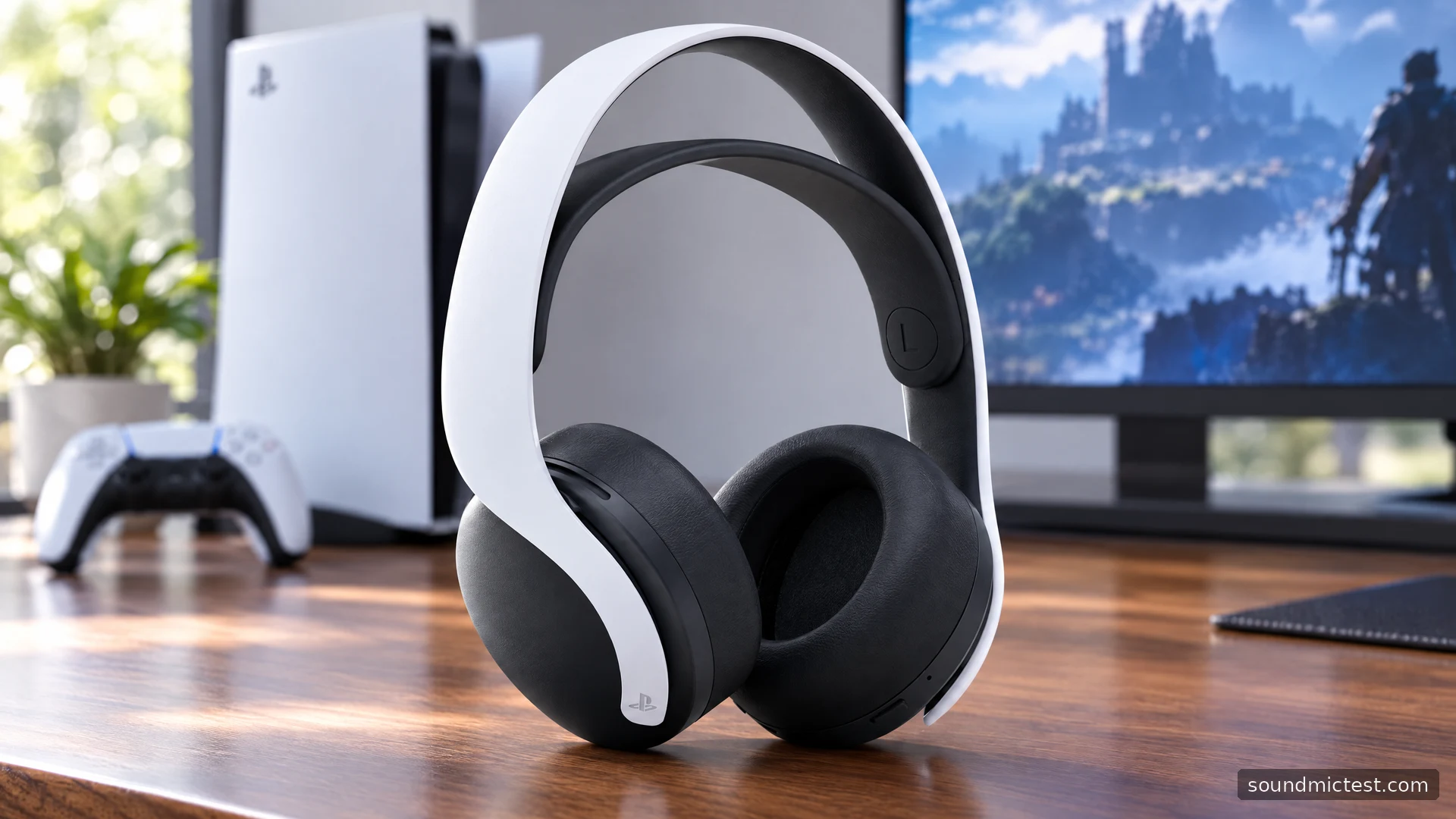
Sony's PULSE 3D is most compelling as a PlayStation accessory with physical controls close at hand. You get wireless audio through a USB adapter, hidden microphones and a direct way to rebalance supported game and chat audio. The familiar white-and-black styling is only part of the story: the connection you choose determines which controls remain available.
This review and setup guide covers the original PULSE 3D, model CFI-ZWH1, rather than the PULSE Elite. It draws on Sony's product information and instruction manual. There are no invented microphone recordings, battery runs or competitive-gaming results here; the focus is what the documented design lets you do and how to configure it sensibly.
Why the PlayStation integration matters
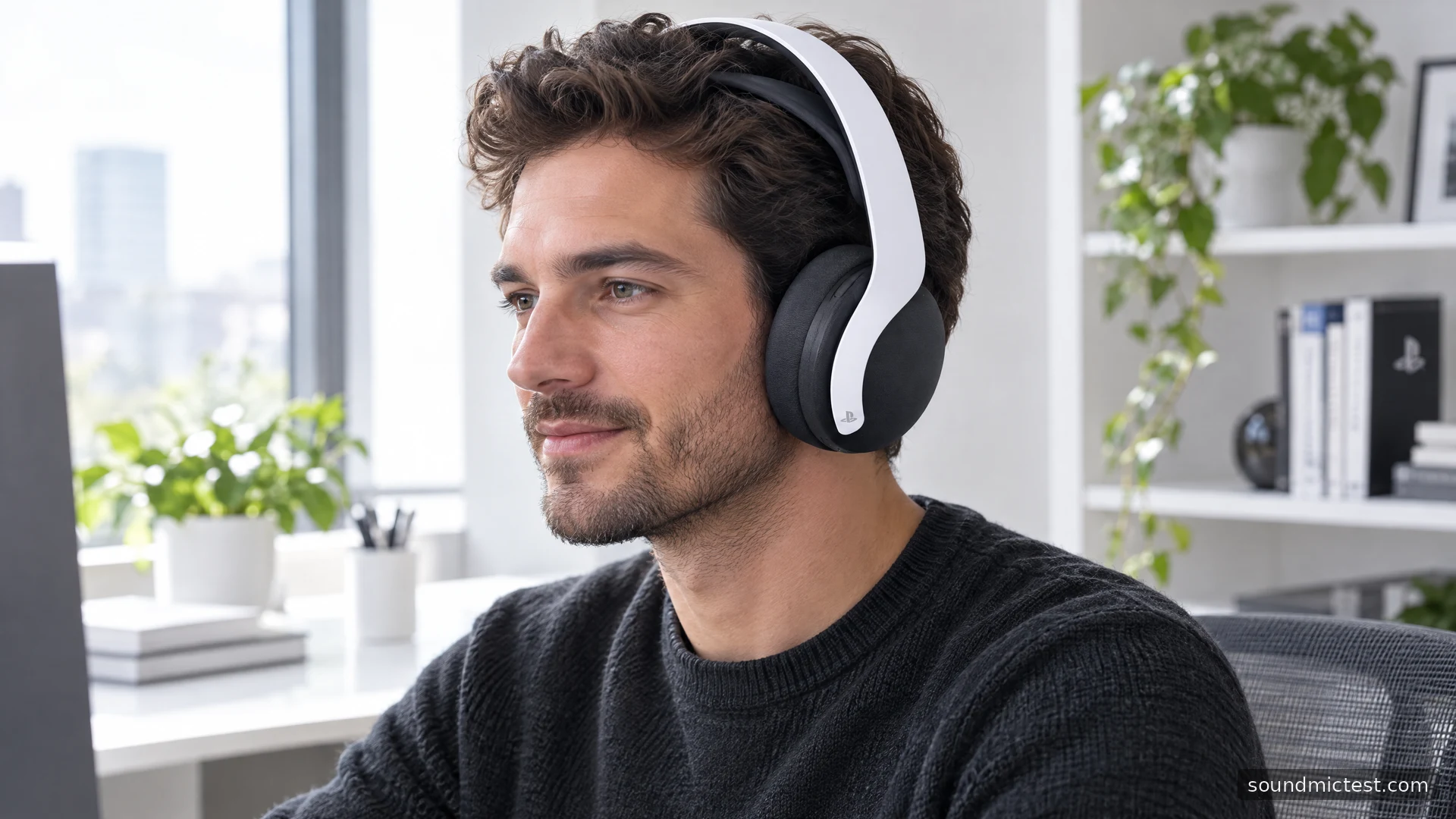
On its PULSE 3D product page, Sony describes dual built-in microphones, USB-C charging and PS5 equalizer presets with additional custom slots. The microphones do not need a boom in front of your mouth, which may appeal if you dislike adjusting one every time you put a headset on.
That convenience has a practical consequence: you cannot move the microphone tip closer when a room is noisy. Your useful adjustments are fit, input level, room position and software settings. Before buying, think about whether the room is normally quiet or shared with other conversations.
Sony markets up to 12 hours of wireless play. The manual qualifies that figure at a middle volume setting, with actual use affected by conditions. Treat it as a planning reference, particularly for an older or second-hand battery, rather than a result every unit must reproduce.
Connect the adapter before changing console settings
Charge the headset, connect the included wireless adapter to a compatible USB port on the console, then slide the headset's power switch on. The headset searches for its adapter and shows a solid white status light when connected. A Bluetooth search on your phone is not the setup route for this model's wireless adapter connection.
Open the console's sound settings and verify the chosen output and microphone. If you previously used television speakers or the controller microphone, check those selections explicitly. Start at a low listening level and use ordinary spoken audio before launching a loud game.
The PULSE 3D instruction manual also supports the adapter with compatible Windows and macOS computers. That does not make every console-specific control available on the computer, so avoid treating USB compatibility as complete feature parity.
Understand CHAT/GAME before reaching for master volume
The CHAT and GAME buttons change the relative balance of supported chat and game audio on PS5 or PS4. If a teammate is difficult to hear, the answer may be reducing the game relative to chat rather than raising the entire listening level. Pressing both buttons together restores the relative balance.
Some games have chat implementations that do not cooperate with this control, and the headset's CHAT/GAME function is not offered in the same way on PC. In that case, use the application's own audio controls. A button behaving differently on two platforms is not sufficient evidence of a hardware fault.
Keep a simple baseline when adjusting things. Set a comfortable master volume, return the balance to its center and then make a small change toward chat. If you change the game menu, console mixer and headset buttons together, it becomes difficult to know which setting fixed the problem.
Test the hidden microphones and monitoring switch
The microphone mute button shows orange when muted. Monitoring lets you hear your own microphone locally, while muting disables that monitoring. The local sound can be useful for noticing how loudly you are speaking, but it is not a complete recording of what another player receives after an app applies its own processing.
To check the headset on a compatible computer, select it in the microphone test. Confirm that the browser is not listening to the laptop or webcam instead. Speak normally, toggle mute and watch whether the input responds as expected.
Next, use the voice recorder test for a short sample. Include a pause and a little typing. If the room dominates, move away from the noise source and check the fit before increasing input gain. On PS5, use the console's microphone-level adjustment and a party check as the platform-specific follow-up.
The 3.5mm cable changes the rules
The supplied four-conductor cable provides an analog option for compatible equipment. Sony instructs you to turn off the headset when using that cable. In this passive mode, headset volume, microphone mute, monitoring and chat/game balance controls are disabled.
This is easy to overlook when moving from wireless play to a controller or another audio source. The physical mute button that worked a moment ago is no longer the control to trust. Use the connected device's microphone settings and verify the result before a private conversation.
A stereo-only cable also does not carry the same microphone connection as the included headset cable. If sound works but voice does not, identify the cable and socket rather than assuming that audible music proves the entire connection is correct.
Keep 3D audio expectations tied to the source
PULSE 3D is designed for the PlayStation spatial-audio experience, with support dependent on the game and platform. It does not turn every recording into a measured positional reference. Start with the console's available headphone settings and compare them in a scene you can repeat.
Our stereo channel test checks basic left/right routing when the headset is connected to a browser-capable device. It does not certify Tempest 3D Audio performance. If channels are correct but the spatial presentation feels wrong, investigate the game's and console's settings next.
Is it the right headset for your setup?
PULSE 3D is worth considering when PS5 or PS4 is the center of your setup and the built-in controls match your habits. Its compromises become more apparent if you expect phone Bluetooth, identical mixing controls on every platform or full button functionality through the analog cable.
For a used purchase, check that the USB adapter is included, that the cushions and suspension band are sound, and that charging works. Those ordinary details matter more to daily ownership than the styling. Buy it for a clear PlayStation workflow, then configure each connection on its own terms.