Gaming headsets
Corsair HS80 RGB Wireless: Features, PC Setup and Mic Fixes
A practical guide to the original HS80 RGB Wireless: receiver and USB connections, Dolby Atmos setup, microphone checks and the buying details that matter.

Amelia Collins is an editorial pen name for gaming and streaming audio at Sound Mic Test. This byline covers headset features, microphone communication, platform compatibility and audio choices for play and live content.
Sound Mic Test editorial pen name.
amelia.collins@soundmictest.com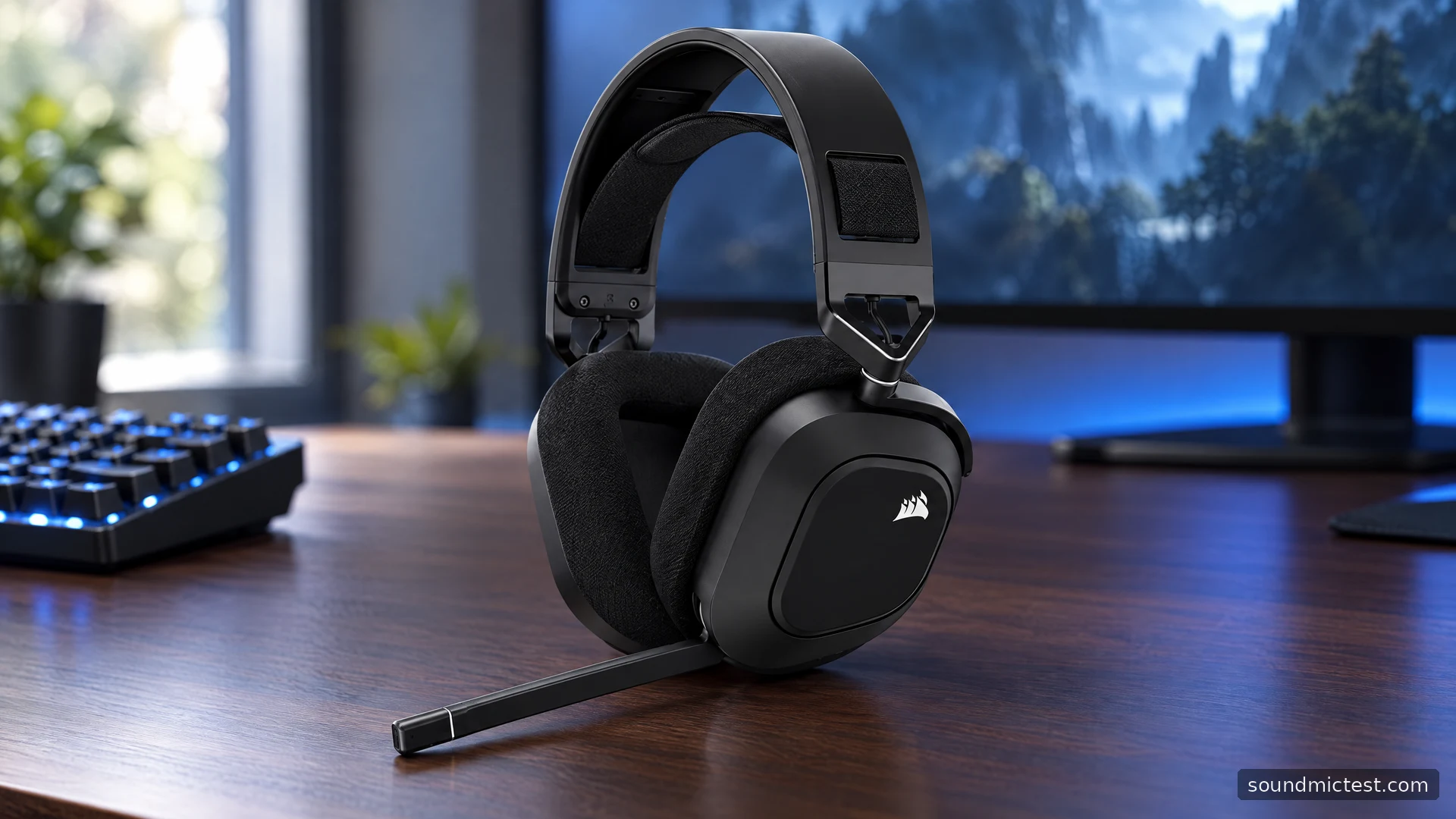
The Corsair HS80 RGB Wireless makes the most sense at a desk where gaming audio and voice chat matter more than connecting to every device in the house. Its appeal is a combination of a USB wireless receiver, a permanently attached boom microphone and a second, wired USB listening option. Before buying one, the important question is whether that connection arrangement fits your setup.
This guide evaluates the original HS80 RGB Wireless through Corsair's documentation. It covers what the features mean, how to configure them and what to check when sound or microphone routing goes wrong. It does not assign a listening score or present manufacturer specifications as our own measurements.
What the original HS80 offers
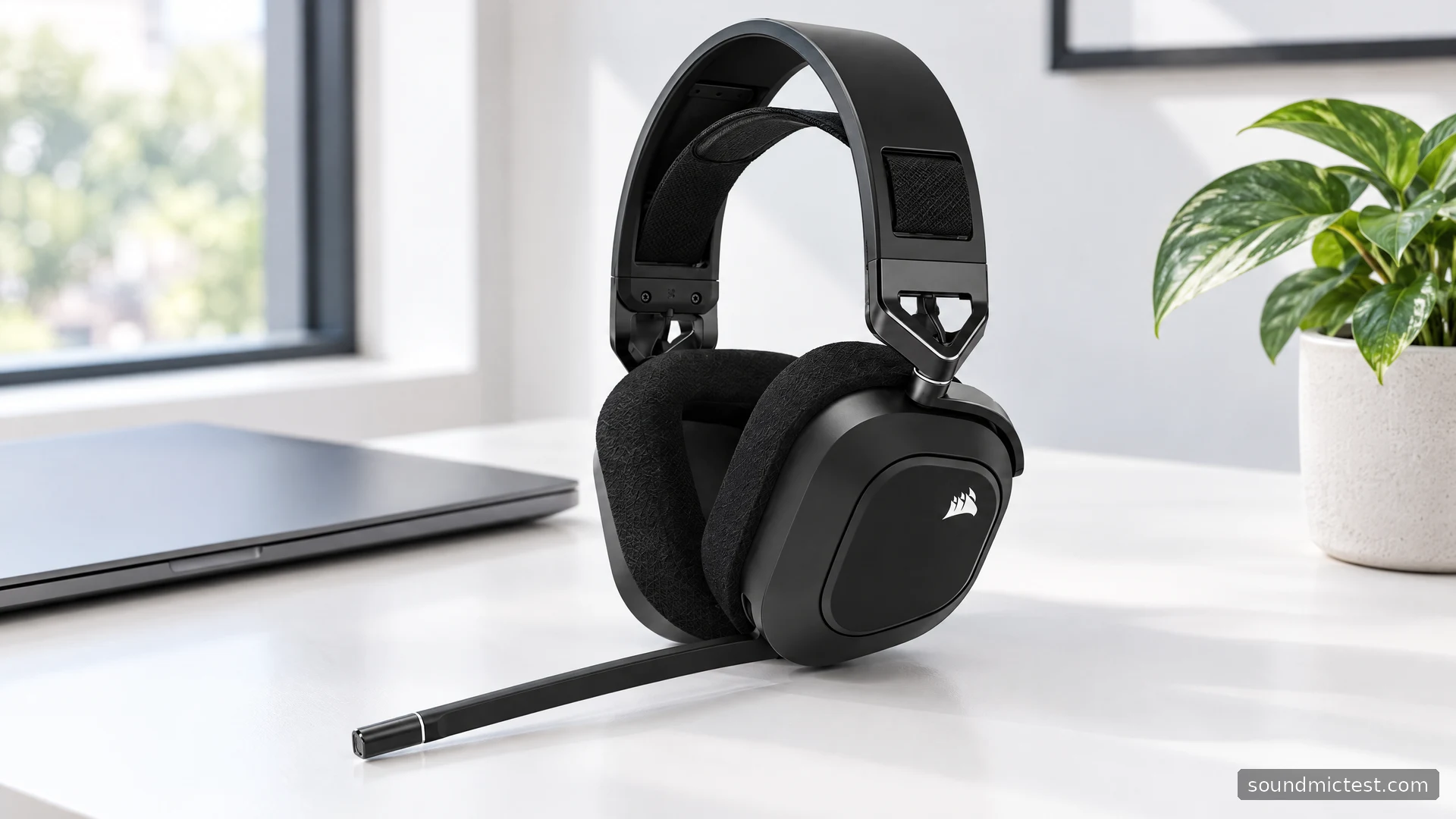
Corsair's launch documentation describes a floating headband, memory-foam cushions, wireless operation through its USB adapter and compatibility with PS4 and PS5. Dolby Atmos support is a PC feature; PlayStation uses its own audio settings.
The practical attraction is that the headset can stay attached to a gaming computer while you move around the immediate workspace. The receiver is an essential part of that arrangement. For a used purchase, check that it is included before comparing the asking price with another headset.
Corsair advertised 20 hours of wireless battery life at launch. Treat that as a manufacturer figure, not a promise for an older unit with unknown battery wear. A seller's description of a headset as “barely used” is less useful than confirmation that it charges, connects and holds power normally.
How to set up the HS80 on a PC
The official quick-start guide gives the basic connection sequence:
- Charge the headset and connect its wireless USB transmitter to the computer.
- Turn the headset on and allow the operating system to install its driver.
- Select the headset as the playback and microphone device in your audio settings.
- Install iCUE for supported EQ, microphone, lighting and firmware controls.
Keep the receiver in an open position rather than behind a metal computer case. That is a useful first adjustment when reception changes as you turn your head or move away from the desk. A wireless problem should be investigated separately from an application that is simply using the wrong output.
Confirm ordinary stereo playback before changing surround settings. Our left and right channel test can help identify reversed routing or a silent side. It is a listening check, not a measurement of frequency response or positional accuracy.
USB audio and charging are different questions
The original HS80 supports wired USB audio on PC. Corsair specifies turning the headset off before connecting the supplied cable for USB mode, with support up to 24-bit/96kHz.
That specification describes the supported digital format. It does not establish that every game or music file will sound better at that setting. Choose a format compatible with your applications and concentrate first on clean playback, correct routing and sensible volume. Changing sample rate is not a substitute for fixing a loose connection or an incorrect sound-device selection.
Keep a working data cable available. When troubleshooting USB audio, a cable that only supplies power can make the headset appear to charge correctly while leaving the computer without the expected audio connection.
Enabling Dolby Atmos without complicating the setup
Corsair's Dolby Atmos setup instructions direct owners to iCUE and Dolby Access. With the headset connected, open Dolby Access, choose its headphone setup option and complete the provided playback check. Follow the activation instructions shown for your purchase rather than assuming that an unrelated headset's code or entitlement applies.
Once it works, compare one familiar scene with spatial processing enabled and disabled. Keep the playback level similar and change one setting at a time. A louder presentation can sound more impressive without actually making direction easier to judge.
Avoid starting with several surround systems at once. If the game has its own headphone rendering, compare that path with the Windows spatial option separately. The useful result is a configuration you can understand and reproduce, not a settings screen with every enhancement switched on.
Microphone setup and the checks that matter
The boom flips upward to mute and downward to unmute. Position it near the corner of your mouth rather than directly in the path of your breath. iCUE provides microphone-level and sidetone controls; sidetone is the sound of your own microphone played back through the headset.
Make a short recording with our microphone test, then listen for missing words, harsh peaks and excessive background noise. This checks the actual browser input you selected. It does not guarantee that Discord, a game or a meeting app has selected the same device.
If the browser recording works but voice chat does not, inspect the application's input selection and mute state before replacing hardware. Add noise suppression only after the basic recording is intelligible. Aggressive processing can remove parts of quiet speech along with background sound.
Corsair also maintains a specific sidetone troubleshooting article. Use that model-specific support route for a persistent monitoring fault rather than applying an HS80 MAX fix to the original headset.
Who should consider it?
The original HS80 is worth considering when its receiver-based PC or PlayStation workflow fits your equipment and you value having an attached microphone ready for chat. Its configuration options reward a little setup time, particularly on Windows.
It is a less straightforward choice when your priority is moving between many unrelated devices with minimal checking. Compare the exact model, included receiver, battery condition and return policy before buying. A well-matched connection path and a verified microphone are more useful than a long list of features you cannot use on your main platform.