Gaming Headsets
Logitech G435: Bluetooth, LIGHTSPEED and Button Controls
Pair the G435, switch between Bluetooth and LIGHTSPEED, use its built-in microphones and understand sidetone and volume modes.

Amelia Collins is an editorial pen name for gaming and streaming audio at Sound Mic Test. This byline covers headset features, microphone communication, platform compatibility and audio choices for play and live content.
Sound Mic Test editorial pen name.
amelia.collins@soundmictest.com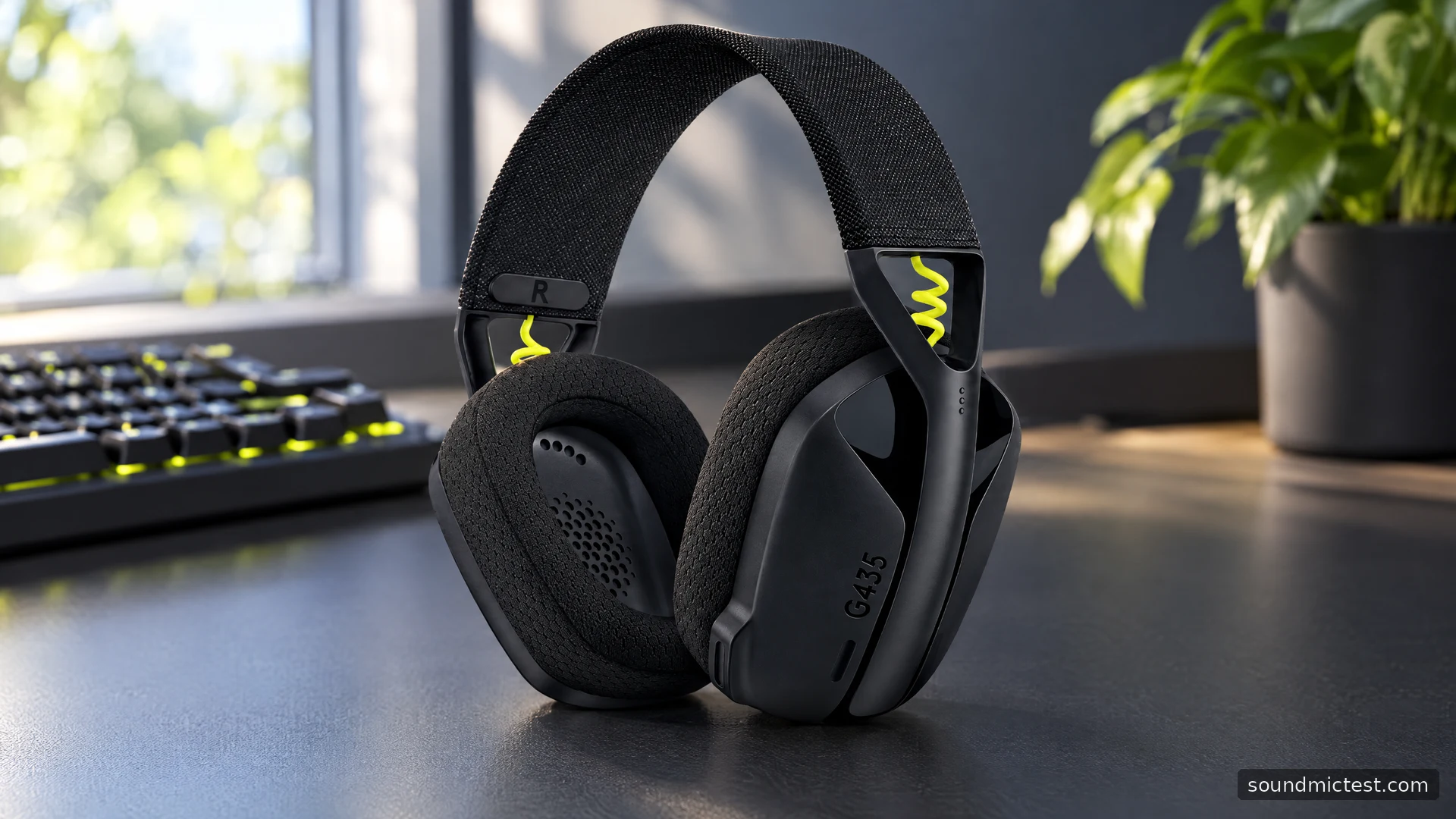
The Logitech G435 takes a different approach from a conventional gaming headset with a large boom. Its microphones are built into the headset, and Logitech specifies a weight of only 165g. The appeal is a lighter, less conspicuous design that can move between a USB receiver and Bluetooth. The compromise is that you cannot reposition a boom beside your mouth, so fit, room noise and input selection deserve attention.
This guide covers the G435's documented controls and connection modes. It does not treat wireless marketing terms as a measured latency result or promise that integrated microphones will sound the same in every room.
Choose a connection rather than pairing everything at once
The G435 setup guide describes LIGHTSPEED through the included USB receiver for supported computers and PlayStation systems, plus a separate Bluetooth mode. It specifies one Bluetooth device at a time.
For the receiver connection, insert the dongle and hold power for at least 1.5 seconds. Cyan indicates LIGHTSPEED connection. Select the headset for the computer's output and input, then check the game or call application's choices.
For Bluetooth pairing, hold Power and Mute together for at least three seconds until the indicator flashes blue. Select G435 in the source device's Bluetooth list. Do not use this procedure to troubleshoot a receiver connection that merely has the wrong output selected in Windows.
The distinction saves time. A headset can be working correctly in Bluetooth mode while you expect it to receive sound from the USB dongle. Confirm the active mode before deleting pairings or reinstalling software.
Switch between LIGHTSPEED and Bluetooth
Hold Mute for at least three seconds to switch connection modes, following the guide. The indicator shows cyan for LIGHTSPEED and blue for Bluetooth. This is mode switching, not an instruction to mix both sources continuously.
Try the sequence with ordinary music before using it during a call. Start receiver playback, switch to the paired Bluetooth device and check which source is active. If the result differs from your expectation, look at the indicator and the source's output choice before repeating button combinations.
Keep a note of which device is paired if the headset is shared. A phone reconnecting nearby can make the situation less obvious than a cable connection. The simplest troubleshooting question is often whether the headset is listening to the device you think it is.
What the light design does and does not tell you
Logitech's product page identifies integrated beamforming microphones, a 165g weight and a design optimized for smaller heads. It advertises 18 hours of use on a full charge. These are manufacturer specifications, not comfort or runtime measurements made for this guide.
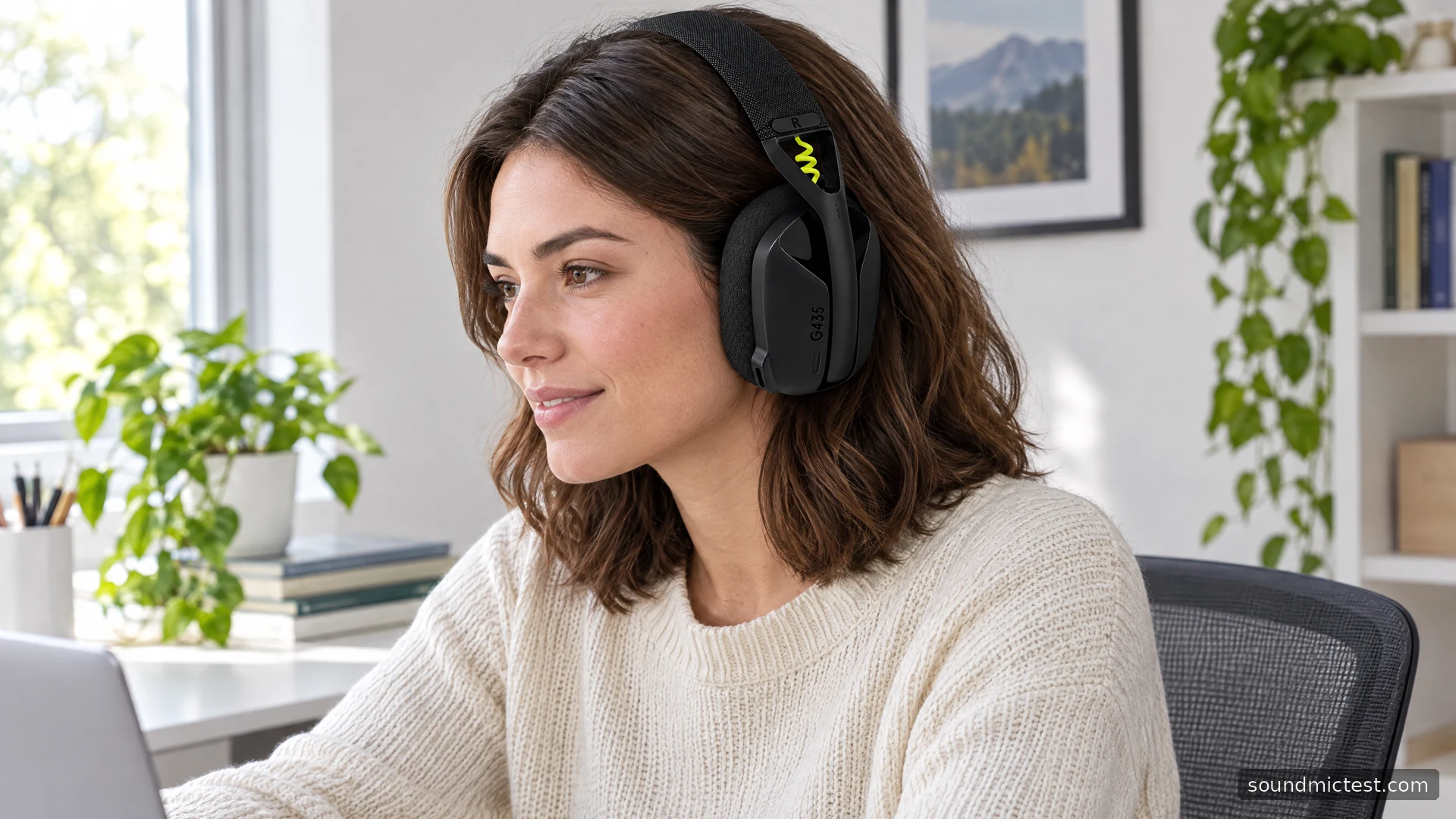
Low weight can be attractive for long sessions, but it does not guarantee a good seal or the right size. Adjust the cups to surround your ears and check whether movement breaks that fit. A larger head may need a different adjustment range even when the headset feels light in the hand.
The lack of a boom is convenient for transport and casual listening. It also removes one common way to improve capture: moving the capsule closer to your mouth. Avoid covering the microphone openings with hair, clothing or a hand while speaking, and compare recordings in the room where you will use it.
Test the built-in microphone and sidetone
Use the microphone test to confirm capture from G435 rather than the computer's built-in microphone. A short Mute press toggles the microphone. Check browser permission and application mute separately if there is no signal.
Then make a sample using the voice recorder. Speak normally, turn slightly as you would during a game and include a short pause. Listen for room noise and changes in level. This gives useful feedback about your setup without pretending to be a calibrated microphone test.
The guide assigns a double Mute press to sidetone. Sidetone lets you hear some of your own voice locally, which can help you judge your speaking level. It does not prove that an app is receiving the microphone. If you hear yourself but a call is silent, inspect the app's selected input.
Avoid turning up every input and output control at once. Playback level, microphone capture and sidetone have different jobs. Change one, record again and keep the setting that solves the actual problem.
Battery checks and volume controls
A short power press while the headset is on reports battery state through the indicator. The guide uses green for the higher remaining range, red for a lower range and flashing red below 15 percent. Check it before a long session rather than waiting for the headset to disconnect.
The G435 also offers a lower maximum-volume setting. The guide describes holding Mute with Volume Down for at least three seconds to select the 85dB mode. Treat that as a device setting rather than proof that every source and listening duration is safe; keep everyday listening comfortable and avoid chasing loudness when a source is quiet.
Who is the G435 for?
The G435 fits someone who values light weight, a boom-free appearance and the option to switch between receiver and Bluetooth use. It is less suitable if a closely positioned boom, simultaneous source mixing or extensive physical controls are essential.
Check fit first, learn the colour cues and verify both connection paths. A quick stereo check and voice recording will answer more useful setup questions than assuming that a successful Bluetooth pairing means every game and call is configured correctly.