Gaming Headsets
Logitech G733: LIGHTSPEED, RGB and Microphone Setup Guide
Set up the G733 receiver, adjust its suspension strap, configure microphone controls and understand battery claims and G HUB settings.

Amelia Collins is an editorial pen name for gaming and streaming audio at Sound Mic Test. This byline covers headset features, microphone communication, platform compatibility and audio choices for play and live content.
Sound Mic Test editorial pen name.
amelia.collins@soundmictest.com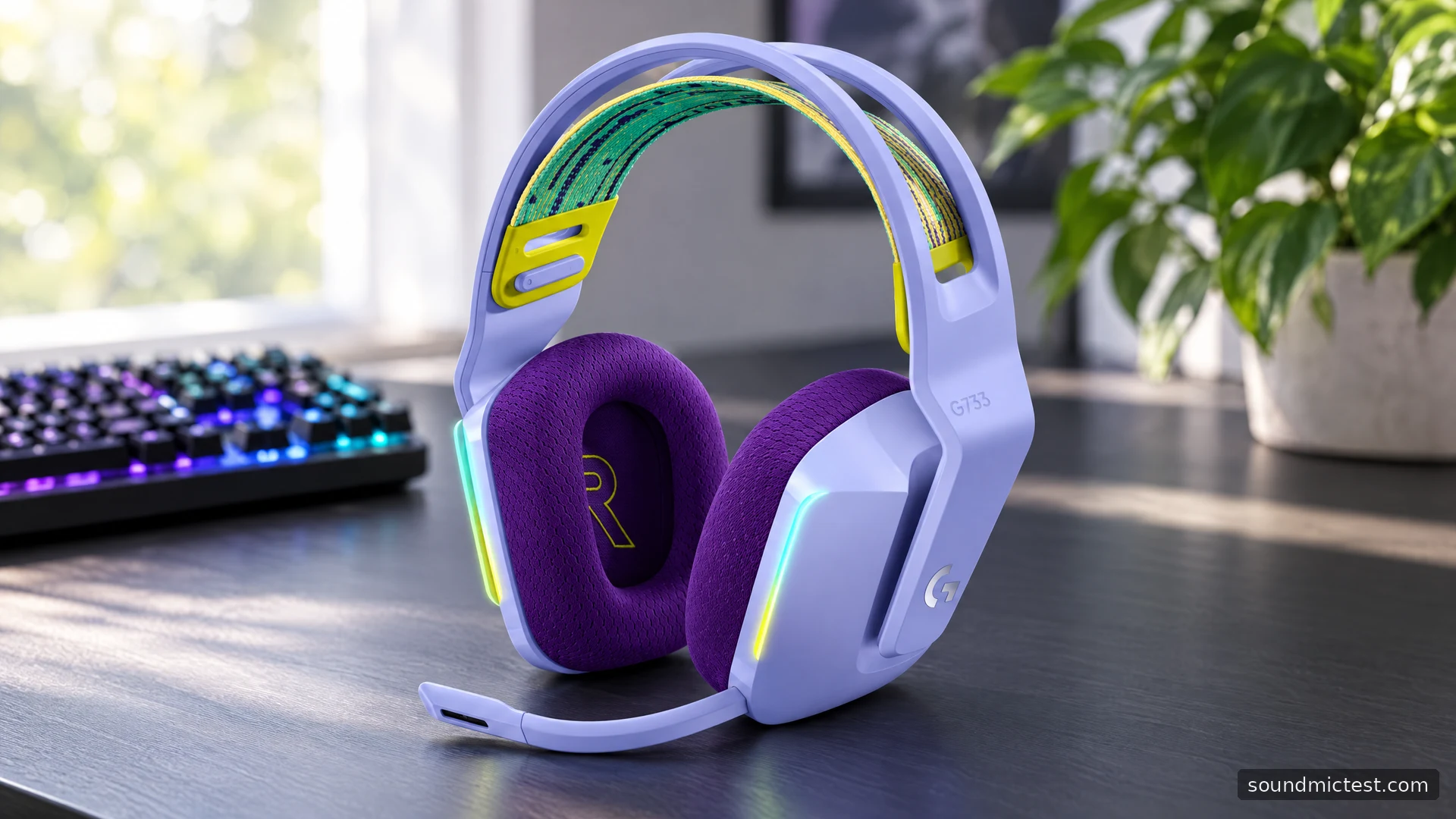
The Logitech G733 is a receiver-based gaming headset with a visible sense of style: a suspension strap, colourful options and front-facing lighting. Its practical appeal is the combination of wireless movement, a removable microphone and software customization. The important compromise is that the lighting and advanced processing come with settings to manage, while the USB receiver remains central to the gaming connection.
This guide evaluates the documented G733 design and explains its setup. It does not present a new listening test or turn Logitech's battery specification into a measured result.
Read the battery footnote before comparing numbers
Logitech's G733 product page advertises more than 29 hours under stated conditions: headset volume at 50 percent and lighting off, with actual life varying by use and computer conditions. The RGB display in a product photograph and the longest quoted runtime therefore describe different settings.
That does not make the lighting a problem. It simply makes it a choice. If you enjoy the visual effect, use it and build a charging routine around your usage. If you care more about extending the interval between charges, start by reducing or disabling lighting rather than assuming the battery is defective because your routine differs from the footnote.
Wireless range claims also depend on the room. A receiver hidden behind a desktop tower can behave differently from one with a clearer path. Judge reliability where you actually sit and move, not by a single maximum-distance number.
Set up the receiver and removable boom
The G733 setup guide starts with fully inserting the microphone, connecting the receiver to the PC and using a short power-button press. G HUB is optional for the basic setup and provides the documented advanced controls.
Once powered, choose the G733 for both playback and microphone capture. Check the game and voice application separately, especially if you previously used monitor speakers or a webcam microphone. A new output device does not always replace an application's saved input.
Confirm ordinary playback with the stereo test. Keep virtual surround and EQ simple at first. If the headset is silent, inspect the receiver connection, system output and volume before changing microphone filters or lighting profiles.
The USB-C socket on the headset is identified as a charging port in the guide. Keep its role distinct from the wireless receiver when diagnosing a connection. A charging indication alone does not establish that the computer is sending game audio to the headset.
Adjust both parts of the fit
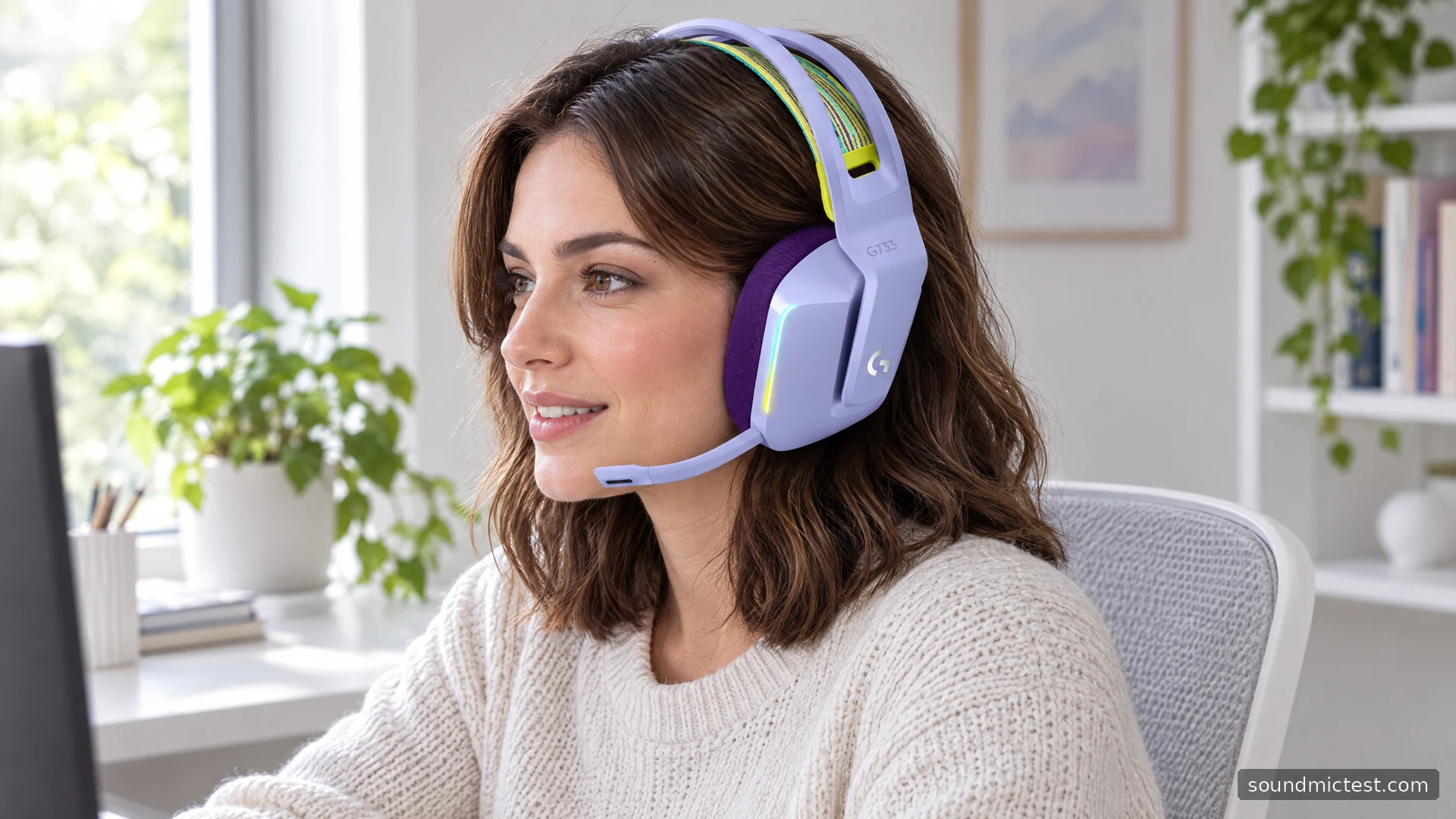
The G733 provides earcup height adjustment and an adjustable suspension strap. Use both rather than tightening the strap until it pulls the cups upward. The goal is to let the cushions surround the ears while the band supports the headset without a concentrated pressure point.
Try your usual seated position and glasses, if worn. A headset that feels fine while standing for a minute may sit differently when you lean toward a screen. Make small adjustments and check whether the seal remains even on both sides.
The guide identifies replaceable pads, strap and microphone, with parts availability depending on region. For long-term ownership, that can be useful, but verify the exact replacement before ordering. A similarly shaped pad or boom from another Logitech headset is not automatically compatible.
Check the microphone before enabling Blue VO!CE
Seat the removable boom completely and aim it near the corner of your mouth. Open the microphone test, choose the headset input and allow browser access. Check hardware mute if the input remains silent.
A short voice recording is a useful baseline for filter decisions. Speak at your normal level, pause and type briefly. Listen for distorted peaks, breaths and words cut short. Change the microphone position or gain before expecting a preset to repair a poor starting signal.
The guide documents G HUB options including Blue VO!CE, sidetone, EQ, lighting and button assignment. Sidetone is the amount of your own voice you hear locally; it is not the same as the level sent to a call. If you can hear yourself but teammates cannot, inspect the recording route rather than turning sidetone higher.
Avoid applying strong suppression in both G HUB and the call application without comparing the result. A setting that removes keyboard noise may also make quiet speech unnatural. Test one stage at a time so you can keep the benefit without losing intelligibility.
Use the status cues instead of guessing
The manual describes red flashes and a two-beep cue when muting, and green flashes with three beeps when unmuting. It also documents low-battery warnings. Learning those cues is helpful when a call suddenly goes quiet or the headset needs charging.
Because G HUB can change button assignments, check your configuration if a control no longer does what the printed guide suggests. A custom shortcut is easily forgotten after moving to a different game or profile. Return to a simple known mapping while troubleshooting.
The right reason to choose a G733
The G733 is a sensible candidate when receiver-based wireless, a suspension fit and customization are priorities. Its colour and lighting can be part of that preference without being mistaken for evidence of sound quality.
It is a less obvious choice if you need a simple analog backup or want advanced PC features to appear unchanged on every platform. Verify compatibility, assess the fit and compare battery expectations with the correct lighting conditions. Those checks make the purchase more meaningful than choosing it solely for a bright product image or a maximum runtime claim.