Gaming Headsets
Logitech G PRO X Wired: USB Sound Card, Blue VO!CE and Setup
Set up the wired G PRO X, connect its USB sound card, position the detachable microphone and understand which features require G HUB.

Amelia Collins is an editorial pen name for gaming and streaming audio at Sound Mic Test. This byline covers headset features, microphone communication, platform compatibility and audio choices for play and live content.
Sound Mic Test editorial pen name.
amelia.collins@soundmictest.com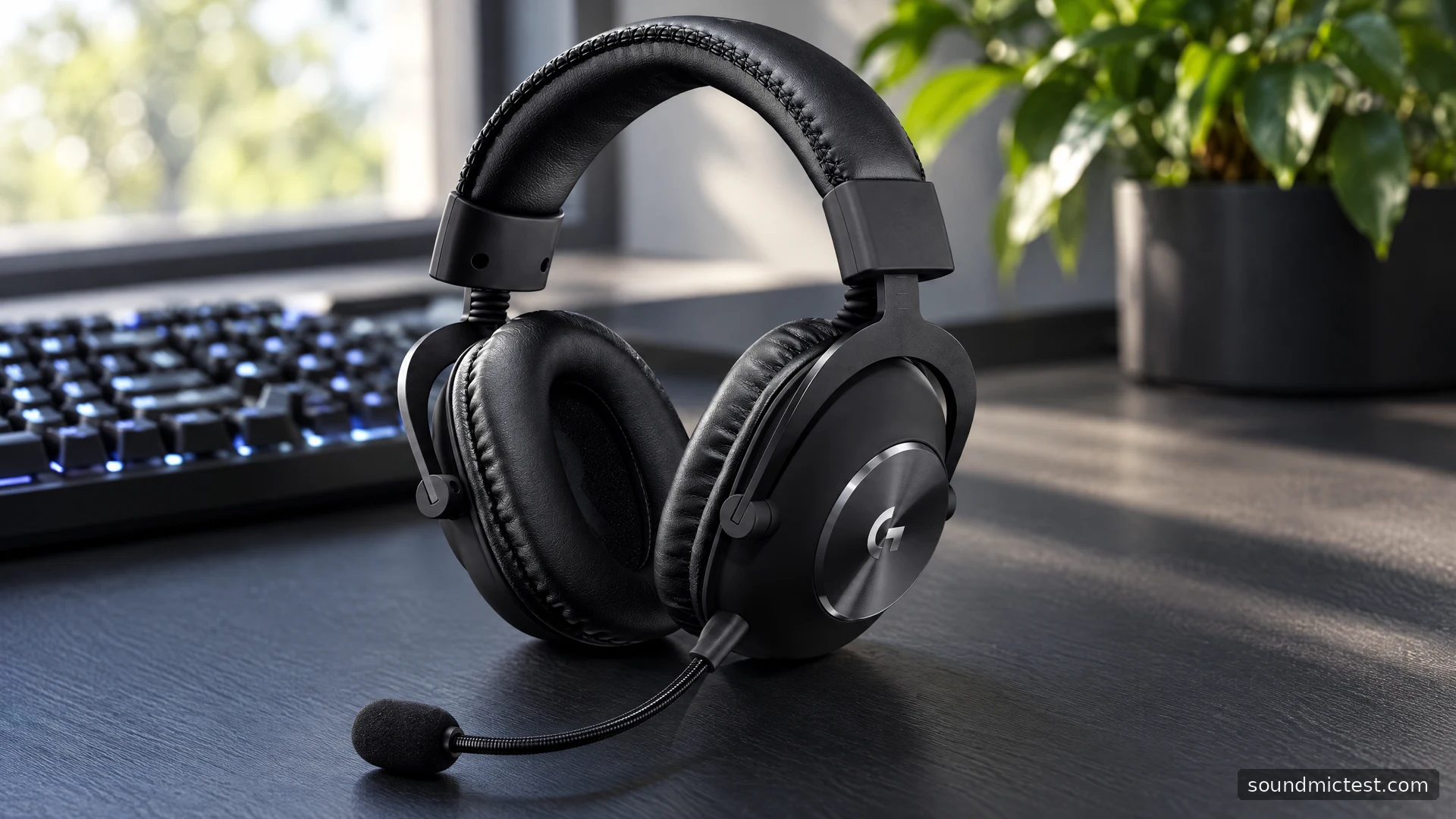
The wired Logitech G Pro X offers two quite different experiences in the same box. Connected through its USB sound card on a supported PC, it provides access to G HUB processing and microphone tools. Connected directly to a controller, it behaves as an analog headset. That distinction is the key to deciding whether its extra features are useful to you.
This guide covers the original wired Pro X, not Pro X Wireless, Pro X 2 or Pro X SE. It assesses the documented connection options and explains how to get a useful microphone signal before experimenting with filters.
The USB sound card is part of the feature set
The Logitech setup guide makes the dependency clear: the supplied USB DAC and G HUB on PC enable the documented EQ, DTS Headphone:X 2.0 and Blue VO!CE features. Using the PC's analog sound card instead does not provide that same Logitech processing path.
This matters when comparing prices or buying used. A headset without its correct USB sound card is not the same practical bundle if microphone filters are your main reason for choosing it. An unrelated USB adapter may carry sound, but that does not make it an equivalent replacement for the feature-specific hardware.
The official product page describes Blue VO!CE tools such as compression, noise reduction and de-essing. Those are processing options, not a guarantee that every voice or room will sound better with every filter enabled.
Connect the PC cable and microphone first
Fit the detachable microphone, connect the console/PC cable to the headset and insert the other end into the supplied USB sound card. Connect that adapter to the computer and select it for playback and microphone capture. Check your chat application's choices independently.
If using separate analog headphone and microphone ports, the guide shows the PC splitter instead. With a compatible combined headset socket, the connection requirements differ again. Identify the socket before assuming that hearing game audio proves the microphone is wired correctly.
A useful first session is deliberately simple:
- Seat the cable and boom fully.
- Confirm output with familiar speech or music.
- Check left and right with the stereo test.
- Confirm microphone capture with processing at a simple baseline.
- Add G HUB features only after the underlying connection works.
That order makes a fault easier to locate. If ordinary playback fails before any effect is enabled, downloading a professional player's EQ is unlikely to solve it.
Tune Blue VO!CE to a recording, not a label
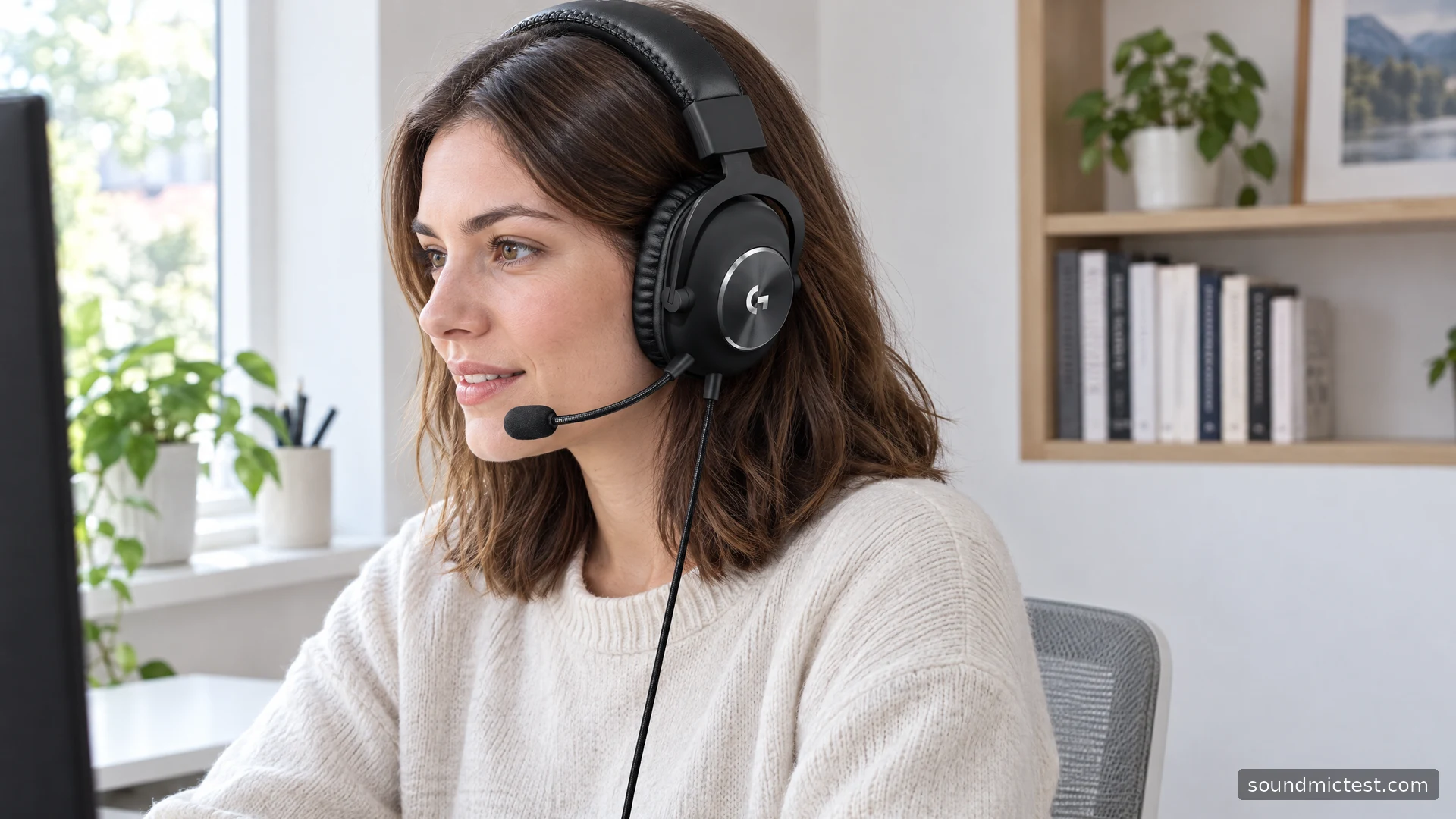
Position the microphone near the corner of your mouth, away from direct breath. Use the microphone test to confirm input selection, then make a sample with the voice recorder.
Record normal speech before changing filters. If loud syllables distort, lower capture gain. If breaths dominate, move the boom slightly. Processing is easier to judge once the raw signal is usable; it cannot fully recover speech that was clipped or poorly positioned at capture.
Next, compare one change at a time with the same sentence. A gate that silences the keyboard between words may also cut the start of quiet speech. Heavy compression may make levels more consistent while raising room noise during pauses. Listen for the consequence you actually care about rather than choosing the most dramatic preset name.
Check the result inside your call application as well. Its own suppression and level control can interact with the headset software. A good local sample and a poor call suggest examining that second processing stage before replacing the microphone.
What travels with the USB DAC?
The manual distinguishes stored EQ from live processing. It describes saving custom EQ to the DAC, but says Blue VO!CE and DTS Headphone:X 2.0 still require G HUB and the USB DAC on PC. Saving an EQ does not package every software feature for use on any machine.
That is useful for someone moving among computers, but it should be tested before an event. Confirm the saved setting and make sure the host permits any software you intend to run. Keep a neutral configuration available in case a preset is unsuitable for the game or source.
Likewise, virtual surround is optional. Compare it with ordinary stereo in a familiar scene and avoid stacking it with another headset surround layer. A wider presentation is not automatically a more intelligible one, and this guide offers no measured positioning score.
Controller use changes the proposition
The setup guide shows the console/PC cable connected to a compatible controller for analog stereo use. It explicitly separates this from the PC-only software features. Check your actual controller socket and console instructions; some older controllers need an additional adapter.
If you mostly play on a console, evaluate the fit, cable, physical controls and ordinary microphone operation as the core purchase. Do not justify the price using a PC filter workflow you will rarely access. Someone who splits time between a PC and controller may get more value from the two connection paths.
Who should choose the wired Pro X?
The Pro X makes sense for a PC player who wants a removable boom and is willing to configure the supplied USB sound card carefully. It also offers a straightforward analog option when moving to a compatible controller.
Its limitations are the cable and the dependence of important software features on the correct PC setup. Check the complete bundle, establish a clean recording and decide whether the processing improves your own voice. That is a stronger basis for buying than assuming the Pro name or a downloaded preset guarantees a professional broadcast sound.