Gaming Headsets
Corsair HS65 Surround: SoundID, USB and Microphone Setup
Connect the HS65 Surround through USB or 3.5mm, configure iCUE and SoundID, and troubleshoot its flip-to-mute microphone.

Amelia Collins is an editorial pen name for gaming and streaming audio at Sound Mic Test. This byline covers headset features, microphone communication, platform compatibility and audio choices for play and live content.
Sound Mic Test editorial pen name.
amelia.collins@soundmictest.com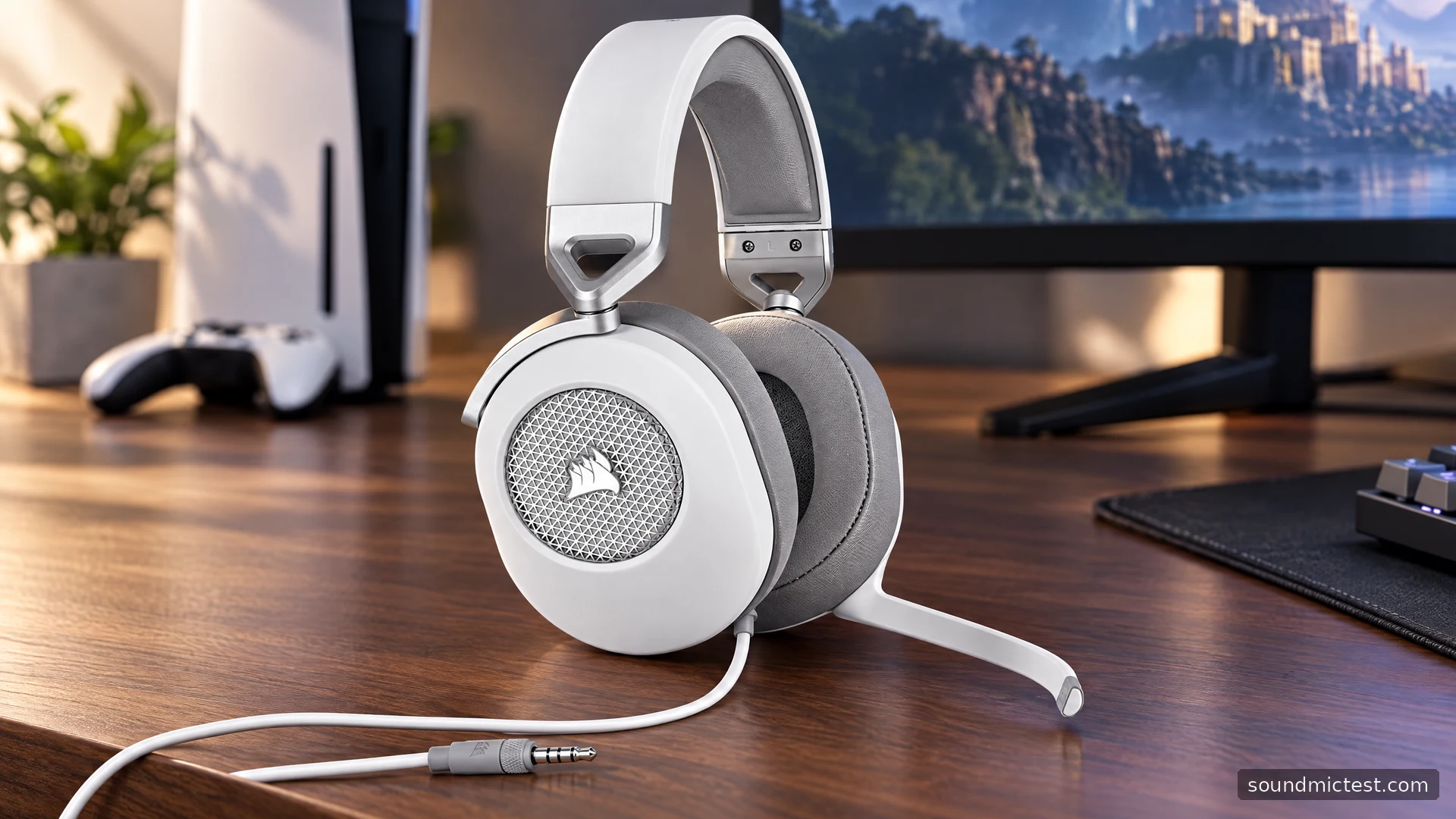
The Corsair HS65 Surround makes most sense when you want a wired headset that can move between a gaming PC and a controller. Its useful trick is the removable USB adapter: keep it attached for the computer's software features, or leave it behind when a compatible 3.5mm headset socket is more convenient. There is no battery routine to learn and no wireless receiver to pair.
That flexibility also creates its main source of confusion. Plugging the headset into a controller does not bring the PC's surround processing and personalization along with it. This guide examines the documented HS65 Surround hardware and setup rather than assigning unmeasured sound-quality scores. Check the full model name before buying, since the similarly named HS65 Wireless uses a different connection system.
What the hardware offers
Corsair's launch announcement describes 50mm drivers, aluminum reinforcement, memory-foam ear cushions and a microphone that mutes when raised. Black and white versions share that basic layout. The mesh detail on the outside of the cups is visually distinctive, but appearance alone is not evidence of a particular acoustic response.
The practical appeal is straightforward. One headset can handle a desk session and then connect to a suitable controller without needing a charge. The cost of that simplicity is a cable running from your head to the source. Consider where that cable will sit when you move your chair, reach for a drink or place the controller down.
For shared spaces, also distinguish microphone noise handling from isolation at your ears. Neither a large driver nor the word Surround tells you how effectively the headset will block a nearby conversation. Comfort, glasses clearance and your own room remain useful things to assess during a return period.
Choose the connection before installing software
The HS65 Surround quick-start guide separates direct analog stereo from the USB software path. On Windows, connect the headset's plug to the included adapter, then connect that adapter to the computer. Select it for both playback and recording in your operating system and in your game or chat app.
If you use a controller's compatible headset jack, start with its audio settings instead. Installing software on a nearby PC will not change the controller's analog output. Likewise, a phone needs a compatible headset connection or an appropriate audio adapter; a connector that fits mechanically is not enough to establish microphone support.
A sensible first setup is:
- Reduce the headset and system volume before playing anything.
- Connect the chosen path firmly, including the headset-to-USB junction when applicable.
- Select the corresponding output and microphone in your application.
- Play familiar speech, then raise the level gradually.
- Establish a working stereo baseline before enabling extra processing.
That baseline makes later troubleshooting much less ambiguous. If sound disappears after a software change, you can return to a known configuration rather than changing three settings at once.
SoundID and surround solve different problems
SoundID uses listening preferences to personalize the sound, while virtual surround changes spatial presentation. Corsair offers these alongside EQ through iCUE on the supported USB setup. They are separate decisions, not a single upgrade switch that should always stay enabled.
Try personalization using music you know well and listen at a consistent level. Keep a neutral starting profile available so that you can compare. If your preference changes depending on the content, that is a reason to maintain separate profiles rather than forcing one setting onto everything.
For games, test one spatial system at a time. A game's headphone renderer, operating-system processing and headset software may all offer their own options. Begin with the game's recommended headphone setting and a repeatable scene. Decide whether another processing layer actually makes direction easier to follow in that scene.
Our left and right stereo test can check channel routing before that comparison. It cannot establish surround accuracy or predict whether you will locate opponents faster. A clean channel check simply removes an avoidable setup mistake from the process.
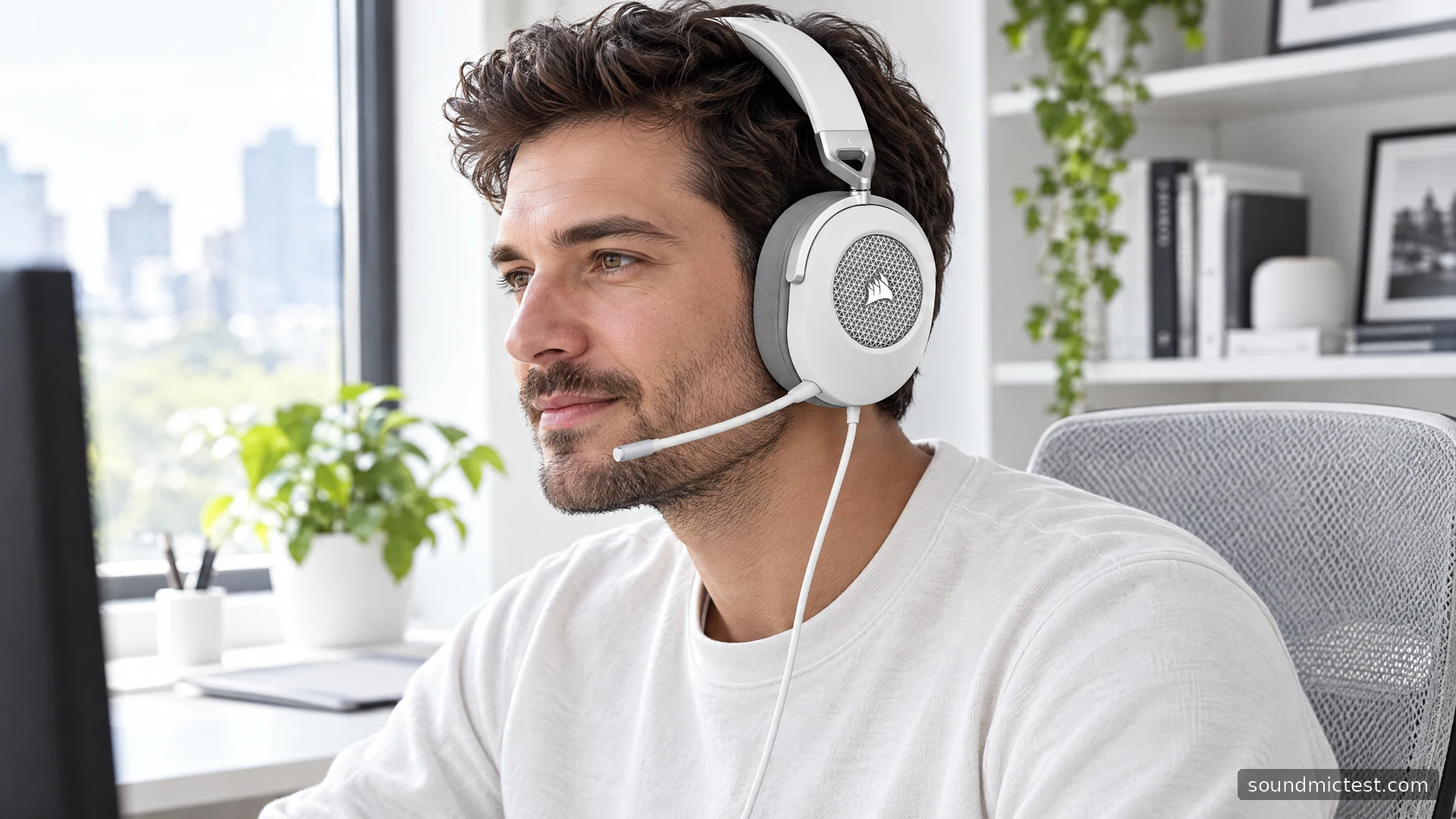
Set the microphone at the left corner of your mouth
The HS65's boom is fixed to the headset and flips upward to mute. Lower it for conversation, then bend it toward the left corner of your mouth rather than placing it directly in the path of your breath. The earcup's volume wheel controls listening level; it is not a substitute for microphone input gain.
Open the microphone test, select the USB adapter or the analog input you are actually using, and speak at your normal chat volume. A moving meter only confirms that some input has reached the browser. Verify the device selection, particularly on a laptop with a built-in microphone.
For a more useful check, record a sentence through the voice recorder test, leave a short pause and type a few words. Listen for clipping, excessive room pickup and breath bursts. Move the boom before adding heavy noise suppression. Then repeat the same recording with one software adjustment so you can hear what changed.
Fix common setup problems methodically
If audio works but the microphone does not, lower the boom, check the app's mute control and confirm its input selection. With an analog connection, check that the socket supports a combined headset plug. A desktop with separate headphone and microphone sockets may require the appropriate splitter.
If iCUE does not expose the headset's features, confirm that the supplied USB adapter is in the signal path. For intermittent recognition, try a direct computer port before a keyboard or monitor hub. The manual specifically warns that some older peripheral ports cannot provide the required power.
If the voice recording is healthy but game chat still fails, focus on the game's settings and permissions. Reinstalling every audio driver is a poor first step when another application already receives the microphone correctly.
Who should choose it?
The HS65 Surround is a logical shortlist option for someone who values a simple wired connection and wants optional PC customization. It is less suitable if the main goal is walking around without a cable or carrying one personalized software configuration unchanged between every console and computer.
Its strongest buying argument is the combination of ordinary analog convenience and an included USB route. Make the decision around those usable features, then evaluate fit and sound personally. The product name should not decide whether surround processing stays switched on.