Office Headsets
Logitech H390: USB Setup, Mute Light and Microphone Fixes
Set up the H390 USB headset, understand its flashing mute light and troubleshoot microphone selection, permissions and USB connections.

Emma Bennett is an editorial pen name for microphone and voice-recording coverage at Sound Mic Test. This byline covers microphone features, recording setups and practical considerations for calls, streaming and spoken-word audio.
Sound Mic Test editorial pen name.
emma.bennett@soundmictest.com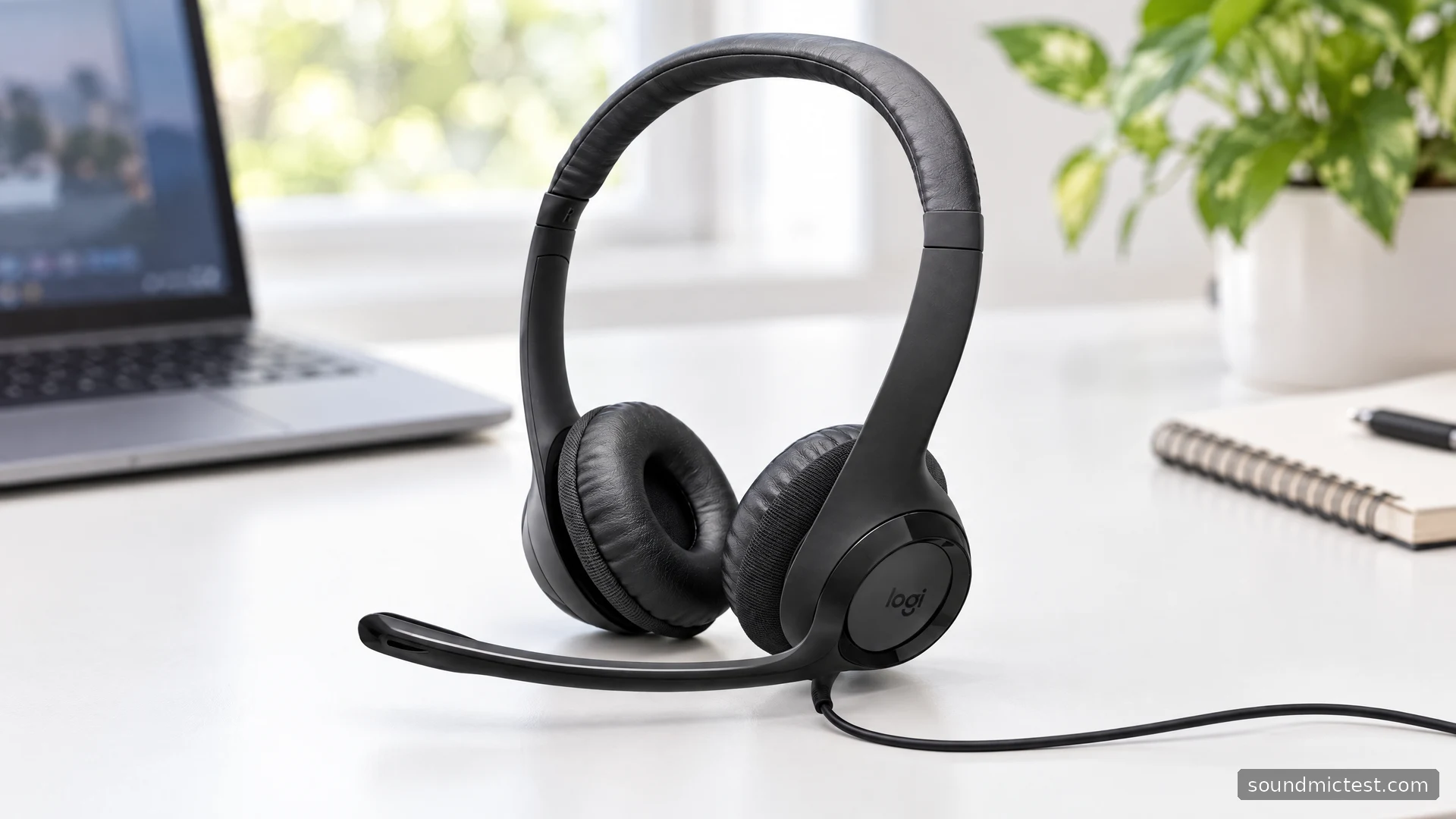
The Logitech H390 has a straightforward job: connect a headset and microphone to a computer over USB, with volume and mute controls on the cable. That simplicity is its main buying argument. There is no pairing sequence, wireless receiver or battery schedule to maintain, which can make it an appealing desk accessory for calls, lessons and occasional recording.
Simple hardware still needs the correct audio route. Many H390 problems come from an application using the wrong microphone, an inline mute state or a USB connection through a troublesome hub. This guide examines the documented setup and practical tradeoffs without inventing microphone measurements or claiming that every room will sound clear.
Check the connector on the exact unit
Logitech's current H390 product page offers USB-A and USB-C choices. The older H390 setup guide covers the familiar USB headset arrangement, but that does not mean every retail listing now has the same plug. Check the selected option and product photograph before ordering.
The H390 is a wired USB headset, not a 3.5mm analog model. A computer needs a compatible USB audio connection. Do not assume a console, phone or adapter will support it merely because you can physically connect the plug; verify the target device's support for that exact route.
Its fixed cable is convenient at a desk but imposes a movement limit. Think about where the computer port sits, whether the cable crosses the keyboard and whether the inline controller can rest within reach. A connection that pulls each time you move your chair is not a good everyday layout.
Set input and output separately
Plug the headset into the computer and open its sound settings. Choose the Logitech headset for output, then choose its microphone for input. Repeat those selections inside the calling application if it maintains its own device choices.
The H390 setup guide includes older Windows and macOS menu names. On newer systems, use the current sound settings rather than hunting for an identical historical menu. The underlying task is unchanged: tell the computer which device should play audio and which should capture your voice.
Start with a short spoken clip at a low level. If it plays through laptop speakers, resolve the output selection before changing microphone gain. If headset sound works but callers hear the room, check that the application has not kept the laptop or webcam microphone selected.
What the flashing mute light means
The inline control includes volume and microphone mute. Logitech's guide states that the mute light flashes when mute is active. That is a useful first check when you can hear a meeting but nobody can hear you.
Physical mute and an app's mute button are separate controls. Unmuting one does not necessarily clear the other. During setup, toggle the inline button while watching an input meter, then repeat using the app's on-screen control. Learn what each does before relying on a quick glance during a call.
Moving the boom out of the way is also different from pressing mute. The H390's rotating microphone is useful for positioning and storage, but you should use its documented mute control when you need to stop transmission. Do not assume that every headset with a movable arm has flip-to-mute behavior.

Get a useful microphone recording
Adjust the headband so the earcups sit naturally, then bring the microphone near the corner of your mouth. Avoid placing the tip directly in front of your lips, where breath can strike it. Speak at a normal meeting level rather than leaning forward and shouting into the capsule.
Open the microphone test, allow access and select the H390 input. Confirm that your voice moves the meter and that the inline mute button changes the result. If the meter still responds while the headset is muted, check whether a different microphone is selected.
Then make a sample through the voice recorder test. Include a sentence, a pause and a few keyboard presses. Listen for clipped loud syllables, low-level speech disappearing and distracting background noise. Change the boom position before increasing gain, and compare one adjustment at a time.
Logitech describes a noise-canceling microphone, but that should not be interpreted as active noise cancellation for what you hear through the earcups. Nor is it a promise that every keyboard or nearby conversation will disappear from a recording. The sample tells you more about your particular room and app settings.
Troubleshoot in the order that isolates the problem
If the headset is not recognized, try a direct USB port on the computer. Logitech specifically recommends bypassing a USB hub during troubleshooting. If a direct connection works, investigate the dock, adapter or hub before replacing the headset.
If recognition works but one application is silent, close and reopen that application after confirming its device selection. Check browser microphone permission separately from the operating system's permission. An app cannot use an otherwise healthy input if access is denied.
For playback, our left and right stereo test can confirm channel routing. If both channels work there but a call plays differently, inspect the calling app and its audio settings. A basic browser check does not measure frequency response, but it can narrow the fault to a particular software path.
If problems occur only when the cable is moved, inspect the visible cable and connector for damage without repeatedly bending them to force a connection. Intermittent hardware should not be disguised with increasingly elaborate software changes.
Where the H390 fits best
The H390 is a reasonable shortlist choice for a fixed computer desk where simple USB setup and reachable mute controls matter. It is less suitable if you need wireless movement, phone Bluetooth or an interchangeable analog cable.
Before settling on it, check fit, the exact USB connector and a recording made in your own workspace. The useful standard is whether people can hear you consistently and whether the controls are easy to operate. A modest headset that is configured correctly can be more practical than a feature-rich one whose input path changes unexpectedly.