Office Headsets
Jabra Evolve2 75: ANC, Microphone Modes and Meeting Setup
Configure Evolve2 75 for meetings, understand boom and earcup microphone modes, and set ANC, HearThrough and on-head detection.

Emma Bennett is an editorial pen name for microphone and voice-recording coverage at Sound Mic Test. This byline covers microphone features, recording setups and practical considerations for calls, streaming and spoken-word audio.
Sound Mic Test editorial pen name.
emma.bennett@soundmictest.com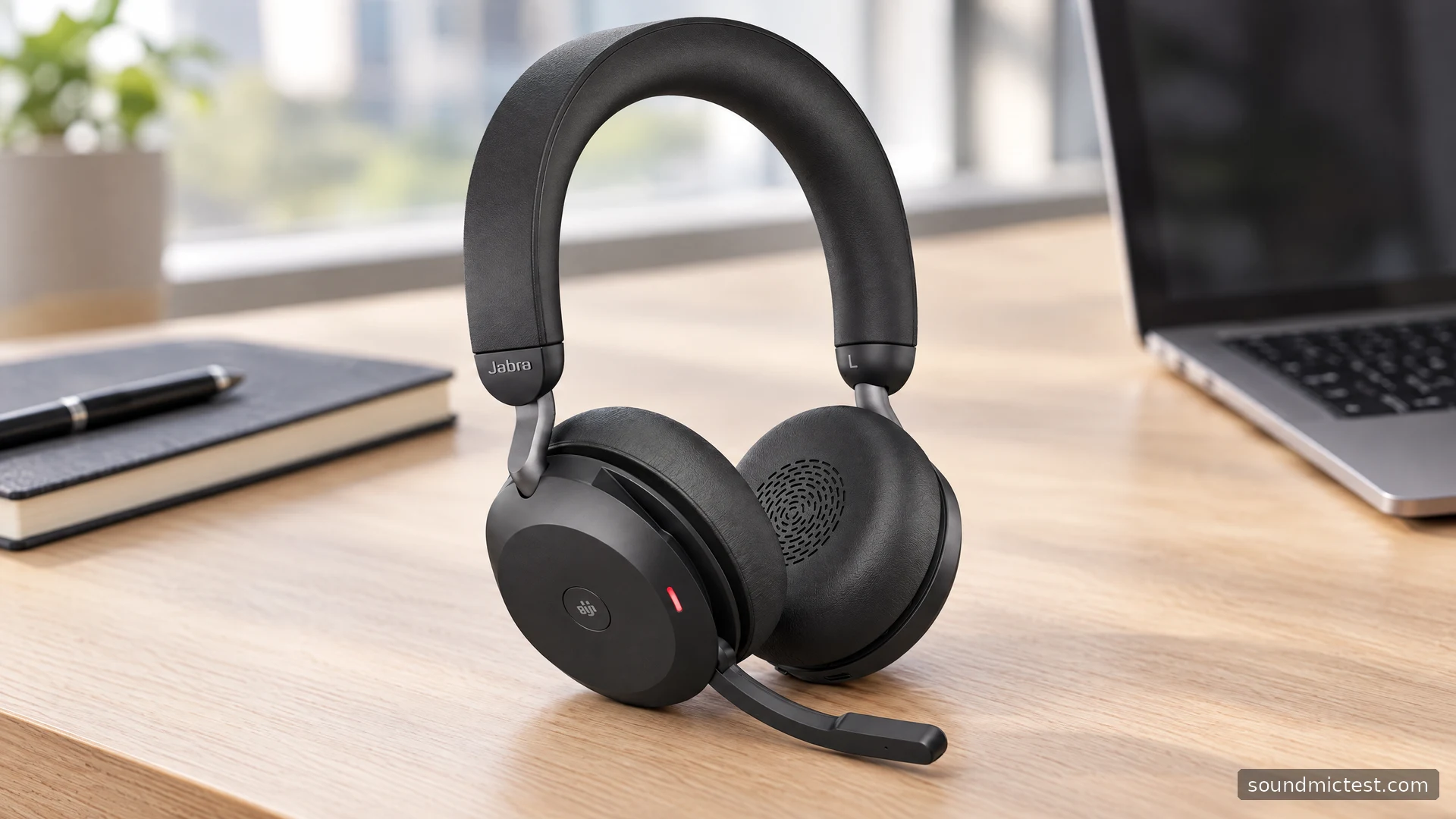
The Jabra Evolve2 75 offers more than one way to handle an office day. You can lower its short boom for a call, use active noise cancellation while concentrating and switch to HearThrough when you need to hear the room. Those options make it flexible, but they also mean that a raised microphone arm is not the whole story about whether the headset can transmit your voice.
This guide focuses on the Evolve2 75's documented controls and practical setup choices. It does not claim a measured advantage over another headset or repeat manufacturer superlatives as test results. The important question is whether its different listening and microphone modes help your actual work, and whether you are comfortable checking their settings.
The useful features and their limits
Jabra's product overview lists eight microphones, adjustable ANC, HearThrough and a hide-away boom. These are different systems with different jobs. ANC changes what you hear from the environment; microphone processing changes what is captured for a call; HearThrough intentionally brings surrounding sound into your ears.
It is possible to like one system more than another. An office fan, speech from a nearby desk and a keyboard are different listening challenges. Evaluate the settings in your real room instead of assuming that a microphone count or an ANC badge settles the result.
The headset also comes in Teams and UC configurations, with adapter connector and charging-stand choices. Read the exact bundle contents. A stand shown in a lifestyle photograph may be optional, and older documentation may name a different Link adapter from current stock.
Establish one working computer connection
Connect the supplied Jabra Link adapter and select it for playback and recording. Do that in the meeting application as well as in the operating system. A laptop can retain its internal microphone while sending the other person's voice to the headset, creating the impression that the headset microphone is poor when it is not being used at all.
The manufacturer's user manual, mirrored by Headsets Direct, describes the original Link 380 package and manual pairing through Jabra Direct. Use the instructions for the adapter actually in your box when dealing with a later bundle.
To add a phone, hold the power switch in its pairing position until the indicator flashes blue and the headset announces pairing. Select Evolve2 75 in the phone's Bluetooth menu. Verify each device separately before experimenting with switching between calls.
Boom microphone and discreet mode are different choices
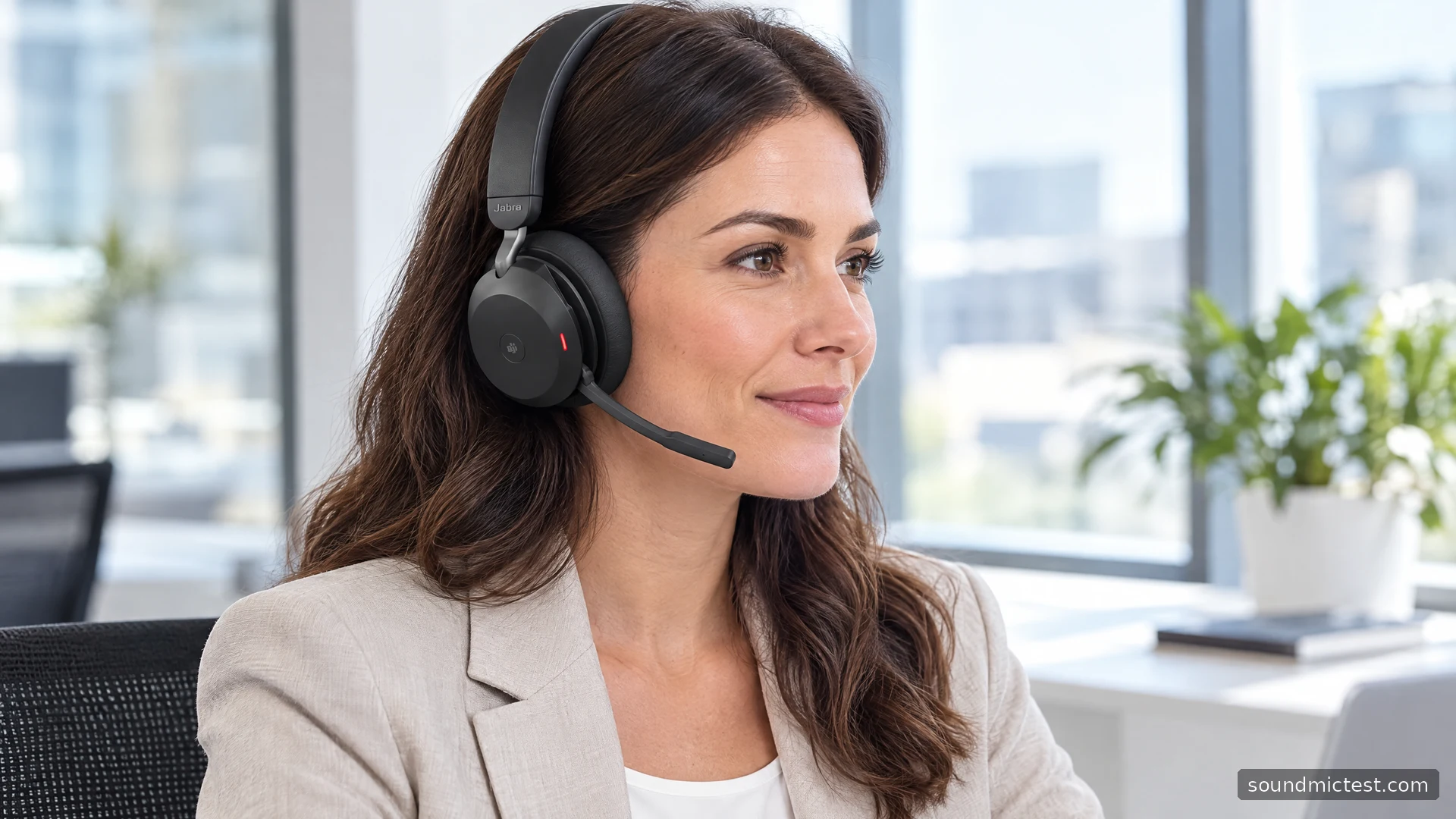
The manual describes raising the boom and then pressing the Voice button to use the earcup microphones instead. On Teams variants, this functionality first needs enabling in Jabra's software. Lowering the boom restores the boom microphone path.
This distinction is worth learning before a sensitive conversation. Raising the arm normally participates in the mute behavior, but a deliberately enabled alternate microphone mode changes what you should expect next. Use the app's mute indicator and a quick functional check rather than treating the arm position as a universal privacy guarantee.
For an important call, start with the boom lowered and correctly positioned. Jabra recommends that path for microphone performance. Whether discreet mode is adequate for your particular room is something to check with a recording, not something that can be inferred from the product image.
Make two short recordings instead of guessing
Open the microphone test and select the Jabra device. With the boom lowered, speak at your normal meeting level and confirm that input is present. Then use the voice recorder test to capture a fixed sentence followed by a quiet pause.
Repeat in the alternate microphone mode only if you plan to use it. Keep your seat, speaking level and background conditions similar. Compare intelligibility, breath noise and how clearly soft endings of words survive. You do not need a laboratory score to decide which configuration is more useful for your own calls.
If the application applies automatic gain or noise suppression, note that before comparing. Otherwise you may attribute an app's processing to the headset. Avoid enabling multiple suppression systems at once just because each one has a promising name.
ANC, HearThrough and on-head detection
The Sound modes button switches between ANC and HearThrough; holding it for about a second turns those sound modes off. Begin with the headset fitted properly and compare at a steady listening level. Raising the playback volume during the comparison makes it harder to distinguish noise control from simple masking.
On-head detection can pause music, affect call mute and control indicator behavior. These actions are configurable in Jabra Direct or Sound+. If the headset appears to pause unexpectedly when you lift an earcup, inspect those settings before assuming a wireless fault.
Automatic behavior is useful only when it matches your habits. Someone who frequently lifts one cup to speak to a colleague may want a different configuration from someone who leaves the headset on throughout a meeting. Test your usual gestures before a live presentation.
Battery planning and troubleshooting
Jabra advertises up to 36 hours of battery life, but a headline maximum should not be treated as continuous meeting time with every feature active. The same product family supports different listening and call conditions. Plan around your actual settings, session length and battery age.
If a call goes silent, first check the selected input, app mute, boom mode and on-head behavior. If audio fails only when a phone is also connected, disconnect the phone temporarily and repeat the computer test. If the adapter is not recognized, try a direct USB port and use Jabra Direct to inspect the connection.
For the stereo playback path, our stereo test can confirm left/right routing. It cannot measure ANC strength or certify call quality. Use it as one small diagnostic step rather than a score for the whole headset.
Who benefits from the extra controls?
The Evolve2 75 is a sensible candidate for someone who moves between focused listening, conversations in the room and frequent calls. Its configurable microphone and sensor behavior reward a little setup time. If you want the simplest possible connection, a basic wired headset may be easier to manage.
Choose the exact bundle for your computer ports and meeting platform, then save a tested everyday configuration. The strongest reason to buy this model is a set of controls you will use deliberately, not the expectation that more automation always means fewer decisions.