Office Headsets
Jabra Evolve2 65: Pairing, Busylight and Microphone Setup
Connect Evolve2 65 to a computer and phone, configure its boom mute and busylight, and understand passive isolation and battery claims.

Emma Bennett is an editorial pen name for microphone and voice-recording coverage at Sound Mic Test. This byline covers microphone features, recording setups and practical considerations for calls, streaming and spoken-word audio.
Sound Mic Test editorial pen name.
emma.bennett@soundmictest.com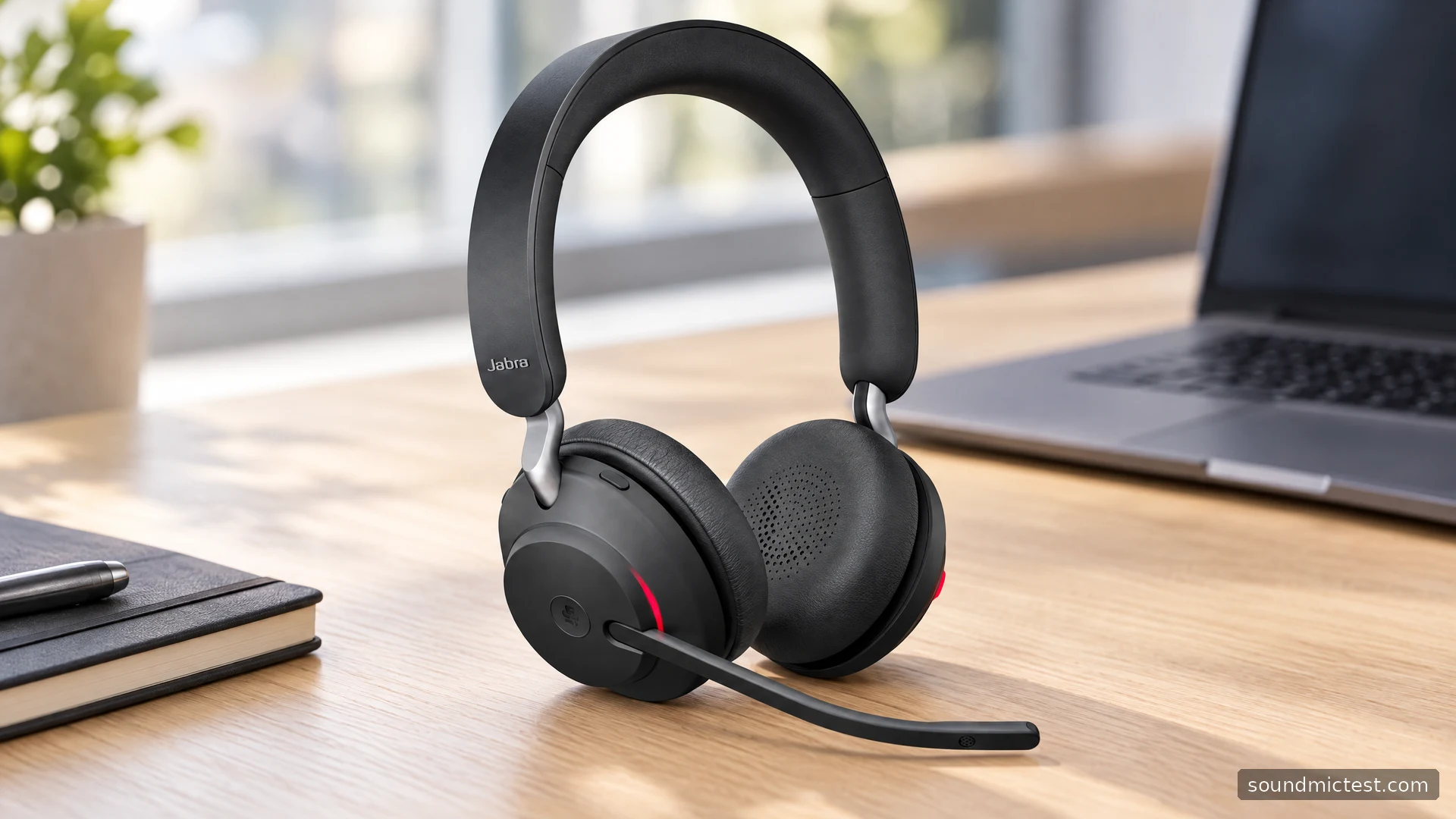
The Jabra Evolve2 65 is an office headset for people whose working day moves between a computer and a phone. Its appeal is less about spectacular feature names than about keeping everyday controls within reach: a microphone arm, physical volume buttons and a visible busy indicator. If those controls fit your routine, they can matter more than another music preset.
There are several similarly named products, so check the box carefully. This guide covers the original Evolve2 65, including its mono and stereo configurations, not the older Evolve 65 or the folding Evolve2 65 Flex. It is a documentation-based assessment of features and setup, without invented call recordings or claims of wearing comfort from an unperformed test.
What makes it an office headset?
Jabra lists three microphones, 40mm speakers and passive noise isolation for the Evolve2 65. Its product specifications explicitly list no active noise cancellation. That distinction matters when a retailer uses a broad phrase such as noise canceling: microphone processing and cushion isolation are not the same as electronic cancellation at your ears.
The same specifications separate up to 37 hours of music from talk-time claims of up to 35 hours with the busylight off and 24 hours with it on. Those are manufacturer estimates, not interchangeable all-day guarantees. For a meeting-heavy job, the call figure and your indicator settings are more relevant than the largest number on the page.
Choose mono if keeping one ear physically open is a priority. Choose stereo if you want both ears covered for listening and meetings. Neither choice alone proves that the microphone is better. The right configuration depends on how often you need to hear colleagues or the room while working.
Connect the computer through the supplied adapter
The original user manual describes a pre-paired Jabra Link 380 adapter. Plug that into the computer and select it as the audio device in both the operating system and your meeting application. Check the actual adapter supplied with your SKU, since packaging and accessory options deserve their own verification.
The USB-A or USB-C choice describes the adapter's computer connector. It does not mean that the headset has two different analog plugs. If your laptop only has the other connector type, account for that before the first meeting rather than discovering the mismatch after joining.
A reliable starting sequence is to connect one computer, play a short spoken clip and make a microphone sample. Only add a second device after that basic path works. This avoids confusing a phone connection taking priority with a failed computer setup.
Pair a phone and understand multiuse
Move the power switch to the Bluetooth pairing position and hold it until the blue indicator and spoken prompt confirm pairing mode. Select Jabra Evolve2 65 in the phone's Bluetooth list. The manual allows two simultaneous Bluetooth connections, such as the Link adapter and a phone, but that should not be read as a promise to mix every audio source continuously.
Test the transition with an ordinary call before depending on it. Play something on the computer, place a short phone call and check where the headset routes the audio. Afterwards, verify that the meeting app still uses the intended input and output.
If pairing seems to work but playback goes elsewhere, look at the phone's audio destination. If the computer works alone but becomes unpredictable with the phone nearby, temporarily disconnect the phone and retest. That simple separation is more informative than immediately clearing the entire pairing list.

Learn the microphone arm before trusting mute
By default, raising the microphone arm mutes and lowering it unmutes; moving it down can also answer an incoming call. Jabra lets these behaviors be changed through its software. A shared or previously configured headset therefore deserves a quick settings check rather than blind reliance on its factory behavior.
Place the microphone near the corner of your mouth, then open the microphone test. Select the Jabra input, speak normally and raise the arm. Confirm that the expected mute action actually happens with your configuration and app.
For sound quality, use the voice recorder test to capture a sentence, a pause and some typing. Listen for clipped peaks, breath noise and words that disappear when you speak softly. Make one adjustment at a time. Moving a microphone closer can be more useful than increasing gain across the whole room.
Busylight and sidetone have different audiences
The busylight tells other people that you are occupied. Sidetone lets you hear some of your own microphone locally. Neither feature is a measurement of what the remote listener hears, and neither substitutes for the meeting application's actual mute state.
Jabra documents a simultaneous press of both volume buttons for manually toggling the busylight. That makes it useful during concentrated work as well as calls. It works best when colleagues know what the light means; an indicator cannot enforce a quiet room by itself.
Adjust sidetone to a level that makes your own speaking volume easy to judge. If it is too prominent, you may hear more of the room than expected and mistake that local monitoring for outgoing microphone noise. Compare with a recording before changing several noise-processing settings.
Charging and maintenance without surprises
The headset charges through USB-C or an optional compatible charging stand. Confirm whether a stand is included rather than treating a photograph of a bundle as the contents of every box. A regular charging place is especially useful when the headset moves between home and office.
Jabra Direct on a computer and Sound+ on a phone provide supported configuration and update routes. Make updates between meetings, then repeat a short call check. On a managed work computer, use the deployment method your organization supports instead of installing unrelated driver packages.
Who should shortlist it?
The Evolve2 65 makes sense for a computer-and-phone workflow where physical call controls and a visible busy signal are valuable. It is less compelling if the main requirement is active noise cancellation or a passive 3.5mm connection.
Check the headset variant, adapter connector, included accessories and return terms together. For the stereo version, a quick left/right test can confirm basic routing after setup. The best configuration is the one that makes your daily meeting routine predictable, rather than the one with the longest unchecked feature list.