Office Headsets
Jabra Evolve 65: Bluetooth, USB Audio and Microphone Controls
Set up the original Evolve 65 with a computer and phone, check wired USB audio support and learn its microphone and busylight controls.

Emma Bennett is an editorial pen name for microphone and voice-recording coverage at Sound Mic Test. This byline covers microphone features, recording setups and practical considerations for calls, streaming and spoken-word audio.
Sound Mic Test editorial pen name.
emma.bennett@soundmictest.com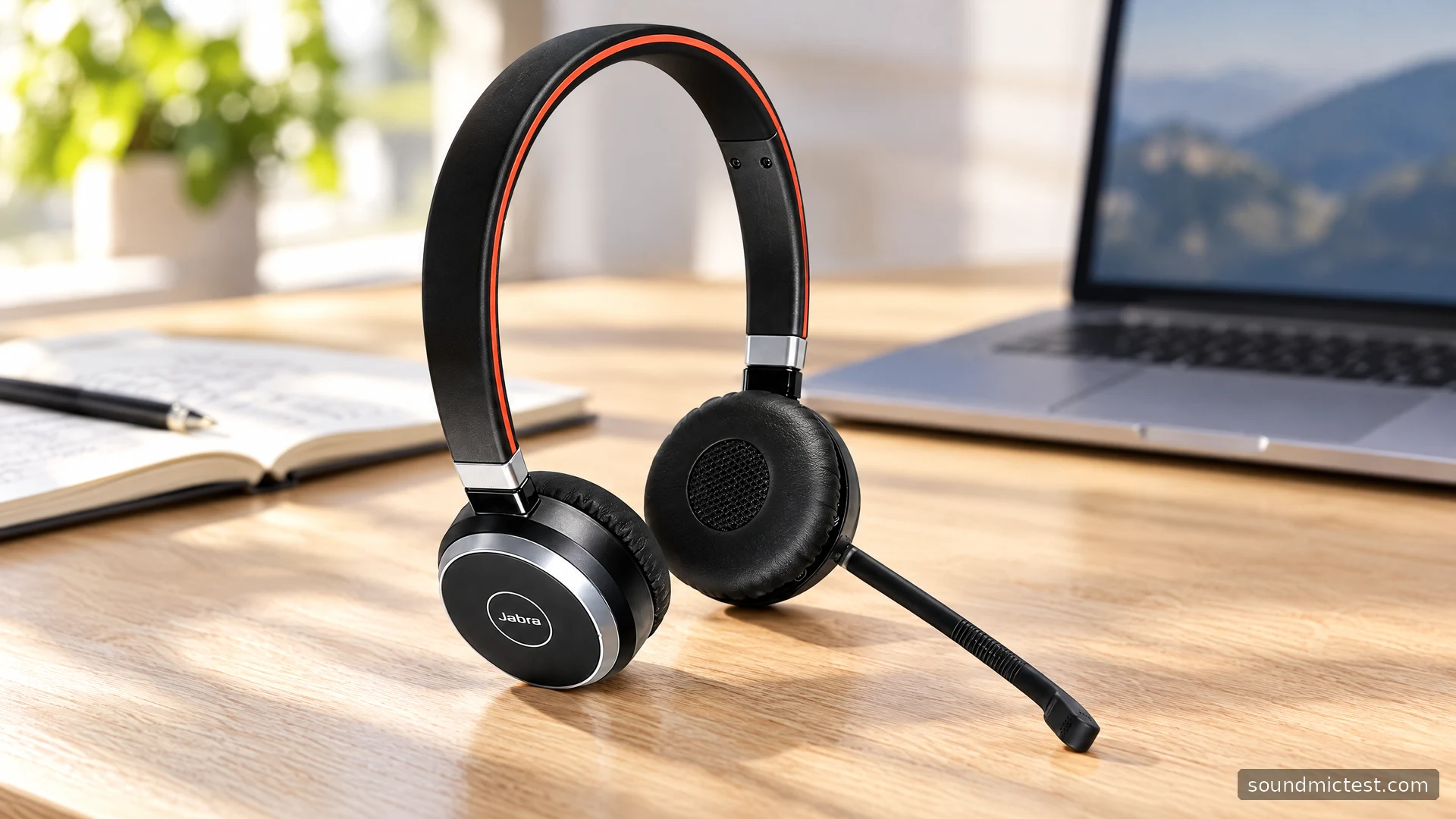
The original Jabra Evolve 65 is an office headset whose value depends on knowing exactly which version and accessories you have. It can work with a computer adapter and a Bluetooth phone, and supported firmware adds a wired USB audio route. That makes it more adaptable than its age might suggest, but it also explains why an old manual, a newer listing and a second-hand unit may not describe the same package.
This guide covers the original Evolve 65, with the Link 370 configuration described in Jabra's Rev E manual. It does not borrow the Evolve2 65's battery specifications, microphone-arm controls or charging design. The review is based on documented features and setup implications, rather than invented experience with a review sample.
Identify the headset and adapter first
Look for the full product name, mono or stereo configuration, adapter model and charging connection. A listing that says only Jabra 65 is not specific enough. If buying used, ask for a clear photograph of the adapter and charging port alongside the headset.
The original design has a narrow headband, small on-ear cups and a long microphone boom. That layout is intended to keep a microphone near your mouth without the bulk of a large gaming headset. Whether its pads remain comfortable for your ears is still something to evaluate personally, particularly on an older unit with compressed cushions.
The mono option leaves one ear open. The stereo option covers both ears and can serve music as well as calls. Choose around the room and your work, not around the assumption that stereo automatically improves outgoing speech.
Set up the computer connection
Jabra's Rev E user manual, mirrored by Extera Direct, describes switching on the headset and plugging its pre-paired Link 370 into the computer. Select that device for playback and recording in both the operating system and the calling application.
A computer can send sound to the headset while retaining a webcam microphone as its input. Check both fields explicitly. If the adapter has been replaced or paired with another headset, use Jabra Direct's supported pairing workflow rather than assuming the original factory association still exists.
Begin with one computer and one application. Play speech at a low level, then make a microphone sample. Once that path works, add your phone. Separating the two stages makes it easier to identify whether an unexpected interruption comes from pairing, device priority or the meeting application's settings.
Pair a phone through the connection switch
Hold the power/connect switch in the connect position for about three seconds until the blue indicator and spoken instructions confirm pairing. Select Evolve 65 in the phone's Bluetooth menu. Keep the phone close during setup and remove an obsolete pairing entry if repeated reconnection attempts fail.
When switching devices, check the destination shown on the phone during a call. A successful pairing entry does not guarantee that every app has chosen the headset for its next conversation. Likewise, an incoming call can change which source needs your attention.
Practice your normal sequence once: computer meeting, phone call, then computer audio again. If something fails, temporarily disconnect one device and retest the other. That gives you a much clearer diagnosis than changing the headset, computer and phone settings simultaneously.

USB audio is a firmware-dependent feature worth checking
Jabra's Evolve 65 release history records the addition of wired USB audio in firmware 2.37.0. The Rev E manual also describes connecting the powered-on headset to a PC with the supplied USB cable. An older firmware installation therefore deserves attention before you conclude that USB only charges the headset.
Use Jabra Direct to inspect the supported firmware and settings. Connect with a suitable data-capable cable, select the resulting audio device and test it before relying on the wired route. A charge light alone proves that power is arriving, not that the computer has established an audio connection.
For an older work-issued headset, coordinate updates with the supported IT process. Make configuration changes between calls and retest afterwards. The useful outcome is a known working fallback, rather than an update performed hurriedly during a meeting.
Mute is not the same as storing the microphone
The manual documents holding Volume down for roughly two seconds to mute or unmute. It also describes storing the boom against the headband. Do not import a flip-to-mute assumption from the newer Evolve2 models: storage and mute are separate concepts on this headset.
Position the microphone close to the corner of your mouth, respecting its rotation limit rather than twisting it freely. Open the microphone test, select the Jabra input and verify the mute action. A local status indicator and the application may each need checking.
For a better voice assessment, use the voice recorder test. Capture a normal sentence, a quiet pause and some typing. Reposition the microphone if breath or room noise dominates, then make another sample. High input gain should not be the automatic answer to a poorly positioned boom.
Busylight, charging and practical ownership
Pressing both volume buttons together toggles the busylight manually. That lets it signal focused work as well as calls. Make sure colleagues understand the signal, and remember that it is not a microphone-mute confirmation.
The manual gives an approximate three-hour charging time and allows calls while charging from a PC. Battery condition on a used unit may matter more than an original headline endurance claim. Test whether it comfortably covers your actual meeting schedule and make charging part of a consistent routine.
If one side of the stereo version seems wrong, use the stereo test to check routing before treating it as a driver problem. For intermittent computer recognition, try a direct USB port and distinguish the adapter route from the wired cable route during troubleshooting.
Who should consider the original Evolve 65?
It remains a practical candidate when you have a complete working kit and want straightforward office calls with computer and phone access. Its limitations are the ones to assess honestly: older battery condition, accessory completeness and the exact firmware-dependent behavior of your unit.
Choose it for a verified workflow and an appropriate price, not because a listing combines specifications from several Jabra generations. A short pairing, microphone and USB check can establish more about a used headset's usefulness than a long list of borrowed features.