Headphones
Bose QuietComfort Ultra: First-Gen Features and Setup Guide
Understand first-generation Bose QuietComfort Ultra controls, Immersive Audio, pairing and powered analog audio before choosing or setting up a pair.
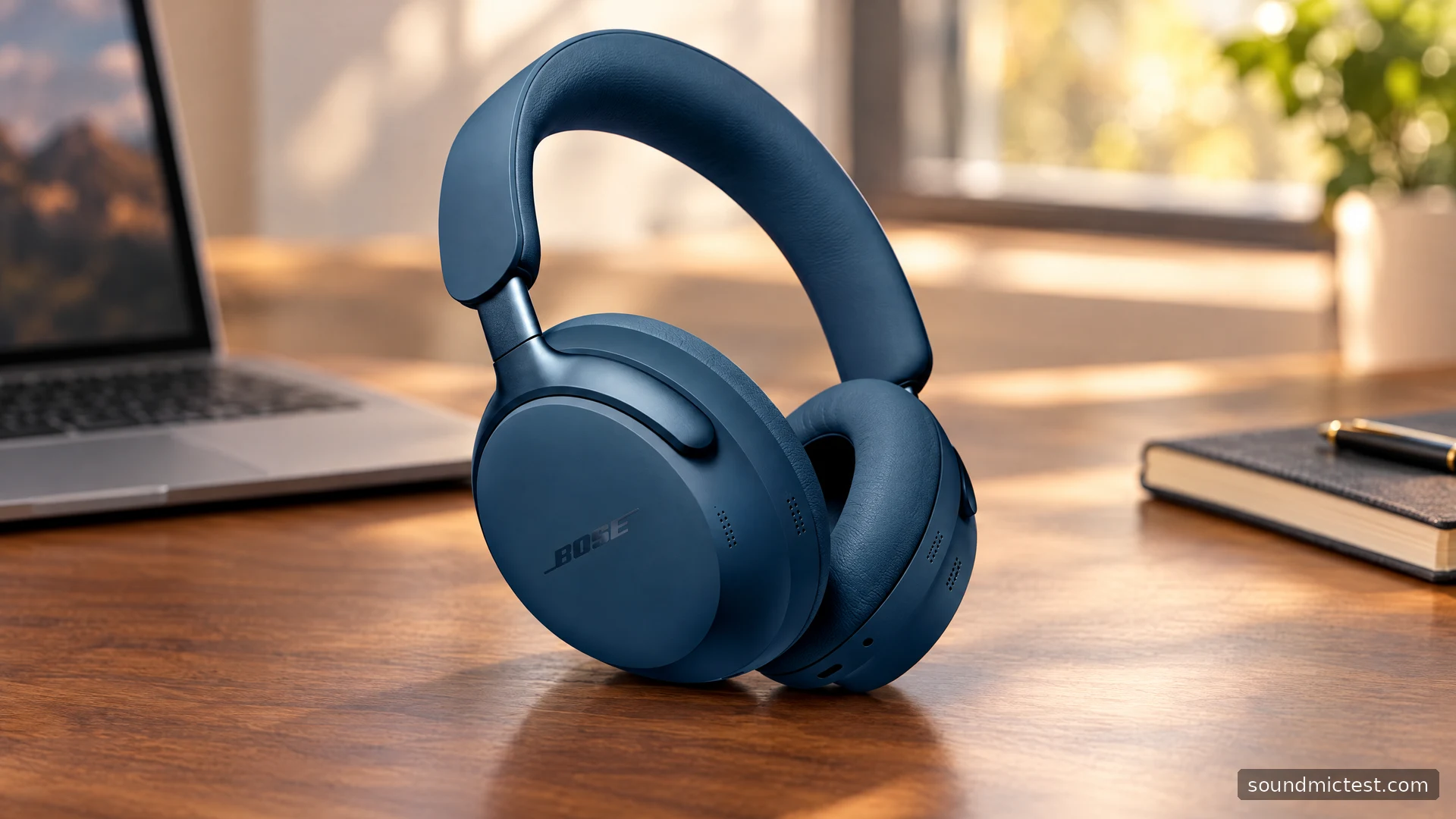
The first-generation Bose QuietComfort Ultra Headphones combine adjustable noise behavior with Bose's Immersive Audio processing. They are a candidate for someone who wants a flexible wireless listening setup and is interested in experimenting with spatial presentation. The important limitation is in the cable connection: this original model is not a USB audio headset, and its analog input still requires power.
This guide covers the original QuietComfort Ultra Headphones, not the second generation. It draws on Bose's product documentation and owner manual. The discussion explains features and practical consequences without pretending that a manufacturer claim is an independent listening or battery test.
Quiet, Aware and Immersion do different things
Bose's original-model product page describes Quiet and Aware listening alongside Immersive Audio. Quiet prioritizes noise cancellation; Aware lets in surrounding sound. Immersive Audio changes the presentation of playback rather than simply changing how much external sound you hear.
Bose quotes up to 24 hours with Immersive Audio off and up to 18 hours with it on. The published test conditions include a 75 dB playback level, flat three-band EQ and Quiet mode. These are manufacturer results under those conditions, not a forecast for every combination of calls, volume and processing.
| Priority | Setting or limitation to consider |
|---|---|
| Fewer distractions | Quiet mode |
| More awareness of the room | Aware mode |
| Spatial presentation | Try Immersive Audio separately from ordinary stereo |
| Longer time between charges | Compare the claim with Immersive Audio disabled |
| Wired use after battery depletion | External power is still needed |
Begin with ordinary stereo and a familiar recording. Then compare the immersive setting at the same volume. You may prefer one presentation for a film and another for a closely miked vocal. There is no need to force a single setting onto every type of material.
Pairing and device switching
The owner's manual explains holding the Bluetooth/Power button until the connection prompt and blue flashing light, then choosing the headphones on the source. Continue past the initial power-off indication when deliberately entering pairing mode; releasing at the wrong stage performs a different action.
Bose added multipoint support to this model through a software update. Keep its software current through the Bose app before judging an older pair's device-switching behavior. A launch-era description may not represent the functions available after updates.
For a phone-and-laptop setup, pause the first source before starting the second. If a source continues to interrupt, check its open apps and notifications. Temporarily using just one source is a useful diagnostic step because it separates a basic connection problem from a switching problem.
Learn the volume strip and shortcut
Playback uses a multifunction button, while volume uses a touch strip. Swipe the strip to adjust level. The app can assign a shortcut to a touch-and-hold action. Choose a function that you actually want to reach quickly, then practice it with the app visible so you can confirm what happens.
Avoid making your first experiment during a meeting. Familiarity with the controls is particularly useful when the same hand is reaching for volume, playback and mode changes. A few deliberate tries are more useful than memorizing an entire feature list and discovering that one gesture feels awkward for you.
If playback stops while adjusting the fit, check whether the player has paused or the audio has merely become silent. Automatic wearing detection and output-routing issues call for different investigations. Keeping that distinction in mind prevents unnecessary pairing resets.
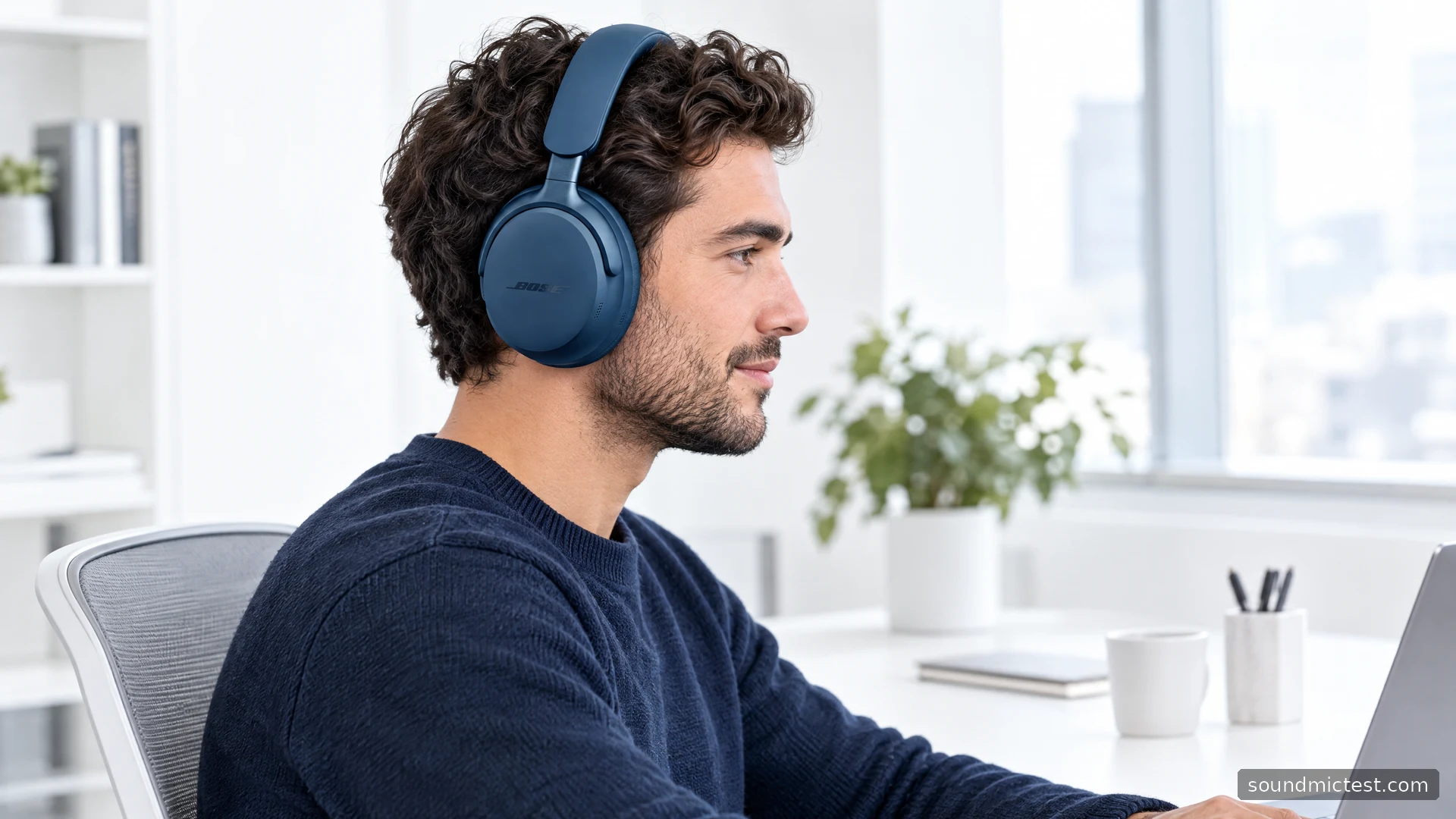
Why the original Ultra needs power for wired audio
The manual explicitly states that analog listening requires the headphones to be powered on. It also states that the original model does not support USB audio. With a depleted battery, USB can provide external power, but audio must still arrive through Bluetooth or the analog cable. Earcup microphone pickup and Bluetooth are disabled when the analog audio lead is connected.
That is a consequential travel detail. If your backup plan is an aircraft entertainment socket, pack the correct audio lead and plan for power as well. Do not assume that plugging in an analog cable turns every active wireless headphone into a passive pair.
At a desk, separate your listening and recording paths. After changing connection, run the microphone test and confirm which input is active. If you use a separate USB microphone, select it explicitly in the meeting app. A headphone cable that carries playback does not automatically carry your voice back to the computer.
A practical way to evaluate the settings
Keep the volume comfortable and use the same material when comparing modes. First establish that both channels work through the stereo test. Then use music or dialogue to decide which presentation you prefer. A channel-routing tool cannot validate claims about spatial accuracy or noise-canceling strength.
Check comfort over the sort of session you actually expect to have. Adjust the headband, confirm that the cushions sit around the ears, and consider your glasses. If you are shopping second-hand, examine the pads and hinges and ask about charging and battery behavior rather than relying on cosmetic condition alone.
The original QuietComfort Ultra suits someone who values configurable wireless listening and wants to try Bose's immersive presentation. It is a weaker match for someone whose main requirement is simple USB audio or passive listening with an empty battery. Resolve those requirements first, then decide whether the app controls and fit make this particular model worthwhile.

About the author
James CarterHeadphones & Personal Audio
James Carter is an editorial pen name for Sound Mic Test's headphone coverage. Articles under this byline focus on comfort, isolation, connectivity and the everyday trade-offs between different headphone designs.
Sound Mic Test editorial pen name.
james.carter@soundmictest.com