Office Headsets
Logitech Zone Vibe 100: Bluetooth Pairing, Mute and Call Setup
Pair Zone Vibe 100 with a computer and phone, check its mute controls, adjust sidetone and understand charging and device switching.

Emma Bennett is an editorial pen name for microphone and voice-recording coverage at Sound Mic Test. This byline covers microphone features, recording setups and practical considerations for calls, streaming and spoken-word audio.
Sound Mic Test editorial pen name.
emma.bennett@soundmictest.com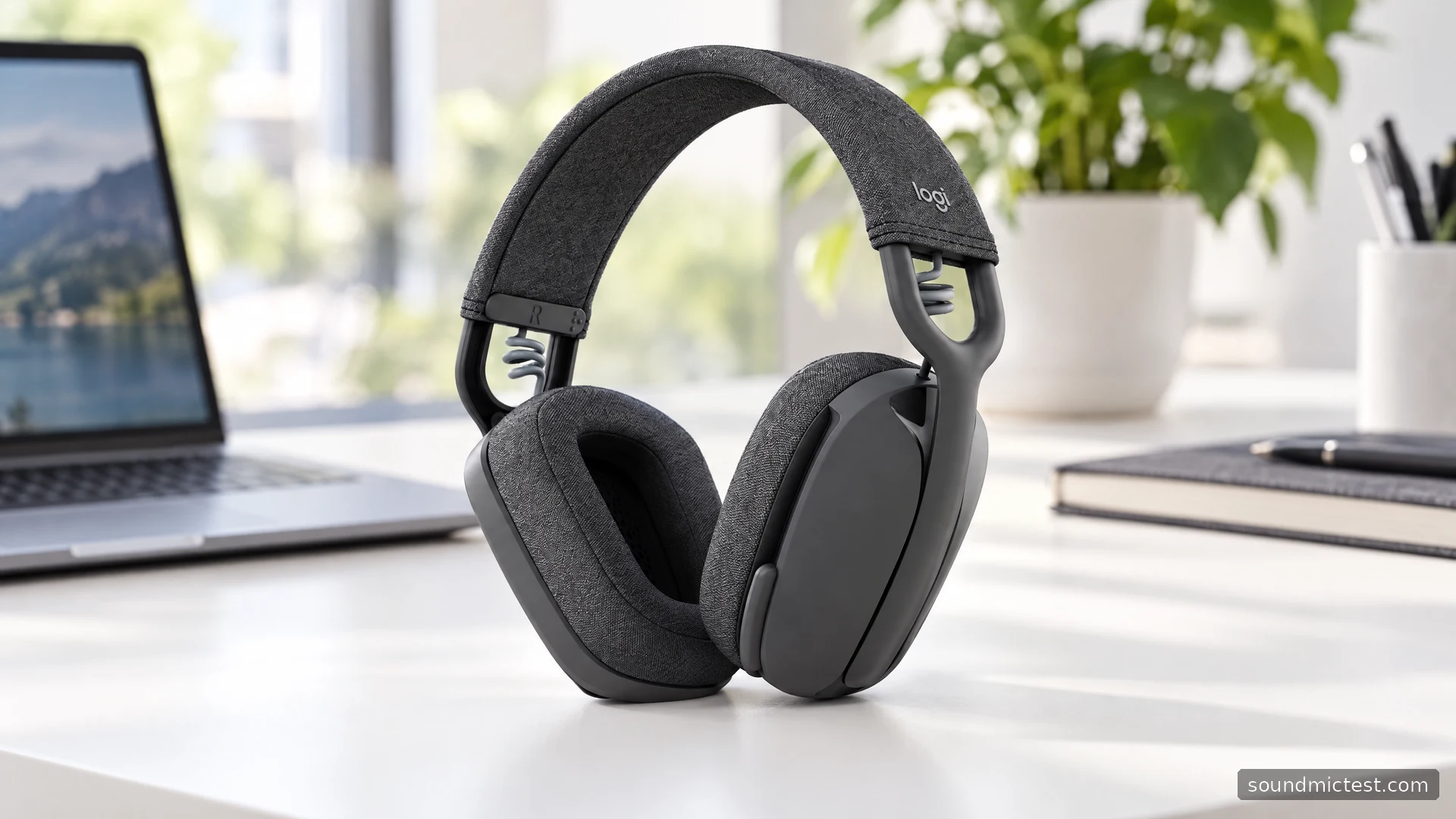
The Logitech Zone Vibe 100 aims at the space between an office headset and everyday wireless headphones. It has an over-ear design, a microphone that folds away and Bluetooth for computers and phones. That makes it attractive for a home desk where meetings and music share the same headset, provided the devices you use have a suitable Bluetooth connection.
The number matters. This guide covers Zone Vibe 100, whose documented package contains the headset, charging cable and travel bag. Do not assume it includes the USB receiver or every feature of another Zone Vibe model. This is a research-based feature review and setup guide, not a report of measured battery endurance or microphone performance.
Bluetooth is the central connection
The Zone Vibe 100 setup guide describes Bluetooth pairing with compatible computers and mobile devices. Slide the switch to its pairing position and hold it for about two seconds. When the indicator flashes rapidly, select Logi Zone Vibe 100 in the device's Bluetooth list.
After pairing, choose the headset as both the input and output in your meeting application. A successful Bluetooth connection does not guarantee that a browser, desktop app and operating system have all selected the same devices. Check them explicitly before your first call.
If a computer lacks a working Bluetooth path, the charging cable is not a substitute for researching compatibility. The manual describes using the headset over Bluetooth while it charges. Treat that as a wireless audio connection receiving power, rather than assuming the USB cable has turned the headset into a wired USB audio device.
Two connected devices do not make an unrestricted mixer
Logitech documents support for two connected Bluetooth devices and gives call activity priority. The last active device can take over from the other. This is helpful for moving between a laptop and a phone, but it can also explain why computer music suddenly pauses or changes when the phone becomes active.
Set up one device first, test audio and microphone operation, then add the second. Practice the sequence you actually need: play a computer clip, take a short phone call and return to the computer. Check the audio destination after each transition.
If a meeting keeps losing its preferred route, temporarily disconnect the second device. If that resolves the issue, focus on device switching and app behavior rather than resetting everything. A pairing list can look healthy while an unexpected device is still claiming the active audio session.
Fit and the microphone arm
Logitech's product page describes 40mm speakers and a boom that tucks away for listening. The fabric-covered design looks less like a traditional call-center headset, but appearance does not establish comfort or isolation for every head.
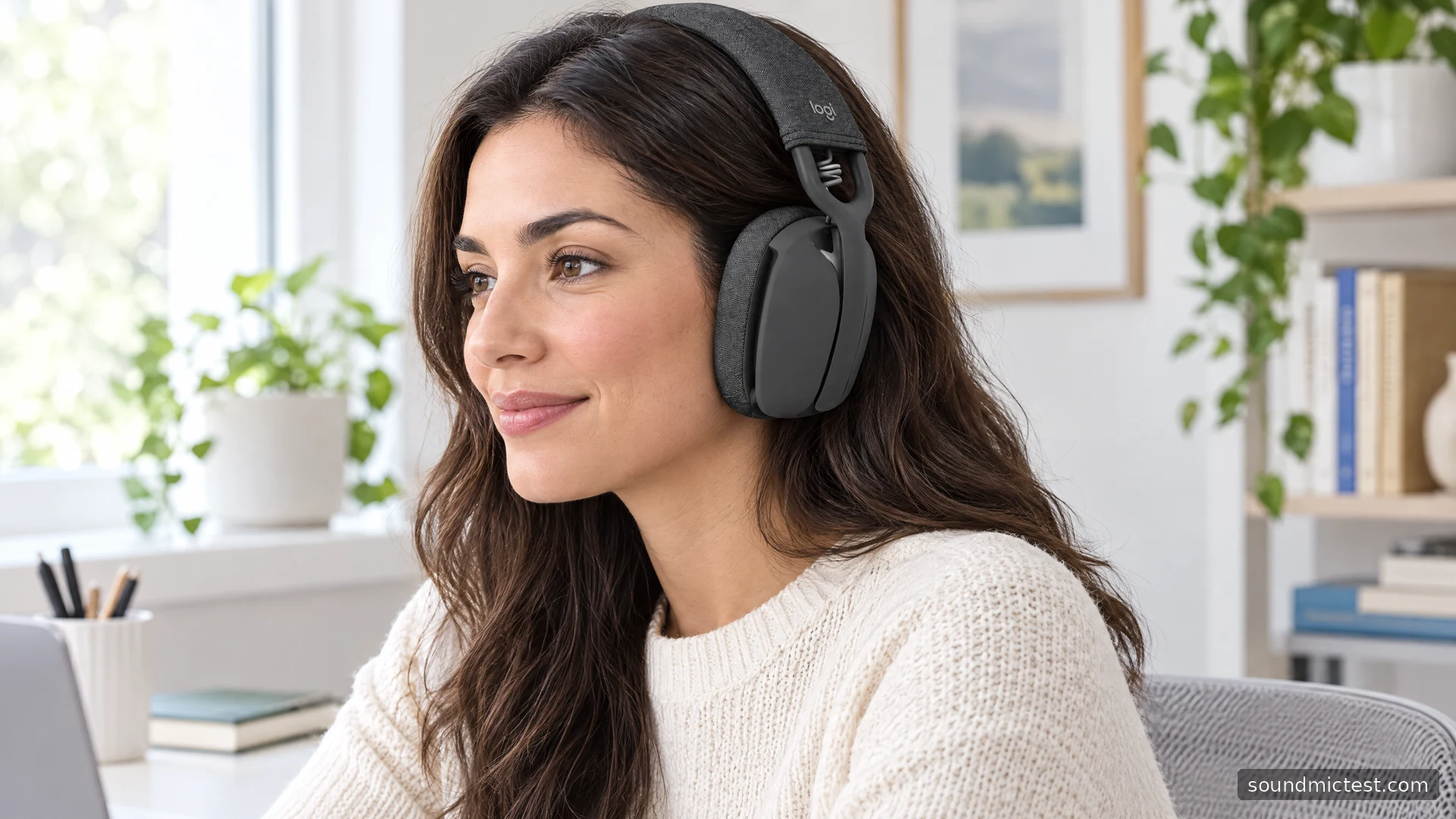
Adjust the earcups along the headband until the cushions sit around your ears without needing to force the band downward. Check the fit with any glasses you normally wear. If one cushion is pushed away from your head, correct that before judging the sound or changing EQ.
Lower the boom when you need the microphone. The guide provides two mute methods: the mute button and flipping the arm up. Spoken notifications identify mute changes. Test both controls with your actual application so their behavior is familiar before a meeting starts.
Check your voice before changing processing
Open the microphone test, select Zone Vibe 100 and speak at an ordinary level. Toggle mute and verify that the meter follows the expected state. If it does not, check whether the computer is still listening through a built-in microphone.
Next, record a short passage using the voice recorder test. Include a pause and a few keystrokes. Listen for speech becoming harsh, clipped or hard to distinguish from the room. Repeat after one adjustment so that you can hear what changed.
Logi Tune offers sidetone adjustment. Sidetone lets you hear some of your own microphone locally, helping you judge how loudly you are speaking. It is not the same as the microphone level sent to another person. If room sounds seem prominent only in your own headphones, compare a recording before assuming the outgoing voice is equally noisy.
Music mode and call mode are different contexts
The manual lists different speaker bandwidth specifications for music and talk modes. That is a reason to evaluate each activity on its own terms. Do not judge the music experience solely while a communication app is holding the microphone open.
For listening, close the call session, play a familiar track and begin with a modest volume. For meetings, assess intelligibility and stability through the application you actually use. An impressive music setting is not automatically a better voice-call setting.
The stereo test can confirm left/right routing during basic playback. It does not measure wireless latency, microphone processing or frequency response. Use it to identify a simple routing mistake before drawing broader conclusions about sound quality.
Battery claims and the sleep timer
Logitech specifies up to 20 hours of listening or 18 hours of talk time in the guide. Those are manufacturer maxima for different activities, not a promise that every mixed workday lasts the same length. Volume, usage and battery condition affect the practical result.
The guide gives roughly two hours for a full charge and describes continued Bluetooth use while charging. It also sets an automatic power-off timer after 30 minutes without use, adjustable in Logi Tune. If the headset seems to have shut down between meetings, inspect that setting before treating it as a failed connection.
Make charging part of your desk routine and check the battery before a long presentation. A short pre-call check is easier than changing audio devices midway through a conversation.
Who should choose Zone Vibe 100?
Zone Vibe 100 is a sensible candidate for someone who wants a lightweight-looking over-ear design, a hide-away microphone and Bluetooth access to a computer and phone. It is less suitable if the main requirement is a supplied USB adapter or a documented wired audio fallback.
Verify the exact model and your computer's Bluetooth support, then test the switching behavior and microphone in your own room. Its strongest case is a comfortable, predictable work-and-listening routine with the devices you already use, rather than assumed features borrowed from the rest of the Zone range.